Camera Settings in PUBG Mobile: How to Enable, Toggle, and Zoom Out
The camera in PUBG Mobile affects your field of view, aiming, and how quickly you can look around. In the game, you can separately adjust camera sensitivity, free-look, and settings for different scopes. In this post, we’ll break down the main settings and values to use as a starting point.
How to Configure the Camera in PUBG Mobile
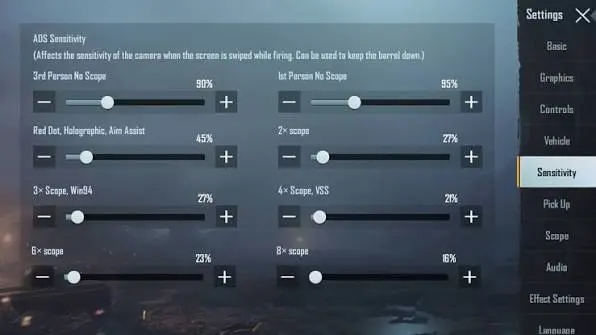
Open “Settings” and go to the “Sensitivity” section. Here you’ll find camera settings for unscoped shots, as well as sensitivity settings for the red dot sight, scopes with different magnifications, and other viewing modes.
There are no one-size-fits-all settings: the appropriate values depend on your screen size, control method, and whether you use the gyroscope. The tables below list average settings you can use as a starting point, which you can then adjust to suit your preferences.
| Parameter | Sensitivity |
| TPP without a sight | 100–110% |
| FPP without crosshairs | 50–60% |
| Red dot and holographic sights | 50–60% |
| 2x scope | 30–40% |
| 3x scope | 22–30% |
| 4x scope | 18–25% |
| 6x scope | 12–20% |
| 8x scope | 10–15% |
The field of view is adjusted separately. As default values, you can set it to around 120–140% for third-person view, 80–100% for first-person view, and 120–125% when skydiving. This setting controls the field of view around your character and does not replace the crosshair sensitivity.
Camera Sensitivity in PUBG Mobile
Camera sensitivity determines how fast the view moves when you swipe with your finger. The higher the value, the faster the camera rotates. Too high a sensitivity makes precise aiming difficult, while too low a sensitivity makes it hard to turn quickly and track enemies. For playing without the gyroscope, you can start with the following settings:
| Parameter | Sensitivity |
| TPP without crosshairs | 120% |
| FPP without crosshairs | 100% |
| Red dot and holographic sights | 50% |
| 2x scope | 30% |
| 3x scope | 22% |
| 4x Scope | 18% |
| 6x scope | 14% |
| 8x scope | 10% |
It’s worth adjusting the ADS separately. The camera’s default sensitivity controls the field of view, while the ADS controls the crosshair’s movement while firing. If the weapon kicks up significantly when held down, you can slightly adjust the ADS for the scope you’re using.
If you’re using a gyroscope, the setup is different: its sensitivity is usually much higher. Typically, for TPP/FPP without a scope, use about 300%; for a red dot sight, 280–300%; for a 2x scope, about 250%; for a 3x scope—180–200%, for a 4x scope—150–160%, for a 6x scope—about 100–120%, and for an 8x scope—80–100%.
How to Zoom Out the Camera in PUBG Mobile
There is no separate slider in PUBG Mobile that allows you to freely move the camera away from the character. You can increase the field of view by adjusting the camera’s FOV. The higher the value, the more of the environment fits on the screen, and the farther away the camera appears to be.
Open “Settings” > “Controls” > “Advanced Controls” and find the camera field of view setting for TPP or FPP. Move the slider to the right to widen your field of view. For the widest possible view, set it to the maximum available value.
Keep in mind that a high FOV makes characters and other objects in the distance appear smaller. If you find it harder to spot enemies after increasing the field of view, lower the value slightly. You should not use third-party programs or modify game files to further zoom out the camera.
How to Switch Camera Views in PUBG Mobile
PUBG Mobile offers two main camera modes: TPP (third-person), where your character is visible on the screen, and FPP (first-person). You can select your default mode before the match starts, but the game also allows you to switch to FPP directly during a match while in third-person mode.
To do this, go to “Settings” > “Controls” > “Advanced Controls” and enable the FPP toggle. After that, a perspective-switch button will appear on the game interface. Press it during a match to switch from third-person to first-person view. Pressing it again will return you to TPP. Official PUBG Mobile support confirms that you can use FPP Swap while playing in TPP.
In a match that was initially started in FPP mode, you cannot switch to TPP. This feature only works in the opposite direction—when playing in third-person view, you can temporarily switch to first-person view.
The camera won’t rotate in PUBG Mobile—what to do
If the camera in PUBG Mobile won’t rotate or stops moving when aiming, first check your control settings. Go to “Settings” > “Controls” > “Advanced Controls” and locate the camera rotation settings. Enable camera rotation while using ADS if you want to move the view by swiping your finger across the aim button.
If the camera isn’t responding at all, check the sensitivity: a value that’s too low or set to zero for TPP, FPP, or a specific scope will practically block camera movement. Revert to the default values or use the settings from the table above.
The problem may also be caused by the placement of the control buttons. If there is a large transparent button over the viewport, it may be intercepting your taps. Open the interface editor and check the layout of the elements. If that doesn’t help, restart PABG Mobile, reset the control settings, and install the latest version of the game.
Frequently Asked Questions (FAQ)
Откройте «Настройки» — «Чувствительность» и измените параметры камеры.
Включите переключение FPP и используйте кнопку смены вида в матче.
Увеличьте поле зрения — FOV.
Для начала попробуйте 120% для TPP и 100% для FPP.
Проверьте чувствительность и параметры вращения камеры в настройках управления.