How to download and update Brawl Stars from the App Store on an iPhone in Russia in 2026

For several years now, it has not been possible to download Brawl Stars from the Russian App Store through the usual channels. However, the iPhone version of the game is still available through the official Apple Store in other regions.
Here’s how to download Brawl Stars on an iPhone in Russia via the App Store and what to do when a new update for the game is released. Before installing, you should check your device’s compatibility. The latest version of Brawl Stars requires iOS 14.0 or later, and the app size in the App Store is about 2 GB. Russian is supported.
Why Brawl Stars Isn’t Available in the Russian App Store
The restriction is imposed by Supercell itself. On March 9, 2022, the developers announced that they were removing their games from app stores in Russia and Belarus. At the same time, the company also stopped new downloads for users in those countries. As a result, Brawl Stars does not appear in the App Store when using a Russian Apple ID.
It’s important to note that installing and launching Brawl Stars are two different things. An international App Store region allows you to download and update the game client, but Supercell also enforces regional restrictions for Russia and Belarus.
How to Download Brawl Stars on an iPhone in Russia
There are two main ways: create a separate international Apple ID or change the country in your existing one. The first option is more convenient, since it doesn’t require changing the region of your main account along with all its subscriptions and purchases.
Method 1. Create an international Apple ID
For Brawl Stars, it’s best to set up a separate account that will be used exclusively for the App Store. For example, you can select Kazakhstan—Brawl Stars is available in that region’s App Store.
You can create a new account through Apple’s official website:
- Go to the Apple Account Management website and select “Create a New Account.”
- Enter a separate email address that you have constant access to.
- Create a password and fill in the rest of the information.
- Select a country or region where Brawl Stars is available on the App Store.
- Enter your active phone number.
- Verify your email and phone number using the codes sent by Apple.
Russian phone numbers are officially supported by Apple’s two-factor authentication system, but sometimes the SMS with the code may not arrive. In that case, tap “Didn’t get the code?” and try requesting verification via a phone call. If you don’t receive either a text message or a call, check your filter for unknown senders and confirm with your mobile carrier that your number is set to receive international SMS messages.
Alternatively, you can use another phone number to which you have constant access, including an international number. Do not use one-time SMS services, rented numbers, or other people’s SIM cards, because this number becomes a trusted number and may be needed later to sign in to or recover your Apple ID.
Now you need to link the new account to the App Store. You don’t need to sign out of your main iCloud account to do this. Open the “Settings” app on your iPhone and tap your name at the top of the screen. Then select “Media & Purchases.” In the menu that appears, tap “Sign Out.” After that, open this section again, select “Sign In” with a different account, and enter the details of the foreign account you created. This only changes the account used for purchases and downloads. You do not need to sign out of iCloud or other Apple services to do this.
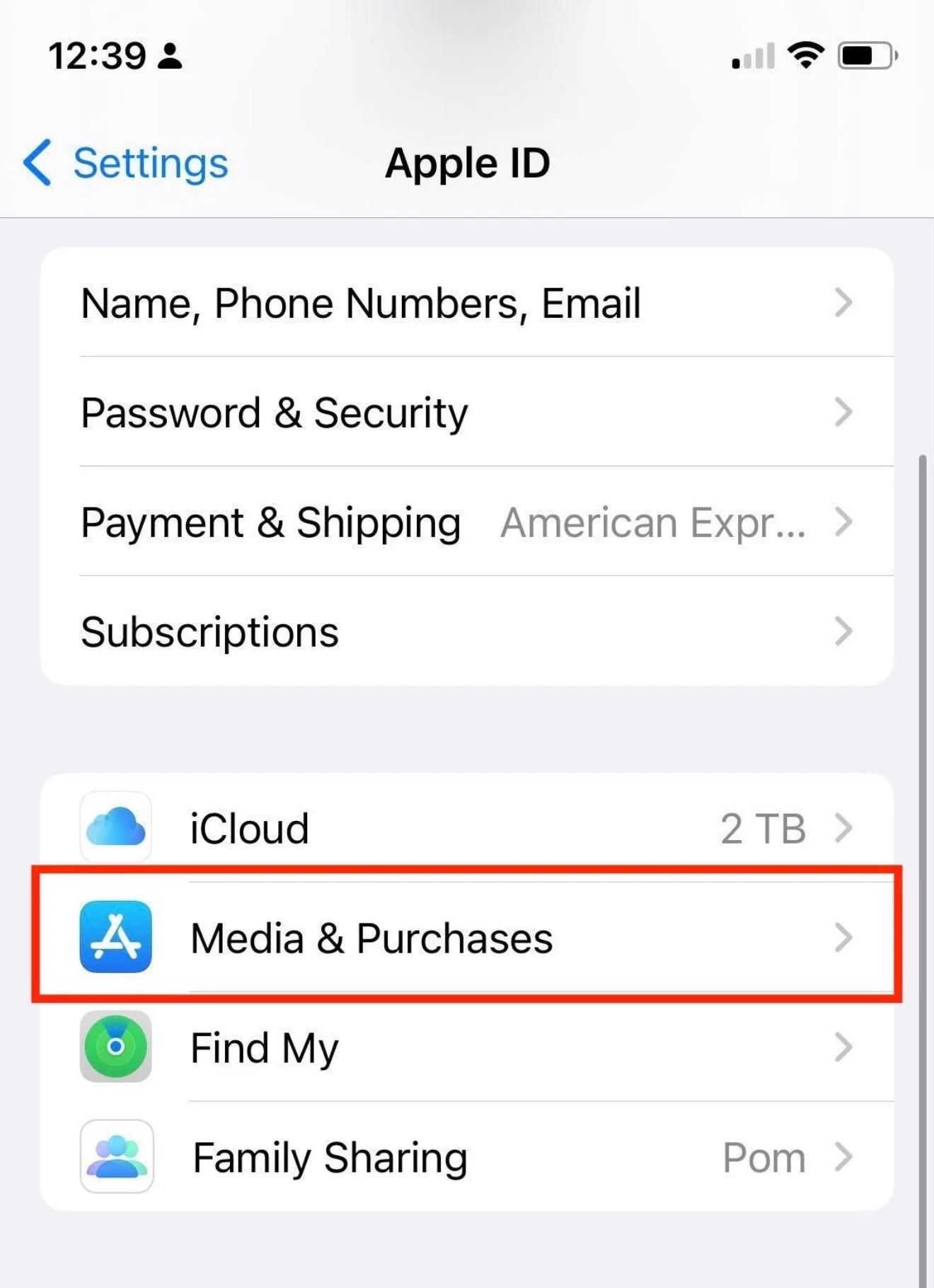
When you sign in for the first time, the App Store may ask you to complete your account setup, accept the terms of use, and add payment information. Follow Apple’s prompts. Do not enter fictitious payment details or addresses; it’s better to find real ones online.
After signing in:
- Open the App Store.
- Type “Brawl Stars” into the search bar.
- Make sure Supercell is listed as the developer.
- Tap the download button.
- Confirm the installation using Face ID, Touch ID, or your password.
- Wait for the download to finish.
If you wish, you can then log back into the “Media & Purchases” section using your Russian Apple ID. The app itself will not be deleted from your device. However, be sure to save the details of your foreign Apple ID—you’ll still need it for updates.
Do not use pre-made foreign Apple IDs found online. The original account remains under the control of its owner: the password and security settings can be changed at any time. Additionally, do not enter someone else’s login credentials in the main iCloud section on your iPhone. It’s much safer to create your own additional Apple ID for free and keep access to your email and phone number.
Method 2. Change the region of your current Apple ID
You can avoid creating a second account and change the country directly in your main Apple ID. However, this option isn’t suitable for everyone.
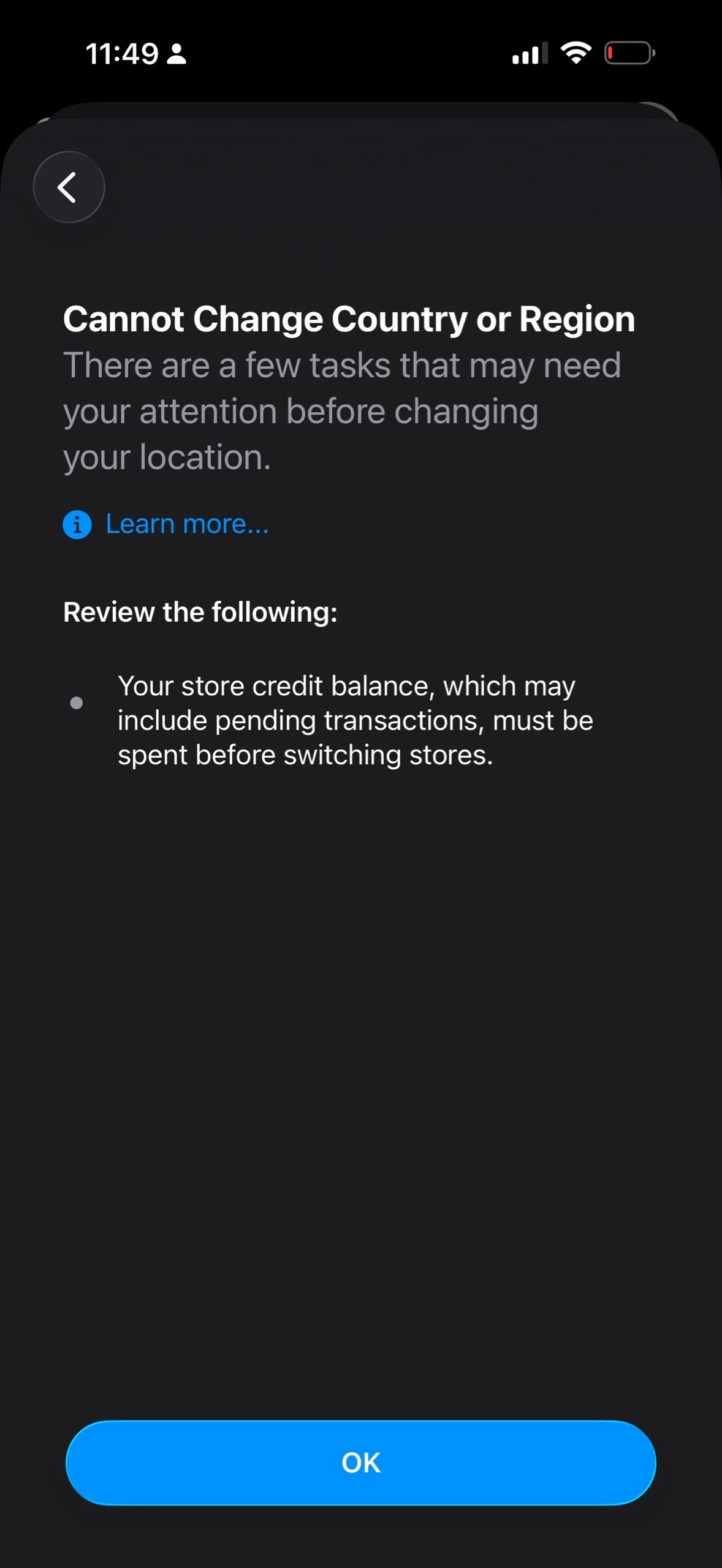
Before changing your region, Apple recommends using up any remaining balance in your account, managing your subscriptions, and waiting for any pending purchases, pre-orders, and returns to be completed. Family Sharing may also prevent you from changing your country. In some cases, you’ll need a valid payment method for the new region.
If there are no restrictions:
- Open “Settings.”
- Tap your name. Open your account settings.
- Tap “Country/Region.”
- Select a new country or region.
- Accept Apple's terms and conditions.
- Enter the required payment information (it’s best not to specify a payment method) and billing address.
- After changing your region, open the App Store.
- Find Brawl Stars and install the game.
Due to additional restrictions, this method is less convenient for users who already have subscriptions, a balance, and other purchases on their main account. A separate App Store account usually allows you to keep those intact.
How to Update Brawl Stars on an iPhone
Brawl Stars receives new updates regularly. The game will stop launching if you don’t have the latest version, so it’s best to install updates as soon as they’re released.
If you’re still using a foreign Apple ID in the “Media & Purchases” section, follow the same steps as with any other app—find Brawl Stars in the App Store and tap the “Update” button next to it. Apple also allows you to enable automatic installation of new versions through the App Store settings.
If, after installing Brawl Stars, you switched back to your Russian account in the “Media & Purchases” section, you’ll need to switch back to the foreign account used to download the game the next time an update is available. Open “Settings” and tap your name. Then select “Media & Purchases” and sign out of your account. After that, open this section again and sign in with your foreign Apple account. Then launch the App Store, find Brawl Stars, and install the available update. Once the update is complete, you can switch back to your Russian account if necessary.
Do not delete the foreign Apple account you created, and make sure you don’t lose access to its email address and phone number. You’ll need it after every major Brawl Stars update.
Frequently Asked Questions (FAQ)
Нет. Supercell удалила свои игры из российских и белорусских магазинов приложений в марте 2022 года. Для загрузки Brawl Stars через App Store нужна учётная запись другого региона.
Нет. Достаточно сменить учётную запись только в разделе «Медиаматериалы и покупки». Основной аккаунт iCloud, фотографии, контакты, iMessage и другие данные можно не трогать.
Подойдет страна, в App Store которой официально доступна игра. Например, Бравл Старс есть в казахстанском магазине приложений. Перед созданием учётной записи стоит убедиться, что вы сможете выполнить требования Apple для выбранного региона.
Войдите в раздел «Медиаматериалы и покупки» под тем иностранным Аккаунтом Apple, через который скачивали Бравл Старс. Затем откройте App Store, перейдите к обновлениям и нажмите «Обновить» рядом с игрой.
Да. После установки игры можно снова использовать российскую учётную запись в разделе «Медиаматериалы и покупки». Само приложение останется на iPhone. Однако иностранный аккаунт нужно сохранить — он потребуется, когда выйдет следующая версия Brawl Stars.