How to make a small crosshair and dot in CS 1.6

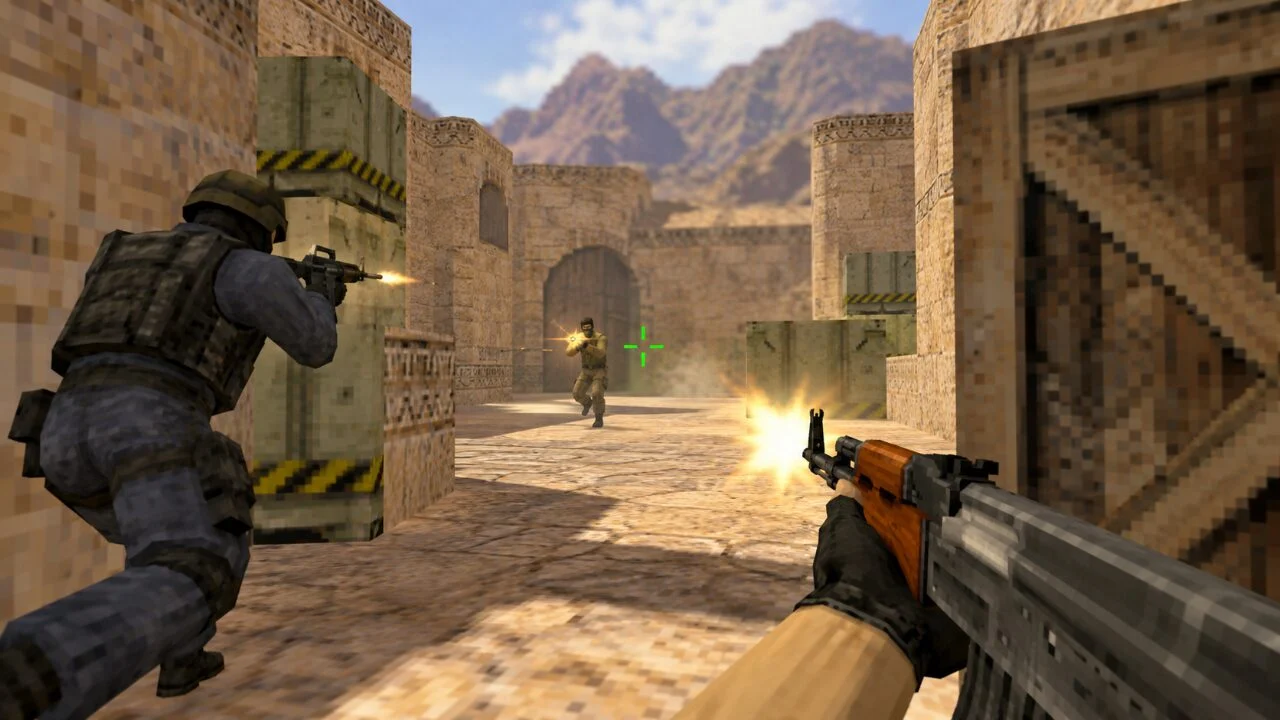
In Counter-Strike 1.6, you can shrink the standard crosshair, make it static, and change its color. However, the options in the older version of the game are significantly more limited than in CS2: you can’t flexibly adjust the length of the lines, the spacing, or the thickness here.
Because of this, it’s not possible to create a full-fledged single-dot crosshair using the standard tools in CS 1.6. However, you can shrink the standard crosshair to its minimum size and configure it to take up as little screen space as possible.
Let’s take a look at which commands are needed for this and why the same small crosshair can look different at various resolutions
How to Make a Small Crosshair in CS 1.6
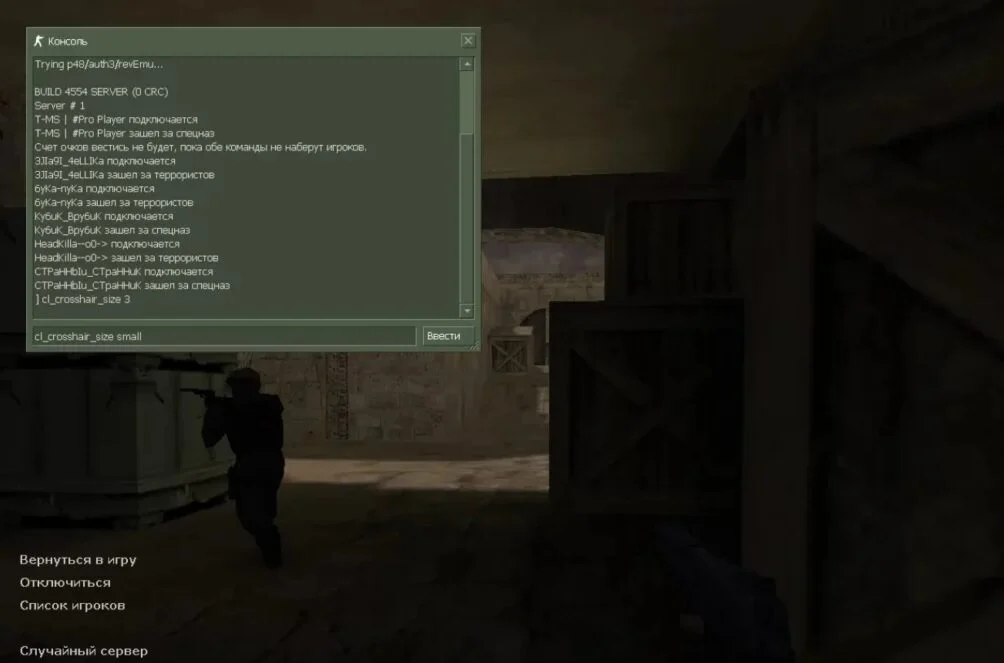
The easiest way is to use the console command:
cl_crosshair_size “small”
This sets the minimum standard crosshair size in Counter-Strike 1.6. Instead of the word “small,” you can also use the value “1.”
In total, the parameter has several main options:
| Command | Output |
|---|---|
| cl_crosshair_size “small” | small crosshair |
| cl_crosshair_size “medium” | medium crosshair |
| cl_crosshair_size “large” | large crosshair |
| cl_crosshair_size “auto” | automatic size |
The numerical values 1, 2, and 3 correspond to the small, medium, and large options.
To open the console, press the ~ key. If it doesn’t appear, go to the control settings, open the advanced keyboard options, and enable the developer console.
Then enter the command and press Enter. The change takes effect immediately. Some versions of CS 1.6 also allow you to select the size through the standard game settings, but the console is more convenient: it shows you exactly which value is being used.
How to Make the Small Crosshair Static
Size and dynamic behavior are different settings. Even with “small” set, the crosshair may expand when moving, jumping, or performing other actions. To disable this behavior, use:
cl_dynamiccrosshair 0
A value of 0 disables the dynamic crosshair, while 1 re-enables it. In other words, two commands are all you need for a small, static crosshair:
cl_crosshair_size “small”
cl_dynamiccrosshair 0
It’s important to understand that the second command doesn’t make the crosshair smaller on its own. It simply prevents it from expanding further while you’re moving. This setting also doesn’t change the weapon’s spread or automatically make your shots more accurate. Only the crosshair’s appearance on the screen changes.
Why a small crosshair still looks big
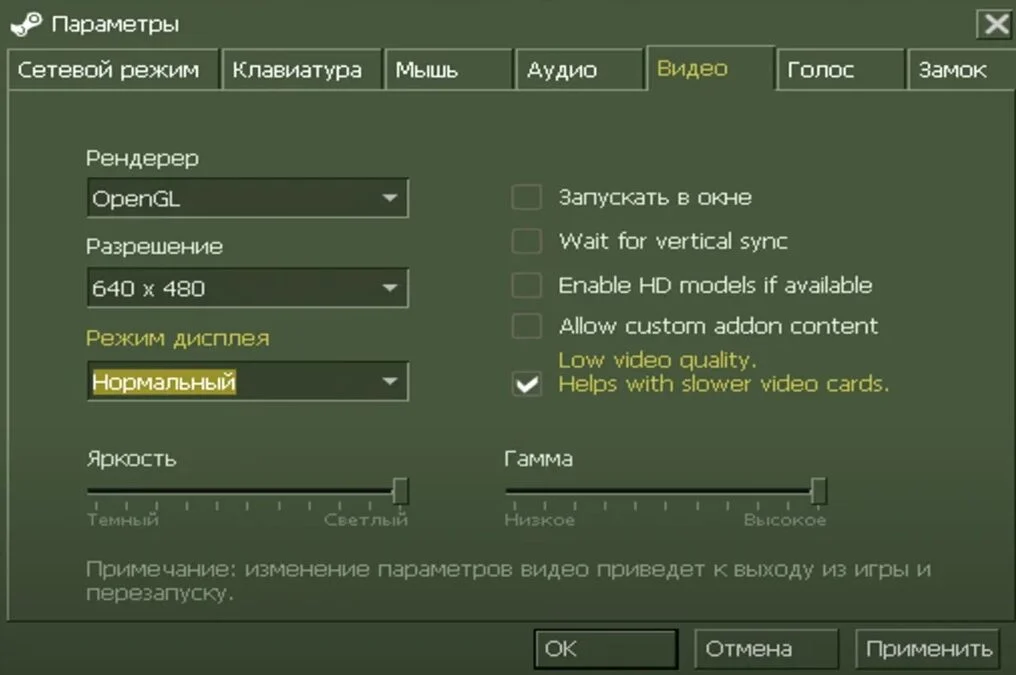
In CS 1.6, the appearance of the crosshair depends not only on the cl_crosshair_size command but also on the screen resolution.
The gap between the lines in the center changes particularly noticeably. With the same settings—`cl_crosshair_size` set to `small` and `cl_dynamiccrosshair` set to `0`—the central gap increases as the resolution increases.
For example:
| Resolution | Center Gap Size |
|---|---|
| 640×480 | 3 pixels |
| 800×600 | 5 pixels |
| 1024×768 | 7 pixels |
| 1280×720 | 9 pixels |
| 1920×1080 | 13 pixels |
The reason has to do with how the old engine calculates the crosshair scale relative to the screen width. That’s why, on a modern Full HD monitor, even the “small” setting can appear significantly more spread out than on a classic 640×480 display.
If you want the crosshair to look as compact as possible, you can try a lower resolution and compare the results. Changing your usual resolution just for the sake of the crosshair is a questionable decision: the clarity of the image and the visibility of opponents are more important than a few pixels in the center.
Unlike in modern versions of Counter-Strike, CS 1.6 does not have a dedicated command to adjust the spacing or line thickness. Requests to add such settings to the game have been around for many years.
Is it possible to create a dot crosshair in CS 1.6?
It is not possible to create a full-fledged single dot without surrounding lines using the standard tools in CS 1.6.
The older version of Counter-Strike lacks the equivalent of modern commands that allow you to completely remove the lines and leave a single central dot. Therefore, combinations like cl_crosshair_size “small”, cl_dynamiccrosshair 0, cl_crosshair_translucent 0 do not turn the crosshair into a true dot. They simply make the standard crosshair small, static, and opaque.
At low resolutions, the lines and the central gap are closer together, so visually, this crosshair can indeed resemble a small dot, even though the four parts of the crosshair are still visible.
If you specifically want a single true dot, you’ll have to use a modified HUD, a third-party overlay, or another non-standard modification. These methods are no longer part of the standard Counter-Strike 1.6 configuration.
How to Change the Color and Transparency of the Crosshair
You can further customize the size visually—choose a color that’s clearly visible on most maps.
In CS 1.6, the color is set using RGB:
cl_crosshair_color “R G B”
| Color | Command for it |
| Standard bright green option | cl_crosshair_color “50 250 50” |
| Red | cl_crosshair_color “255 0 0” |
| White | cl_crosshair_color “255 255 255” |
Each of the three numbers controls the intensity of the red, green, and blue colors. Valid values range from 0 to 255.
Transparency is controlled by a separate command:
cl_crosshair_translucent 0
A value of 0 makes the crosshair opaque, while a value of 1 makes it translucent.
Thus, a simple version of a small, highly visible crosshair might look like this:
cl_crosshair_size “small”
cl_dynamiccrosshair 0
cl_crosshair_translucent 0
cl_crosshair_color “50 250 50”
How to keep the small crosshair after restarting
Usually, console variable values are saved in the game’s configuration, but if the settings keep resetting or you’re using a custom config file, you can enter the necessary commands manually.
Open the cstrike folder in the Counter-Strike 1.6 directory and locate the configuration file. For custom commands, it’s more convenient to use autoexec.cfg. If this file doesn’t exist, you can create it as a regular text file with the .cfg extension.
Add the following to it, for example:
cl_crosshair_size “small”
cl_dynamiccrosshair “0”
cl_crosshair_translucent “0”
cl_crosshair_color “50 250 50”
Save the file. When you launch the game, these commands will be applied along with your other settings. If the changes are reset, check your other custom config files: the same command specified later in another file may override the selected value.
Frequently Asked Questions (FAQ)
Используйте cl_crosshair_size u0022smallu0022. Это минимальный стандартный пресет размера в CS 1.6. Его числовой аналог — cl_crosshair_size 1.
Введите cl_dynamiccrosshair 0. Команда отключает динамическое изменение прицела при движении и некоторых других действиях.
Штатными настройками — нет. В стандартной CS 1.6 отсутствует отдельный параметр центральной точки и возможность полностью убрать четыре линии обычного перекрестия.
В CS 1.6 центральный зазор зависит от разрешения. На высоких разрешениях линии стандартного прицела располагаются дальше друг от друга, поэтому значение small визуально кажется крупнее.
Установите cl_crosshair_size u0022smallu0022 и cl_dynamiccrosshair 0. На более низком разрешении зазор между линиями станет меньше, поэтому перекрестие будет выглядеть компактнее. Полноценной одиночной точкой оно при этом не станет.