Rocket League Controls: Gamepad and Keyboard Buttons, Connecting to a PC

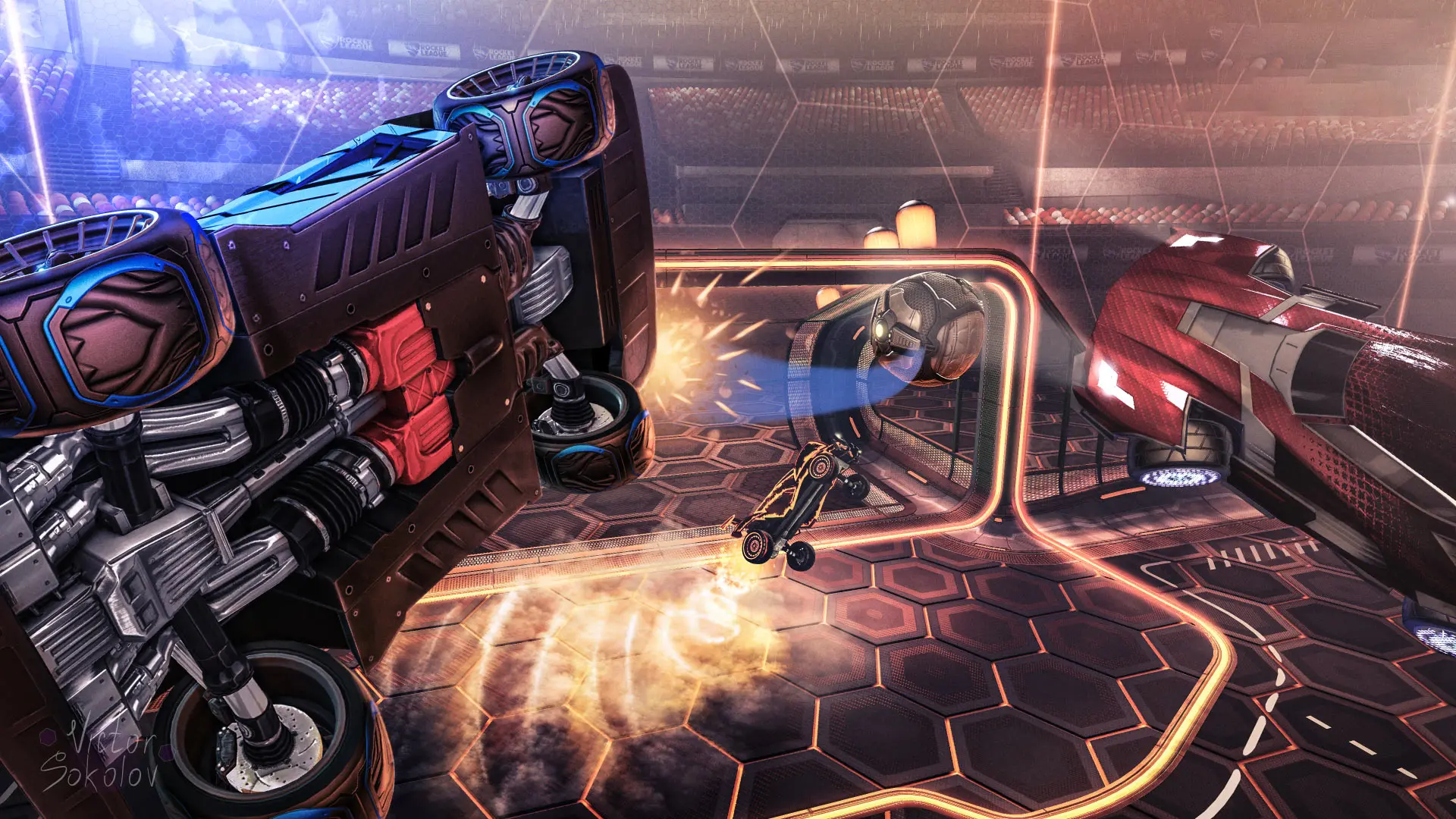
You can play Rocket League using a keyboard and mouse or a gamepad. PlayStation and Xbox controllers can also be used on a computer, but the connection method and additional settings depend on the model. Let’s take a look at the main control buttons in Rocket League, how to connect a gamepad to a PC, and ways to troubleshoot recognition issues.
Which Buttons Are Used for Controls in Rocket League
Below are the main standard button assignments. If you’ve already customized the layout, check your button assignments in the “Settings” > “Controls” > “View/Change Key Bindings” section.
| Action | PlayStation | Xbox | Keyboard and Mouse |
| Throttle | R2 | RT | W |
| Brake and Reverse | L2 | LT | S |
| Turn | Left Stick | Left stick | A/D |
| Jump | Cross | A | Right-click |
| Accelerate | Circle | B | Left-click |
| Handbrake/Slip | Square | X | Left Shift |
| Spin in the air | Square + Left Stick | X + Left Stick | Left Shift + A/D |
| Switch camera to the ball | Triangle | Y | Space |
| Camera pan | Right Stick | Right Stick | User Settings |
To switch from keyboard to controller controls in Rocket League on PC, connect your controller before launching the game—it’s best to use a USB cable for the initial setup. On the title screen, press A on Xbox or the X button on PlayStation, then use the gamepad to navigate the menu and control your vehicle. You don’t need to disable the keyboard separately. If the controller isn’t responding or is being recognized as a second player, restart the game with the controller already connected and navigate past the title screen using it. To switch back to the keyboard, disconnect the controller via USB or Bluetooth.
How to Connect a Gamepad to Rocket League on PC
For the initial connection, it’s easier to use USB:
- Close the game.
- Connect the gamepad to your computer using a data cable.
- Wait for Windows to detect the device.
- Launch Rocket League and try navigating the menu with the gamepad.
- Open Free Practice and test the buttons.
If the controller supports Bluetooth, you can connect it through Windows device settings. If the connection drops or the controller doesn’t respond, first check if it works when connected via cable.
Do You Need DS4Windows for Rocket League?
DS4Windows is a program that lets you use a PlayStation controller on your computer. It can emulate a DualShock 4 as a virtual Xbox 360 controller so the game can recognize its inputs.
You don’t need to install it in advance. First, check the direct USB connection. If that works, you don’t need the additional software.
If you’re already using DS4Windows, make sure the controller appears in the program and that the Xbox 360 emulation profile is selected. Then launch the game. With this connection, Xbox buttons may appear on the screen even if you’re holding a PlayStation controller.
For the Steam version, Steam Input serves as an alternative: it processes controller input instead of the game itself. Do not enable multiple remapping tools at the same time—this can cause conflicts or double-clicks.
What to Do If Rocket League Doesn’t Recognize Your Gamepad
Check the connection step by step:
- Reconnect the controller. Try a different USB port and cable: some cables only provide power.
- Check device recognition in Windows. Press Win+R, type joy.cpl, and open the controller properties. See if the indicator lights respond to button presses and stick movements.
- Restart the game with the gamepad already connected. If that doesn’t help, restart your computer.
- Disconnect other controllers. While troubleshooting, remove steering wheels, additional gamepads, and virtual input devices.
- Check remapping software. First, try running the game without DS4Windows or similar applications. Then, if the direct connection doesn’t work, test one specific emulation method.
- For the Steam version, check Steam Input. Open your library > game properties > Controller. Compare how the game works with Steam Input enabled and disabled, restarting the game after each change.
- Update the gamepad’s firmware. For DualSense, use the PlayStation Accessories app; for supported Xbox controllers, use Xbox Accessories.
If the controller isn’t recognized even in Windows, you’ll need to resolve the connection issue first. If the buttons work in the operating system but not in the game, check your input settings and look for conflicting programs.
Which Is Better for Rocket League: Gamepad or Keyboard
A gamepad allows you to smoothly adjust the stick’s deflection and the force applied to the triggers. Keyboard controls are more discrete: a key is either pressed or released. That said, you can play and master the mechanics using either method.
Choose the device you’re most comfortable with. If the standard layout feels awkward, remap the buttons so you can press jump and boost at the same time, then practice these controls in Training Mode.
Frequently Asked Questions (FAQ)
Да. Для движения используются WASD, для прыжка и буста — кнопки мыши.
Она может пригодиться при проблемах с распознаванием контроллера PlayStation, но сначала попробуйте USB-подключение.
Вероятно, программа переназначения создаёт виртуальный контроллер Xbox. Поэтому игра показывает его обозначения кнопок.
В разделе «Настройки» — «Управление» — «Посмотреть/изменить назначение клавиш».