The Best Rocket League Settings for 2026: Camera, Pro Player Settings, and Settings for Low-End PCs

The right Rocket League settings help you see the field better, react faster to the ball, and boost your FPS without altering the game mechanics. Camera, control, and graphics settings are especially important—most professional players adjust the default settings for competitive play. In this guide, we’ve compiled the best Rocket League settings for 2026, esports players’ camera settings, and configurations for low-end PCs.
The Best Rocket League Settings for 2026
There are no one-size-fits-all Rocket League settings, but you can use the settings preferred by many esports players as a starting point. First and foremost, turn off camera shake, increase the field of view to 110, and adjust the camera so you can clearly see not only your car and the ball but also what’s happening around you.
To start, try the following settings:
- field of view (FOV) — 110;
- camera distance — 270;
- height — 100;
- angle — -3;
- stiffness — 0.35;
- rotation speed — 4–5;
- transition speed — 1.2–1.4;
- Camera shake — off;
- Ball Cam — toggle.
These settings are similar to those used by many professional players and serve as a good starting point, which you can then customize to your liking.
Camera Settings in Rocket League
The camera directly affects your view of the field. Epic Games allows you to adjust the field of view, height, angle, distance to the car, stiffness, rotation speed, and other parameters.
For competitive play, it’s recommended to set the FOV to 110, turn off camera shake, and set the distance to around 270. You can keep the height between 90 and 110, and the angle between -3 and -5. A camera that’s too close makes it hard to keep track of opponents, while one that’s too far away makes it difficult to hit the ball accurately.
Rocket League Pro Players’ Camera Settings
You don’t have to copy a specific esports player’s settings exactly. It’s better to use them as a starting point and gradually adjust the camera distance, height, and speed to suit your own playstyle.
| Player | FOV | Distance | Height | Angle | Stiffness |
| Zen | 110 | 270 | 100 | -3 | 0.35 |
| Daniel | 110 | 270 | 100 | -3 | 0.35 |
| M0nkey M00n | 110 | 270 | 100 | -3 | 0.5 |
| Atomic | 110 | 270 | 100 | -3 | 0.35 |
| Dralii | 110 | 260 | 90 | -6 | 0.45 |
Gamepad Sensitivity and Dead Zone
Sensitivity determines how quickly the controller responds to joystick movement, while deadzone determines how far you need to move the joystick before the game registers the movement.
You can use the following as starting values:
- steering sensitivity — 1.3–1.5;
- air sensitivity — 1.3–1.5;
- controller dead zone — 0.05–0.07;
- dodge deadzone — 0.70–0.80.
For example, esports player Zen uses a sensitivity of 1.50 and a deadzone of 0.07, while Daniel uses 1.30 and 0.05, respectively.
A dead zone that’s too small can cause unintended movement when the stick drifts, so it’s best to reduce it gradually.
Rocket League Graphics Settings for a Low-End PC
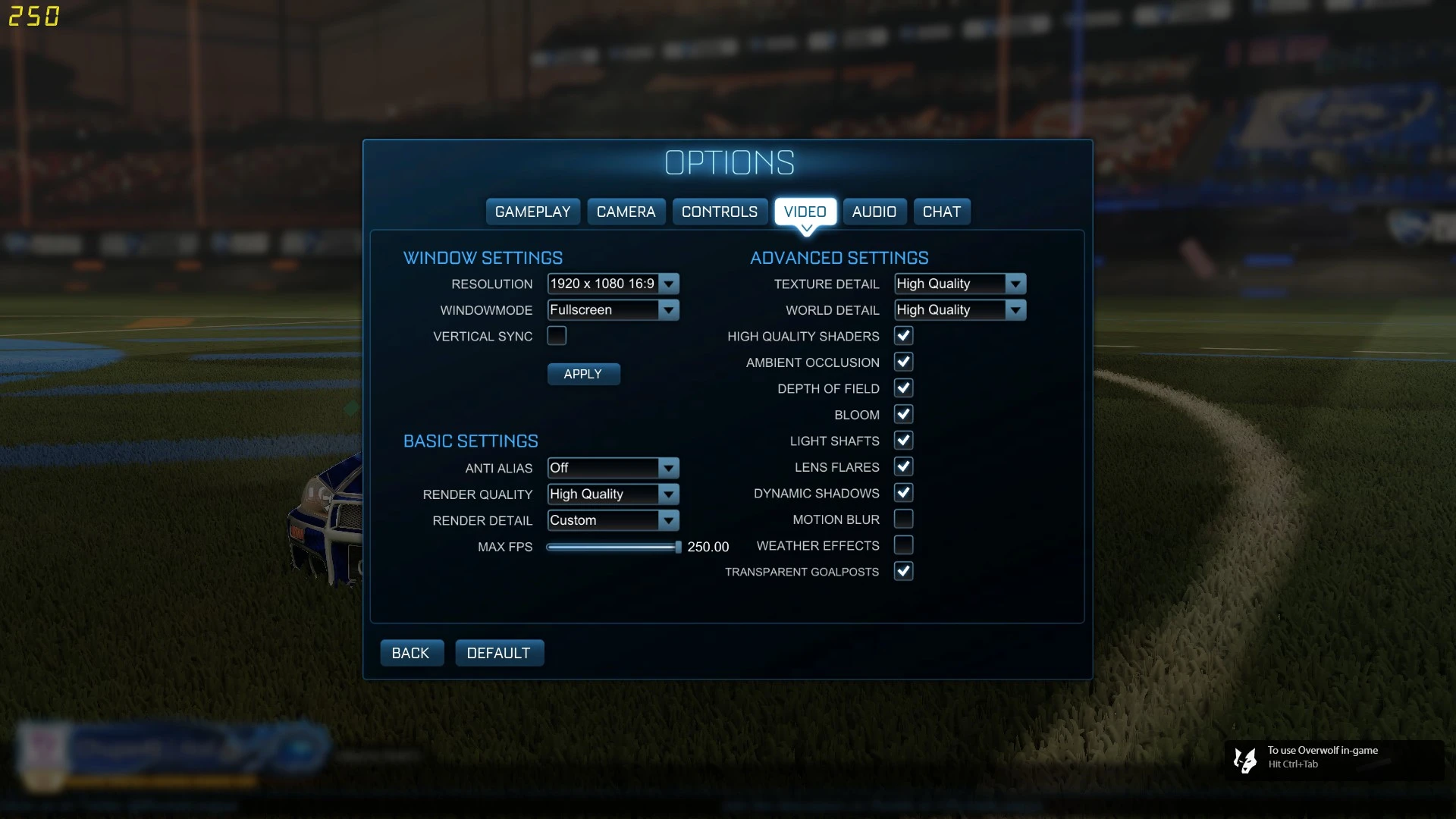
On a low-end PC, it’s best to lower the graphics quality to boost your FPS. Open the graphics settings and set the following options:
- Anti-aliasing — FXAA Low or Disabled;
- Image Quality — Performance;
- Image detail — Performance;
- texture detail — High Performance;
- World detail — Performance;
- Particle detail — Performance;
- Vertical Sync — Disabled;
- Dynamic shadows and additional visual effects — disabled.
Epic Games recommends lowering the quality of rendering, textures, the world, and particles when you experience frame rate drops.
If your computer still can’t maintain a stable frame rate, lower the resolution. For example, instead of 1920x1080, try 1600x900 or 1280x720. The image will be less sharp, but the load on the graphics card will decrease significantly.
Frequently Asked Questions (FAQ)
Для начала можно установить FOV 110, дистанцию 270, высоту 100 и угол −3, а затем скорректировать параметры под себя.
Поставьте качество рендера, мира и частиц на Производительность, детализацию текстур — на Высокая производительность, а сглаживание — на FXAA низкое или отключите.
Снизьте графику и разрешение, обновите драйвер видеокарты, закройте фоновые приложения и игровые оверлеи.
Epic Games рекомендует выбирать лимит фпс, соответствующий частоте обновления монитора, например 144 фпс для экрана 144 Гц.
Для ограничения частоты кадров Epic Games рекомендует отключить вертикальную синхронизацию и установить нужный лимит фпс вручную.