How to check your FPS in a game: Steam, EGS, Nvidia, AMD, and other methods

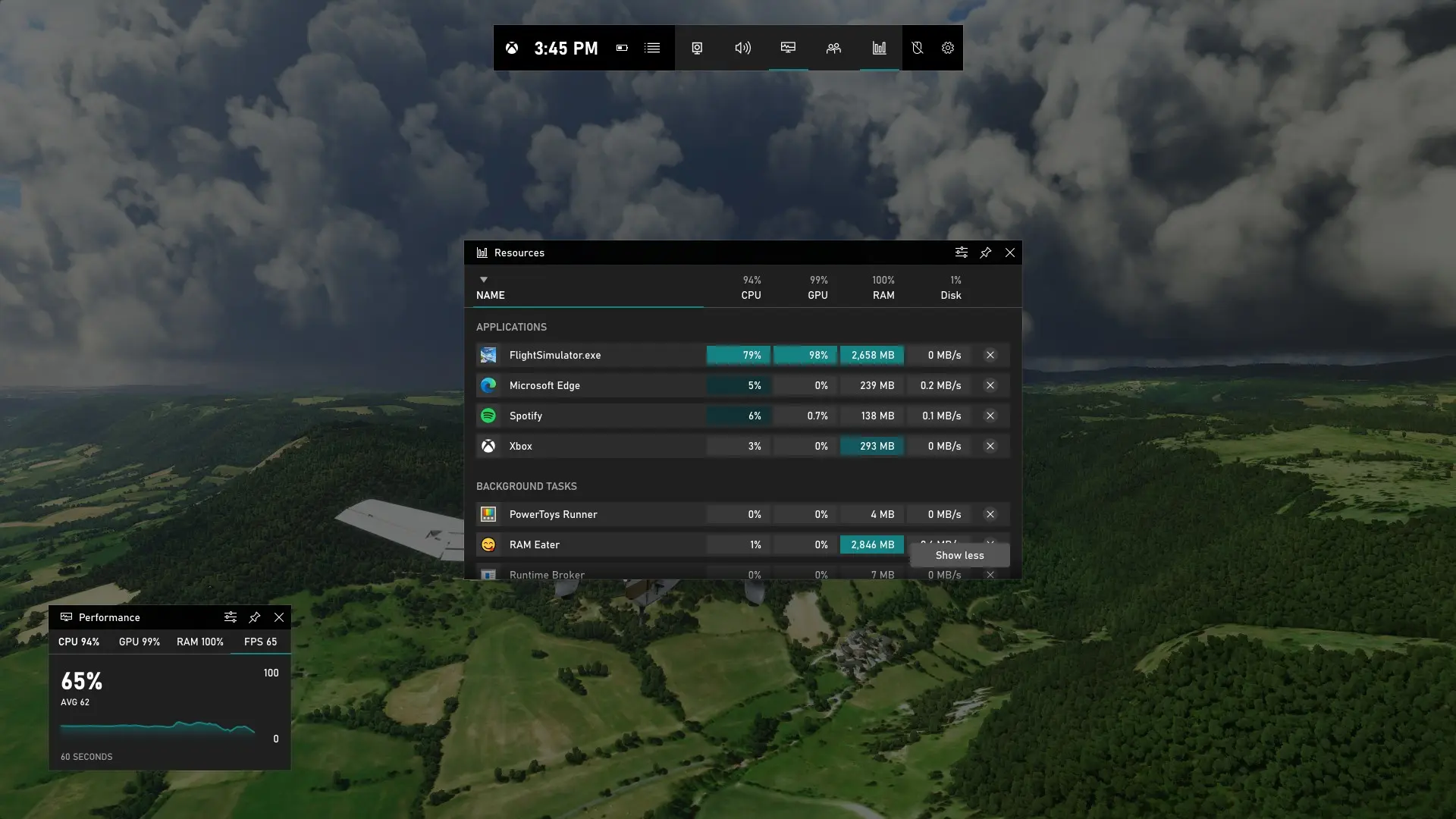
Frames per second (FPS) indicate how smoothly a game runs. The higher the value, the more comfortable the gameplay experience. You can check your current FPS using the built-in tools in Steam and the Epic Games Store, or with specialized programs that also display temperature, GPU and CPU load, and other computer metrics.
What Is FPS?
FPS (Frames Per Second) is the number of frames a computer displays in one second. The higher the FPS, the smoother the game looks and the faster the characters’ actions are rendered. For most games, 60 FPS is considered comfortable, while owners of monitors with high refresh rates typically aim for 120–240 FPS for the smoothest possible gameplay.
How to Enable the FPS Counter in Steam
Steam allows you to display the FPS counter over any game.
Open “Steam Settings” and go to the “In-Game” section.
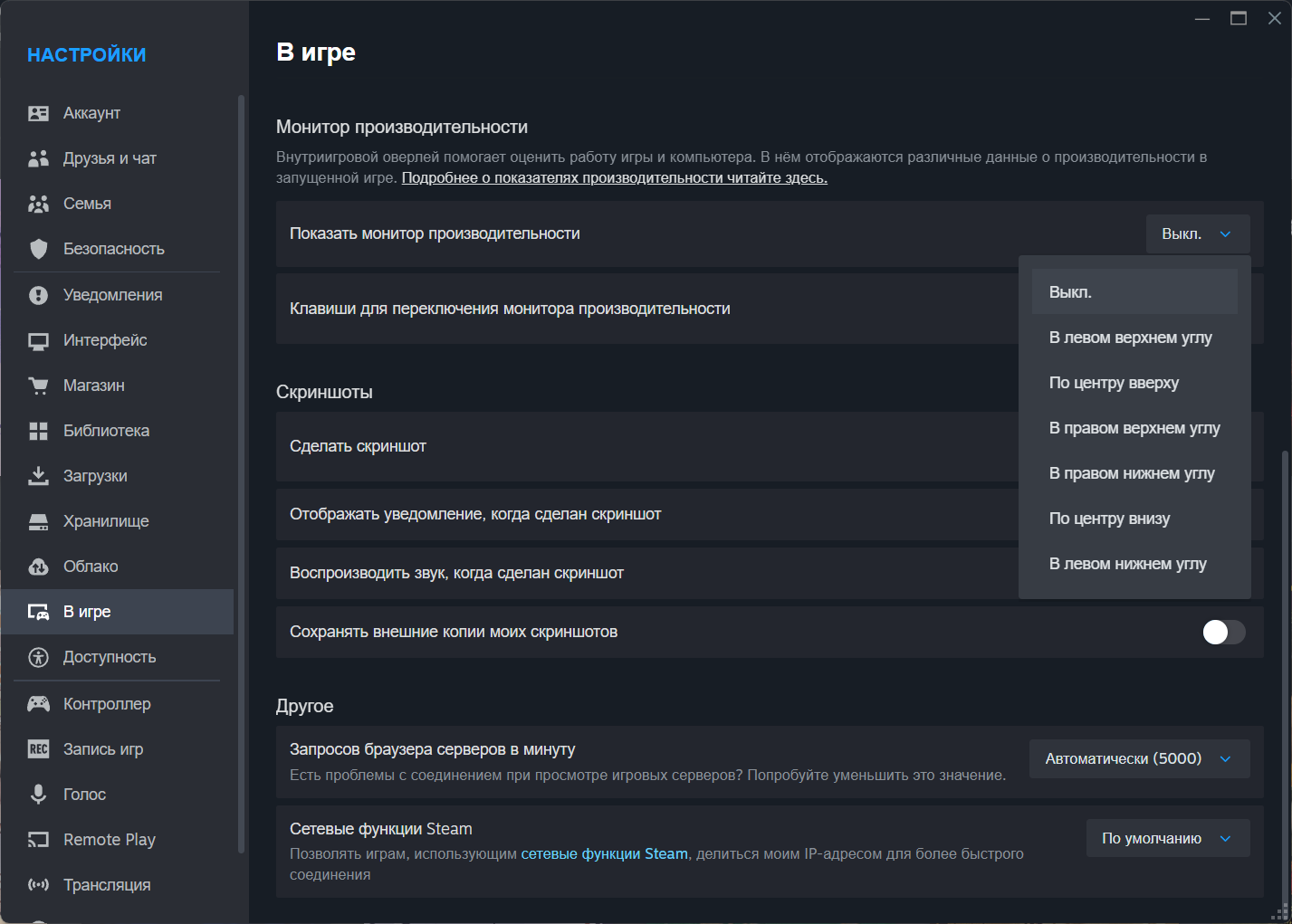
Under “Performance Monitor,” select where you want the FPS to be displayed. Then launch the game—the counter will appear in the selected corner of the screen.
How to View FPS in the Epic Games Store
The Epic Games Store does not have a built-in FPS counter. If you launch a game through EGS, you’ll need to use third-party software or your graphics card’s built-in overlay.
Best Programs for Monitoring FPS
MSI Afterburner + RivaTuner Statistics Server
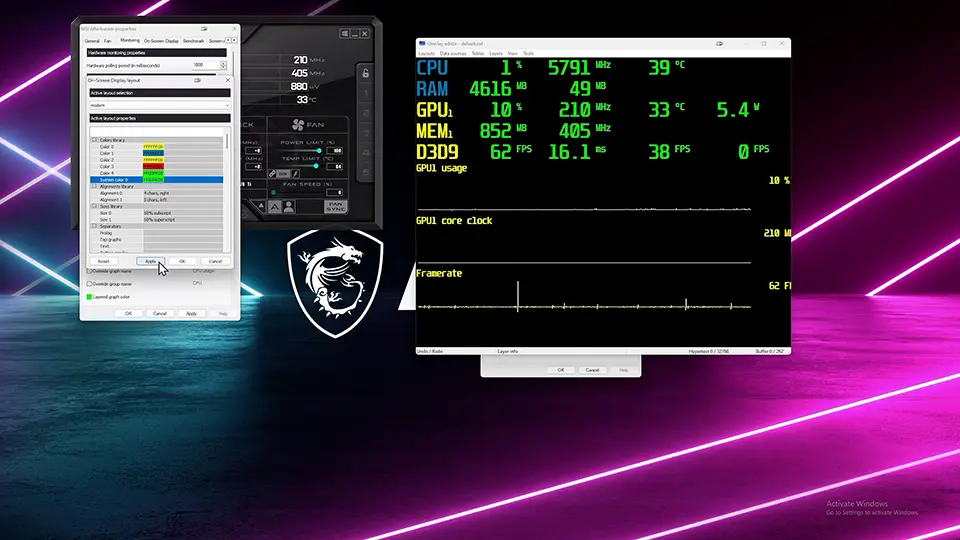
The most popular combination for monitoring games, running stress tests, measuring temperatures, and more. It’s very popular among game reviewers, gamers with high-end PCs, and others who value having all the details. Thanks to its ability to display information in the form of graphs, it is considered one of the most intuitive programs, even for beginners. It shows:
- FPS and 1% Low;
- CPU and GPU temperatures;
- CPU and GPU load;
- RAM and video memory usage;
- fan speeds.
NVIDIA App

If you have an NVIDIA graphics card, you can enable the gaming overlay and display the FPS counter without installing any third-party software. Enable it as follows:
- Open the NVIDIA App and go to Settings.
- Make sure the in-game overlay is enabled.
- Launch the game and press Alt + Z.
- Open the “Performance” section.
- Select the metrics you want to display and specify the counter’s position on the screen.
- Use Alt + R to quickly turn the stats on and off.
AMD Software: Adrenalin Edition
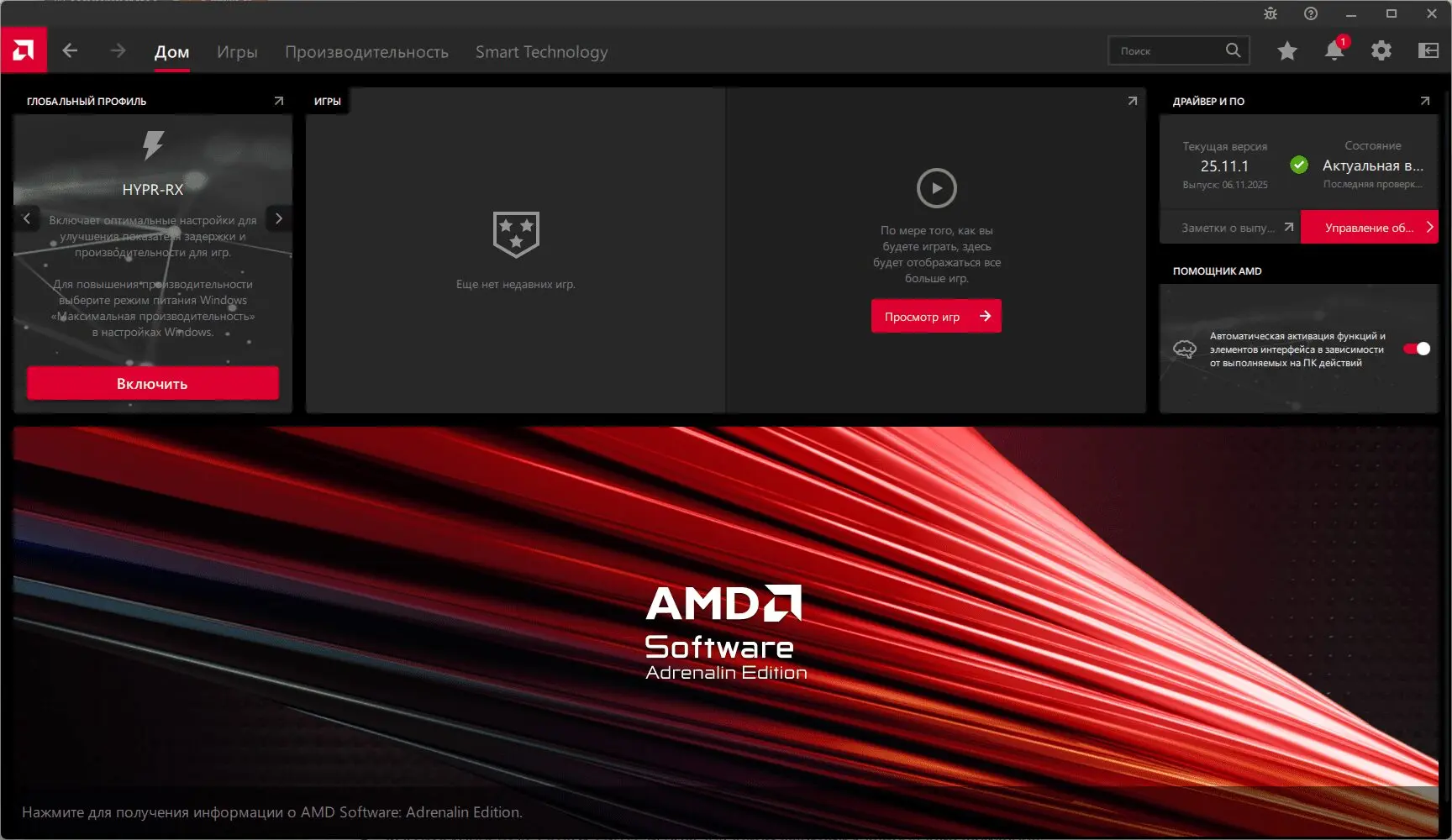
Owners of AMD graphics cards can enable the built-in performance overlay, which displays FPS, component temperatures, and system load. To enable it:
- Open AMD Software: Adrenalin Edition.
- Go to the “Performance” section — “Metrics.”
- Enable the performance metrics overlay.
- Select FPS and any other desired metrics.
- Launch the game—the stats will appear on top of the screen.
- Use your chosen hotkeys to quickly show or hide the overlay.
Xbox Game Bar
This feature is built into Windows 10 and 11. It displays FPS and basic information about CPU, GPU, and RAM usage.
- Open “Windows Settings” > “Gaming” > “Xbox Game Bar” and turn it on.
- Launch the game and press Win + G.
- Open the “Performance” widget.
- Select the FPS metric.
- Click the pin icon to pin the counter on top of the game.
- Close the Xbox Game Bar by pressing Win + G—the pinned widget will remain on the screen.
What FPS is needed for a comfortable gaming experience?
A comfortable frame rate depends on the game genre, your computer’s performance, and your monitor’s refresh rate. However, there are a few guidelines you can use when choosing graphics settings.
- 30 FPS is the minimum comfortable rate. Most single-player games can be played at this frame rate, but animations appear less smooth, and controls may feel sluggish or laggy.
- 60 FPS is the optimal setting for most players. At this frame rate, the game runs smoothly, controls become responsive, and the difference compared to 30 FPS is especially noticeable during combat and other dynamic scenes.
- 120–144 FPS is ideal for owners of monitors with high refresh rates. It’s advisable to lower the graphics settings to the minimum for the sake of speed, which is especially important in shooters and competitive games.
- 240 fps and above—this is the range for esports players. Such a frame rate allows you to take full advantage of monitors with refresh rates of 240 Hz and higher; however, not every player will notice the difference compared to 144 fps.
It’s important to note that a high FPS only makes sense if your monitor is capable of displaying it. For example, on a screen with a 60 Hz refresh rate, you won’t experience the full smoothness of 144 or 240 FPS.
Frequently Asked Questions (FAQ)
Самый простой способ — включить счётчик Steam, если игра запускается через него, или использовать MSI Afterburner с RivaTuner Statistics Server.
Откройте «Настройки» — «В игре» и включите отображение счётчика кадров в секунду.
Нет. В Epic Games Store встроенного счётчика фпс нет, поэтому придётся использовать сторонние программы или оверлей NVIDIA, AMD либо Xbox Game Bar.
Для подробного мониторинга чаще всего используют MSI Afterburner и RivaTuner Statistics Server. Если нужен только счётчик кадров, подойдут NVIDIA App, AMD Software или Xbox Game Bar.
Да. Если игра запущена через Steam, можно воспользоваться встроенным счётчиком фпс. Также счётчик доступен в Xbox Game Bar и в программном обеспечении NVIDIA и AMD.