How to Enable and Increase FPS in PABG: 90, 120 FPS, and the Frame Counter

A high FPS makes PUBG feel smoother, reduces input lag, and helps you react faster in firefights. In this guide, we’ll explain how to check your current FPS, boost performance, and enable 90 or 120 FPS modes if your device supports them.
How to Enable the FPS Counter in PUBG
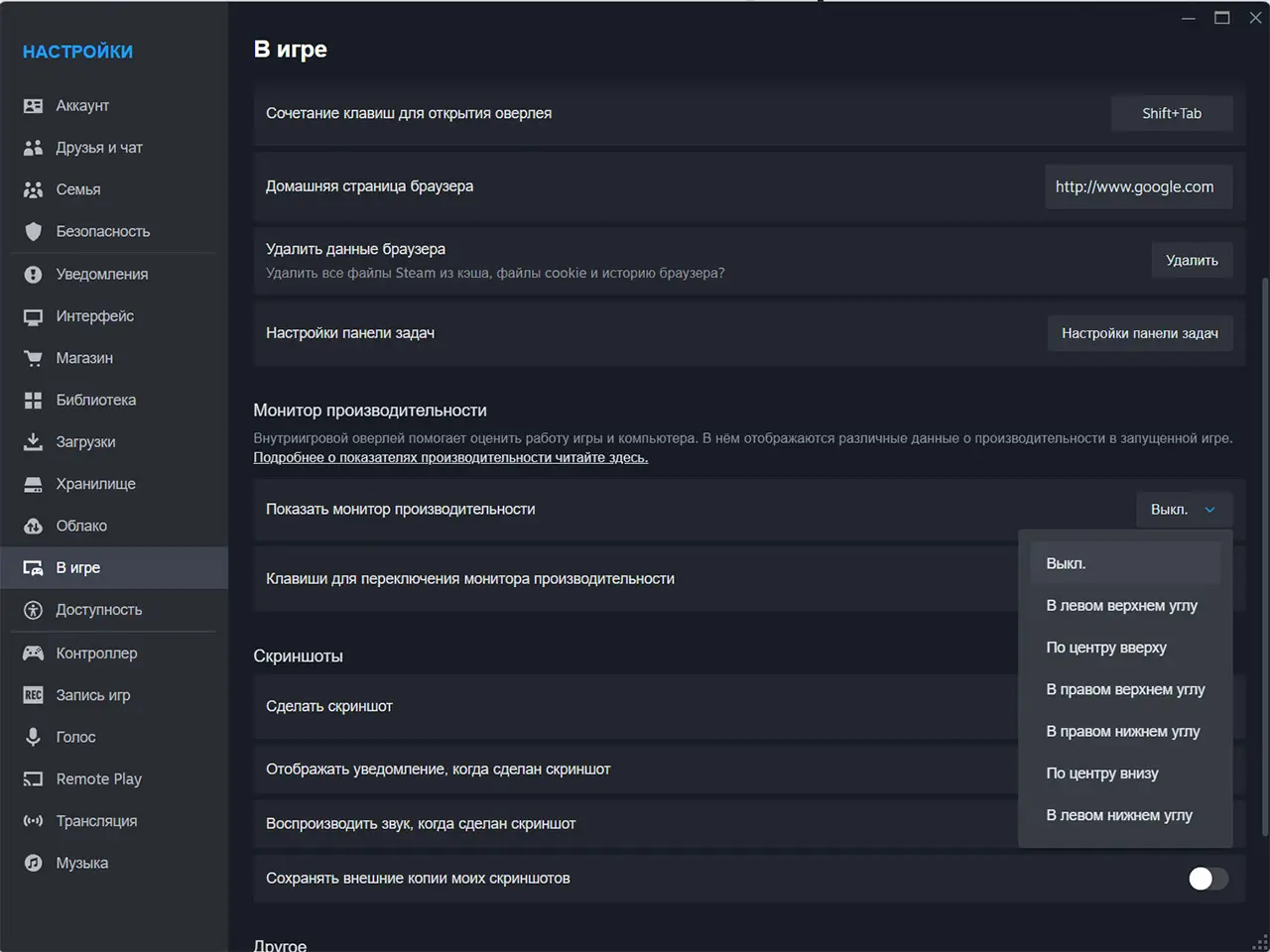
PUBG itself doesn’t have a built-in FPS counter, so third-party programs are usually used to display it. The most popular options are Steam, MSI Afterburner, NVIDIA App, and AMD Software: Adrenalin Edition. The simplest option is Steam’s built-in counter.
- Open Steam and go to the “Settings” menu in the top-left corner.
- Select the “In-Game” tab.
- Find the “Performance Monitor” option.
- Choose a location for the counter that works best for you (for example, in the top-right corner).
PUBG Mobile doesn’t directly display the current FPS. However, you can adjust the graphics settings to the maximum FPS, and you’ll know the FPS has increased based on how smooth the gameplay feels.
How to Increase FPS in PUBG
The biggest performance gains on a PC come from reducing shadows, effects, post-processing, and foliage. It’s also worth installing the game on an SSD, updating your graphics card driver, closing background programs, and playing in full-screen mode. We’ve already covered the detailed settings in a separate article.
On a phone, the FPS may drop due to the smartphone overheating. If this happens, set your phone aside and let it cool down on its own. Don’t turn it off—that way, it will cool down faster. Or buy a mobile cooler—it works just like similar external coolers for laptops.
| Settings | What to Do | How much does it affect FPS |
| Shadows | Set to minimum | 🔴🔴🔴🔴🔴 |
| Foliage | Set to minimum | 🔴🔴🔴🔴🔴 |
| Rendering scale | Reduce to 90% | 🔴🔴🔴🔴 |
| Post-processing | Lower to low/medium | 🔴🔴🔴 |
| View Distance | Lower (does not affect player models, only the environment) | 🔴🔴🔴 |
| Effects | Lower | 🔴🔴🔴 |
| Motion blur | Lower/Disable | 🔴🔴 |
PC Optimization
Power Mode
By default, Windows uses Balanced mode, which limits CPU performance. This is especially critical for laptops. For gaming, it’s best to select “High Performance” or “Maximum Performance.” Press Win + R, type “powercfg.cpl,” and select a new setting from the menu that appears.
Game Mode
Open “Settings” > “Gaming” > “Game Mode” and turn it on. This will allow Windows to allocate more resources to the game and reduce the impact of background processes.
GPU Hardware Acceleration
Go to “Settings” > “System” > “Display” > “Graphics” and enable “GPU scheduling” with hardware acceleration. On some PCs, this may slightly increase FPS and reduce the load on the CPU.
Disabling Overlays
If you’re not using the built-in screen recording feature, disable Xbox Game Bar and background recording in “Settings” > “Games.” You should also close Discord, Overwolf, and other overlays. This will free up some system resources.
Close background programs
Before launching the game, close your browser, streaming services, and other unnecessary applications. You should also disable any unnecessary programs in startup via Task Manager.
NVIDIA/AMD Settings
You can find additional settings in the dedicated software for your graphics card. For example, in the NVIDIA Control Panel, you can set:
- Power Management Mode — Maximum Performance;
- Triple buffering — off;
- Anisotropic filtering — off;
- Vertical sync — off;
- Ray tracing — off.
You can find similar settings in AMD Radeon Software. The program lets you enable Esports Mode, which sets all settings to Performance. Alternatively, you can manually set most settings to Performance while maintaining a balance with graphics quality.
How to Achieve 90 or 120 FPS in PUBG
On a PC, all you need is a monitor with a refresh rate of 90, 120, 144 Hz, or higher, and to disable the frame rate limit in the game settings.
In PUBG Mobile, the 90 FPS and 120 FPS modes are only available on supported devices. If your smartphone officially supports higher frame rates, simply go to “Settings” > “Graphics” and select the highest available FPS mode. If this option isn’t available, it means your device or the current version of the game doesn’t support this feature.
What FPS Is Considered Normal in PUBG
- 60 FPS is a comfortable minimum for most players.
- 90 FPS — noticeably smoother gameplay and better control responsiveness.
- 120 FPS is the optimal setting for competitive play if you have a compatible monitor or smartphone.
- 144 FPS and above—allow you to get the most out of monitors with high refresh rates.
Frequently Asked Questions (FAQ)
На ПК проще всего использовать счётчик Steam или программы MSI Afterburner, NVIDIA App и AMD Software.
Снизьте тяжёлые графические настройки, обновите драйверы, закройте фоновые программы и установите игру на SSD.
Необходимо, чтобы игра, устройство и монитор (или экран смартфона) поддерживали режим 120 Гц.
Скорее всего, смартфон не поддерживает этот режим или разработчики ещё не добавили его для вашей модели устройства.
В большинстве случаев высокий фпс важнее красивой графики, особенно в соревновательных матчах. Многие киберспортсмены играют на минималках и с растягом, чтобы максимизировать производительность.