The Best Screen Recording Programs for PC, Windows 10, and 11


Screen recording is useful for creating tutorials, recording games, online lessons, presentations, and work demonstrations. Today, you can create a screencast using either Windows’ built-in tools or specialized software. This guide covers screen recording on both desktop computers and laptops. In this article, we’ve compiled a list of standard recording tools and the best apps for screen recording with audio, described their features, and explained which solution to choose for different tasks.
How to Record Your Screen in Windows 10
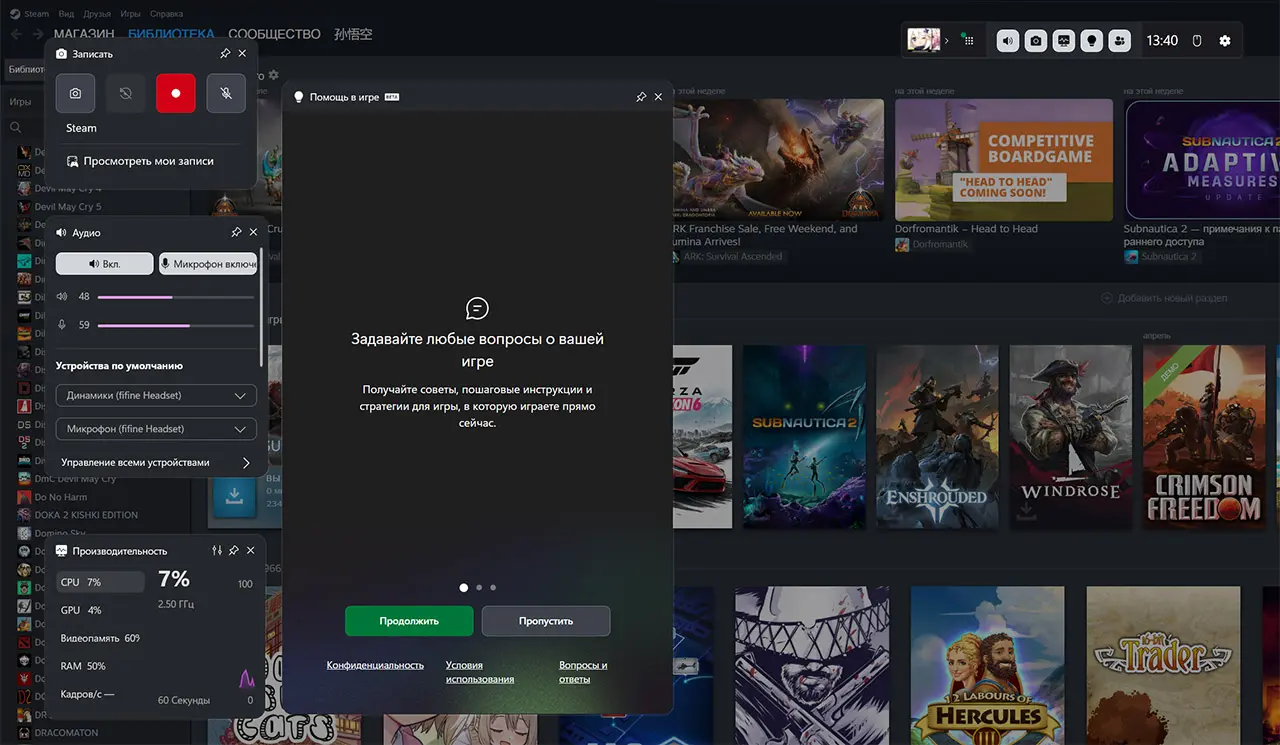
In Windows 10, the built-in screen recording feature is available through the Xbox Game Bar. It works not only for recording games but also for most regular programs. To start recording your screen, press the Win+G key combination, open the Record widget, and click the record button, or use the Win+Alt+R hotkeys.
Once finished, the video will automatically be saved to the “Videos” > “Recordings” folder. If you need to record your desktop or Windows File Explorer, it’s best to use third-party software, as the Xbox Game Bar doesn’t support all windows.
How to Record Your Screen in Windows 11
Windows 11 offers several ways to record your screen. The simplest is to use Xbox Game Bar by pressing Win+Alt+R or Win+G. Newer versions of the operating system also include a recording feature in the “Scissors” app.
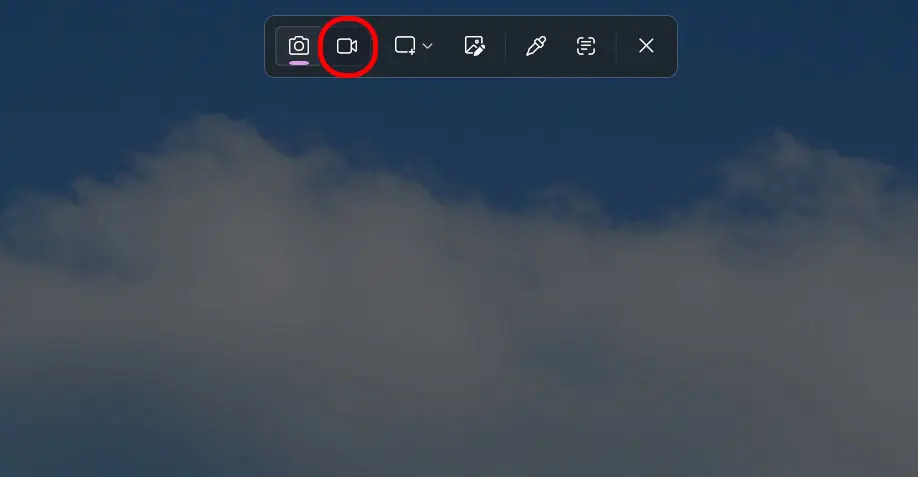
To record your screen using “Scissors,” press Win+Shift+S or the Print Screen key, switch to the video recording tab, select the desired area of the screen, and click “Start Recording.” This method is great for creating tutorials and short videos.
How to Record Your Screen with Audio
Most modern recording tools allow you to capture both the screen and audio simultaneously. You can usually select one or both of the following sources: system audio (music, games, videos) and a microphone.
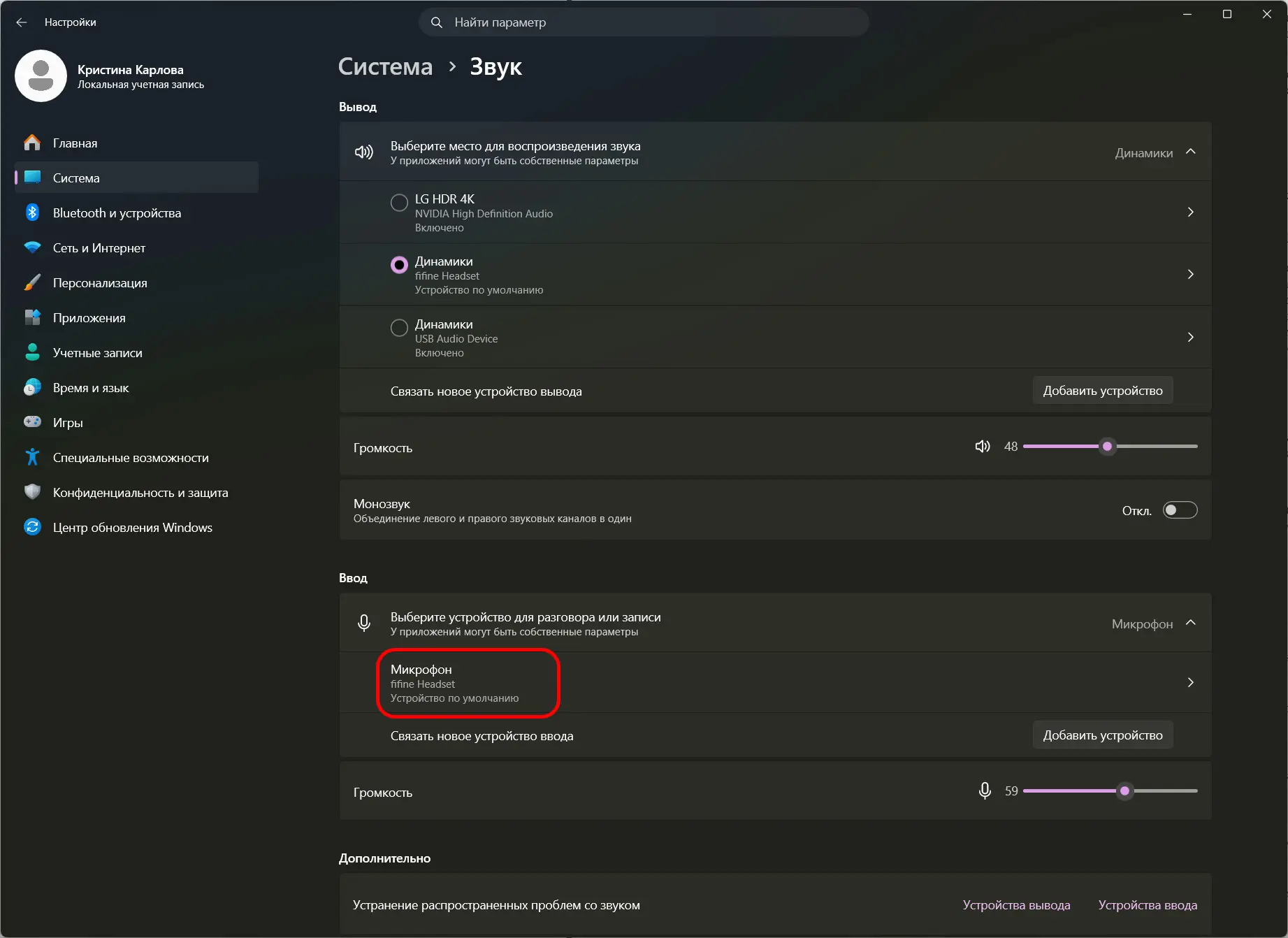
If your screen recording comes out without sound, open the program’s settings and make sure the correct audio source is selected. In Xbox Game Bar, OBS Studio, and most other applications, you can change these settings before starting the recording.
Make sure your microphone is connected. Go to Device Manager, select “Sound,” and find “Microphone” on the “Input” tab. Set your microphone as the default there instead of the standard one.
The Best Screen Recording Software for PC
If the built-in tools aren’t enough, you can use third-party software.
- OBS Studio is the best free program for screen recording, gaming, and streaming. It supports high-quality recording and multiple video and audio sources.
- ShareX is a completely free program for screen recording, taking screenshots, and creating GIF animations.
- Bandicam is a popular paid app that offers high-quality recording with minimal system impact, making it suitable for short videos and games. The free version includes a watermark on recordings.
- ScreenPal (formerly Screencast-O-Matic) — a convenient program for recording tutorial videos and presentations.
- NVIDIA App and AMD Software are built-in screen recording tools for owners of NVIDIA and AMD graphics cards, allowing you to record games with virtually no loss of performance.
Why Screen Recording Isn’t Working
Most often, screen recording doesn’t work due to a lack of necessary permissions, insufficient free memory, or a conflict with other applications. Sometimes the cause is an outdated version of the operating system or graphics card drivers.
If you see a black screen or hear no sound during recording, try updating your system, checking the program settings, and making sure the recording isn’t blocked by DRM protection. On some websites, screen recording may be intentionally disabled to protect copyrights.
Frequently Asked Questions (FAQ)
Если не считать стандартных, то OBS Studio.
На Windows можно использовать Xbox Game Bar или приложение «Ножницы».
Перед началом записи включите запись системного звука или микрофона в настройках программы. Большинство современных приложений поддерживают оба варианта.
Чаще всего причина в отключённом микрофоне, неверных настройках аудио или ограничениях отдельных приложений, которые запрещают запись звука.
Полностью бесплатно можно использовать OBS Studio, ShareX, а также встроенные средства Windows.
Да, если использовать аппаратное ускорение. Для этого подойдут OBS Studio, NVIDIA App или AMD Software, которые минимально влияют на производительность.
По умолчанию записи сохраняются в папку «Документы» — «Видео» на компьютере. В большинстве программ папку сохранения можно изменить вручную.