Valorant Tracker: What It Is, How to Download and Install It, and Why You Need It

Valorant Tracker is one of the most popular services for tracking stats in Valorant. With it, you can view your KDA, win rate, favorite agents, match history, and detailed stats for each season.
Experienced players who want to improve usually use trackers to analyze their gameplay sessions. Newcomers often don’t know where to download Valorant Tracker, how to install it, or whether it’s safe to use such programs. In this guide, we’ll explain what Valorant Tracker is, how to download it on your PC, set it up, and view your account stats.
What Is Valorant Tracker
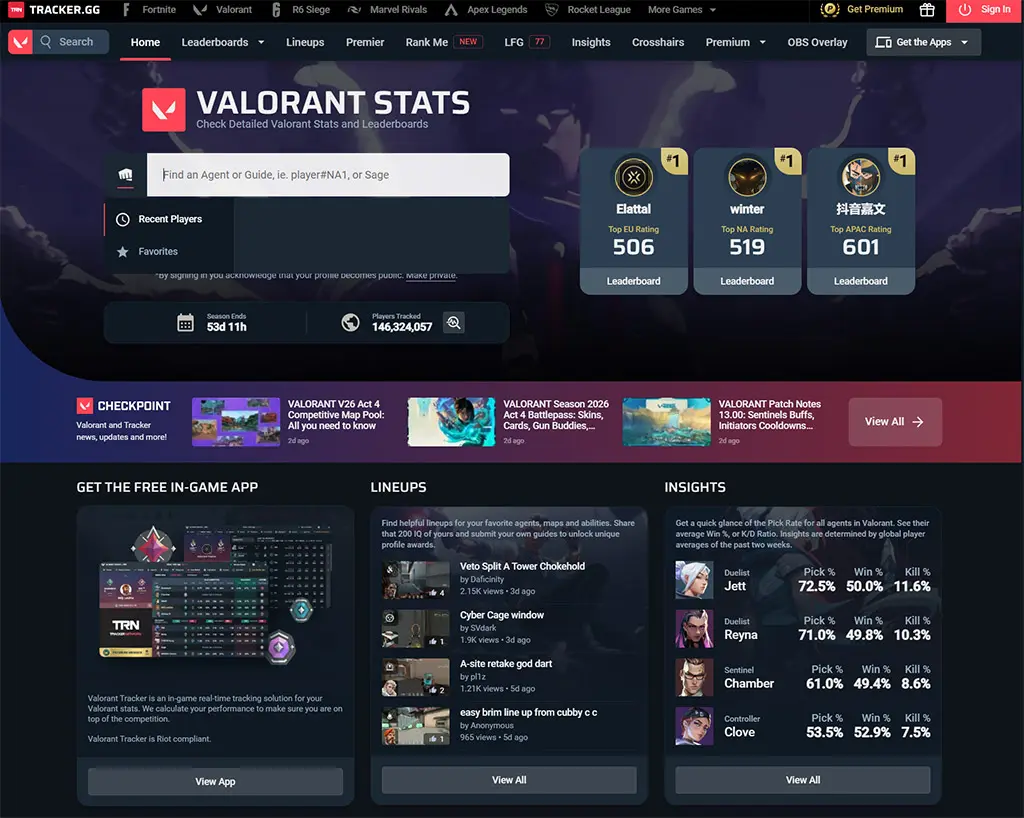
Valorant Tracker, also known as Tracker Network, is a program that makes it easy to view your stats. It collects data via the official Riot Games API and displays detailed information about your account.
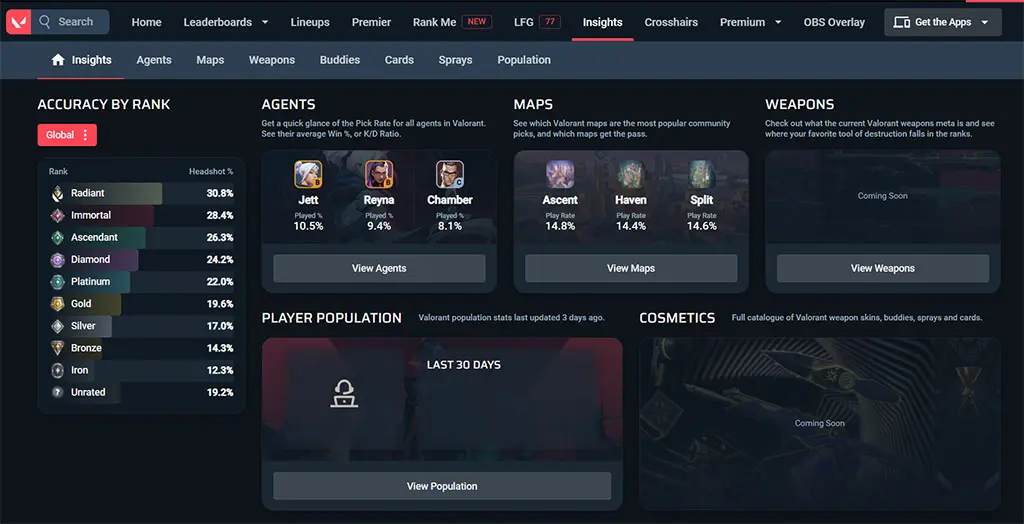
With Valorant Tracker, you can view your current and past ranks, win rate, KDA, and average score, stats by agent and map, match history, headshot percentage, weapon effectiveness, and much more.
The service is available in two versions: via a browser-based website and as an Overwolf-based PC app. The program can also display an overlay on top of the game, show stats for allies and opponents, and automatically collect data about your matches.
How to Download and Install Valorant Tracker on a PC
The desktop version of Valorant Tracker runs through the Overwolf platform. If you don’t have Overwolf installed, it will be installed automatically along with the tracker.
To install Valorant Tracker:
- Go to the official website or the app’s page on Overwolf.
- Click the Download or Get App button.
- After downloading, click Install.
- Launch the app and, if necessary, log in to your Tracker Network account.
How to run Valorant Tracker in-game
After installation, open Overwolf and make sure Valorant Tracker is enabled. Then launch Valorant as usual.
When the match starts, the app will automatically open the overlay. With it, you can view your stats, recent match history, player ranks and metrics in the lobby, agent and map stats, as well as real-time data on the current match. If the overlay doesn’t appear, open Overwolf, go to the Valorant Tracker settings, and enable “Display over the game.”
How to View Stats Without Installing the Program
If you don’t want to install Overwolf, you can use Valorant Tracker directly in your browser.
To do this:
- Open the Tracker.gg website.
- Select the Valorant section.
- Enter your Riot ID in the search bar.
- Open the player’s profile.
The site provides virtually all key data: rank, match history, KDA, win rate, and stats for agents and weapons. However, the browser version does not display information in real time during a match and does not support an in-game overlay.
Why Valorant Tracker Isn’t Working
If Valorant Tracker won’t launch, doesn’t display stats, or doesn’t open the overlay, the problem is usually related to the program’s settings or the game itself.
Check to see if you’ve followed these steps:
- Overwolf is not running. Valorant Tracker works only through the Overwolf platform. If the program is closed, the overlay will not appear.
- The game overlay is disabled. Check your Overwolf settings and make sure that overlay display for Valorant is enabled.
- Outdated software version. Update Overwolf and Valorant Tracker to the latest version.
- Blocked by antivirus or a firewall. Some security programs may prevent the overlay from running.
- Tracker.gg servers are temporarily unavailable. In this case, stats usually won’t load for any users.
- Your Riot profile hasn’t been updated. Sometimes new matches appear in the stats with a delay of several minutes or hours.
- Issues after a Valorant update. After major patches, Valorant Tracker may experience temporary instability until the developers release an update.
If Valorant Tracker still isn’t working, try the following:
- Completely close Overwolf and restart it.
- Restart your computer.
- Update Overwolf and Valorant Tracker.
- Reinstall the app.
- Check if the Tracker.gg website works in your browser.
In most cases, restarting Overwolf or reinstalling the program will resolve the issue.
How to Uninstall Valorant Tracker from Your Computer
You can uninstall Valorant Tracker the same way you installed it via Overwolf. And if you no longer plan to use Overwolf-based apps, you can also uninstall Overwolf itself. After that, the game overlay and stats tracking will stop working.
Alternatives to Valorant Tracker
If the standard Valorant Tracker doesn’t suit your needs, you can use other services to view your stats:
- Dak.gg — displays ranks, match history, and agent-specific stats.
- Blitz.gg — an app with an in-game overlay, recommendations, and detailed match analytics.
- TrackerScore on Tracker.gg — a browser-based version that requires no software installation.
- Valking.gg — a service with advanced stats and player rankings.
In terms of features and ease of use, Valorant Tracker remains the most popular service, but its alternatives are also suitable for viewing basic statistics.
Frequently Asked Questions (FAQ)
Запустите приложение Overwolf и войдите в аккаунт Tracker Network.
Нет. Сервис использует официальный API Riot Games и не считается читом.
Да. Десктопная версия Valorant Tracker работает через платформу Overwolf.
Да. Статистику можно посмотреть на сайте Tracker Network через браузер.
Обычно проблема связана с приватностью аккаунта или тем, что статистика ещё не успела обновиться.