How to Reduce Ping in MLBB


High ping in Mobile Legends: Bang Bang makes it hard to use abilities on time, dodge attacks, and participate effectively in team fights. Your character may respond to commands with a delay, move erratically across the map, or even stop responding to your commands for a few seconds.
However, high ping doesn’t always mean the problem is with your internet connection. Connection quality is affected by Wi-Fi, mobile networks, home network congestion, distance to the game server, and even issues on the MLBB side.
Let’s take a look at how to check your connection, reduce ping in MLBB, and figure out when the only option is to wait for the servers to be fixed.
Why Is Ping High in MLBB?
Ping indicates how long it takes for data to travel from the player’s device to the server and back. It’s measured in milliseconds: the lower the value, the faster Mobile Legends responds to the user’s actions.
High latency can be caused by unstable Wi-Fi, a weak cellular signal, or too much traffic on your home internet connection. For example, connection quality may deteriorate if a large game is being downloaded at the same time, photos are being uploaded to the cloud, or someone on another device connected to the same network is actively watching videos.
The distance to the game server also matters. The farther away it is from the player, the longer it usually takes for data to be transmitted, so switching to a server in a different region can lead to higher ping, even if the internet connection itself is working normally. You can read more about regions and Server IDs in the article “All About Servers in MLBB.”
A VPN can also affect latency. In this case, traffic passes through an additional server, so the path to MLBB sometimes becomes longer. In some situations, a VPN can actually improve a poor ISP route, but it shouldn’t be considered a universal solution for lowering ping.
Finally, the source of the problem may lie with Mobile Legends: Bang Bang itself. If the game servers are unstable, high ping and disconnections can occur simultaneously for a large number of users.
How to Check Your Ping in Mobile Legends
The easiest way is to monitor the connection indicator directly during a match. It’s located in the upper-left corner, to the right of the map.

If the value remains low and hardly changes, the connection is stable. Sudden spikes to three-digit values will already make your character feel unresponsive.
Mobile Legends itself also has network testing tools. Through the settings, you can assess the quality of your current connection and determine if there are any issues before the match even starts. On the game’s main screen, tap the gear icon in the top-right corner to open the settings. Then, find the “Network Detection” option at the bottom of the menu and open it. Run the test—the game will evaluate your current connection and help you determine if there are any network issues before you start searching for a match.
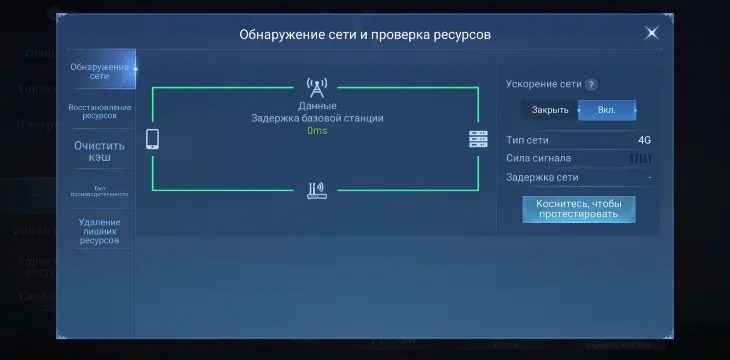
There’s no universal official threshold for “good” ping for all players, but you can use this scale as a guideline. Values around 20–40 ms are considered excellent, and at 40–80 ms, you can usually play comfortably. Around 80–120 ms, the lag becomes noticeable, and at 150 ms and above, it’s much harder to react normally to what’s happening.
It’s important not to confuse network ping with low FPS. If your character doesn’t use a skill until some time after you press the button, gets knocked back, or suddenly “teleports,” the problem is most likely related to the network. If, on the other hand, the controls respond in time but the image itself stutters and turns into a slideshow, the cause is usually the device’s performance. Lowering the graphics settings helps increase the FPS but has virtually no effect on the latency of the connection to the server.
How to Reduce Ping in MLBB
First, open the Mobile Legends settings and check your network settings. To do this, tap the gear icon in the upper-right corner of the main screen and go to network settings. The game features a “High-Speed Mode” designed to ensure more stable transmission of game data. Using this mode may increase data usage, so it’s best to play a few matches after enabling it to compare the results.
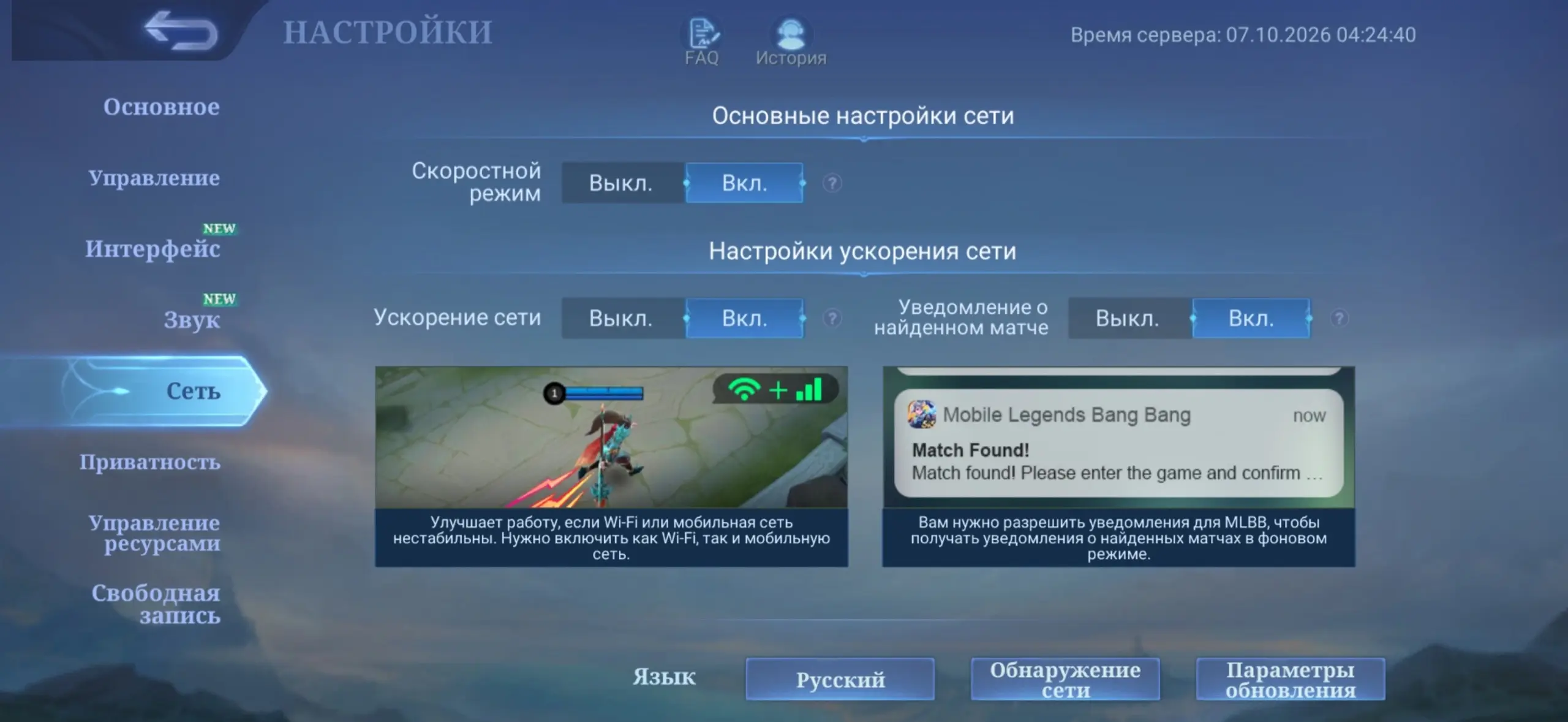
“Network Boost” is also available there. This feature can use both Wi-Fi and mobile data simultaneously so that one connection backs up the other. It’s especially useful to try this option if one of your networks becomes unstable from time to time. However, in this case, mobile data will still be used even when connected to Wi-Fi.
If the game settings didn’t help, compare different connection methods. If you experience high ping over Wi-Fi, temporarily switch to mobile data and join a match or run a network test. If the latency drops significantly, the problem is most likely related to your home network or internet service provider. The same applies in reverse: if your mobile data is unstable, try Wi-Fi.
When connected to your home network, try moving closer to the router. Walls and long distances weaken the signal. If your router supports multiple bands, try the 5 GHz Wi-Fi band: at close range to the router, this connection is often less congested, although it doesn’t travel as well through obstacles.
Next, check your background processes. Before a ranked match, it’s best to wait until large downloads, app updates, and cloud storage syncing are complete. You should also consider other devices on the same network: if someone is simultaneously downloading tens of gigabytes or watching videos at maximum quality, there will be less available bandwidth.
If high ping appears suddenly, completely close Mobile Legends and restart it. If necessary, restart your smartphone. For a home network, you can also restart the router and check the latency again after reconnecting it.
If you’re using a VPN while playing, try temporarily turning it off. An additional intermediate server often lengthens the route to MLBB. If your ping is higher without a VPN, you can compare both options and stick with the one that provides a more stable connection.
Don’t try to change your game region unnecessarily just to get a lower ping. Mobile Legends selects a server based on the player’s location, and connecting to a more distant region usually only increases latency. On Asian servers, for example, users from Russia and Europe may experience higher ping specifically because of the distance.
If, after trying all these steps, the internet works fine in other apps but Mobile Legends continues to freeze up frequently, it’s worth checking to see if there’s a widespread outage.
What to Do If the Problem Is on the MLBB Servers’ End
Sometimes there’s simply nothing you can fix on your smartphone. Problems may arise directly on the Mobile Legends: Bang Bang servers.
Usually, several signs point to a widespread outage at once: ping has spiked for no apparent reason, the match keeps trying to reconnect, switching from Wi-Fi to mobile data doesn’t help, and other players are experiencing similar issues at the same time. Situations like this do happen. For example, in May 2026, MOONTON Games reported issues with access to the MLBB servers and confirmed that the technical team was working to resolve them.
At times like this, don’t panic and immediately uninstall the game, change dozens of settings, or clear the app’s data. If it’s a widespread outage, you can’t fix the server on your own. It’s better to temporarily avoid playing ranked matches and wait for the connection to return to normal.
You can also report the issue to the developers or contact support directly within the game. In your report, it’s helpful to describe when your ping started to increase, what type of connection you were using—Wi-Fi or mobile data—and whether the problem persisted after switching networks. It’s also helpful to attach a screenshot showing a high latency value and include your player ID and server ID. The more detailed your description, the easier it is for the developers to determine whether the issue is specific to a particular player, an ISP, or a widespread outage.
Frequently Asked Questions (FAQ)
Для большинства игроков комфортным можно считать стабильный пинг примерно до 80 мс. Со значениями после 100–120 мс задержка управления становится заметнее.
Высокая скорость загрузки не гарантирует низкую задержку до игрового сервера. Причиной могут быть нестабильный Wi-Fi, потери пакетов, маршрут провайдера, VPN или большое расстояние до сервера MLBB.
Иногда — да, если VPN предлагает более удачный маршрут до игрового сервера, но чаще дополнительный промежуточный узел увеличивает задержку. Поэтому VPN лучше включать или отключать только для сравнения результата, а не рассчитывать на него как на гарантированный способ снизить пинг.
Если проблемы появились одновременно у большого количества пользователей и сохраняются на разных сетях, возможен сбой серверов MLBB. В таком случае лучше временно не играть в рейтинг, дождаться исправления и при необходимости сообщить о проблеме через внутриигровую службу поддержки.
Если индикатор соединения показывает нормальные значения, но картинка тормозит и дергается, проблема может быть связана с FPS и производительностью смартфона. В таком случае стоит снижать графические настройки, закрывать фоновые приложения и проверять, не перегревается ли устройство.