Why the microphone isn’t working in MLBB and how to fix it

Voice chat in Mobile Legends: Bang Bang helps you quickly warn your teammates about enemies, coordinate an attack on Lord, or simply coordinate your actions during a match. However, sometimes the microphone in MLBB stops working: the team can’t hear a player, the sound from allies cuts out, or the voice chat button disappears from the interface altogether.
The cause isn’t necessarily related to the game itself. Mobile Legends might not have permission to use the microphone, your smartphone might be routing audio through a connected headset, or an unstable internet connection might be interfering with the voice chat.
Let’s figure out why the microphone isn’t working in MLBB and what you can do to fix it yourself.
Why the Microphone Isn’t Working in MLBB
There could be several reasons for this issue. Most often, they’re related to the settings in Mobile Legends or on the smartphone itself.
- Microphone permission is denied. Android and iOS allow you to individually deny apps access to the microphone. If this permission is disabled for Mobile Legends, your teammates won’t be able to hear you, even if the voice chat icon is active.
- The microphone is turned off in the game itself. You can disable voice chat directly in the lobby or during a match.
- The wrong voice channel is selected. In Mobile Legends, you can talk to your group or to teammates in a match. If only the group channel is enabled, random teammates won’t be able to hear you.
- The voice chat volume is too low. If you can’t hear your allies, the problem may not be with your microphone but with your audio settings. Voice chat volume is adjusted separately within Mobile Legends.
- The microphone is in use or blocked by the system. On some versions of Android, access to the microphone can be disabled for all apps at once. Additionally, voice chat may not work properly if another app is using the microphone at the same time.
- Internet issues. Voice chat works over the network. With an unstable connection, the audio may cut out, be delayed, or not transmit at all.
- Error after an update or MLBB crash. Sometimes voice chat stops working due to a client bug. In such cases, the microphone may stop working even with the correct settings, and sometimes the voice chat buttons disappear completely from the interface.
- Smartphone microphone malfunction. If your voice isn’t being recorded in other apps either, the problem is most likely not with Mobile Legends, but with the device itself.
What to Do If the Microphone Isn’t Working in Mobile Legends
First Steps
Start with the game itself. In the lobby or during a match, locate the speaker and microphone icons and make sure voice chat is turned on. If the microphone is already active, turn it off and then back on—sometimes this is enough to restart a frozen voice chat session.
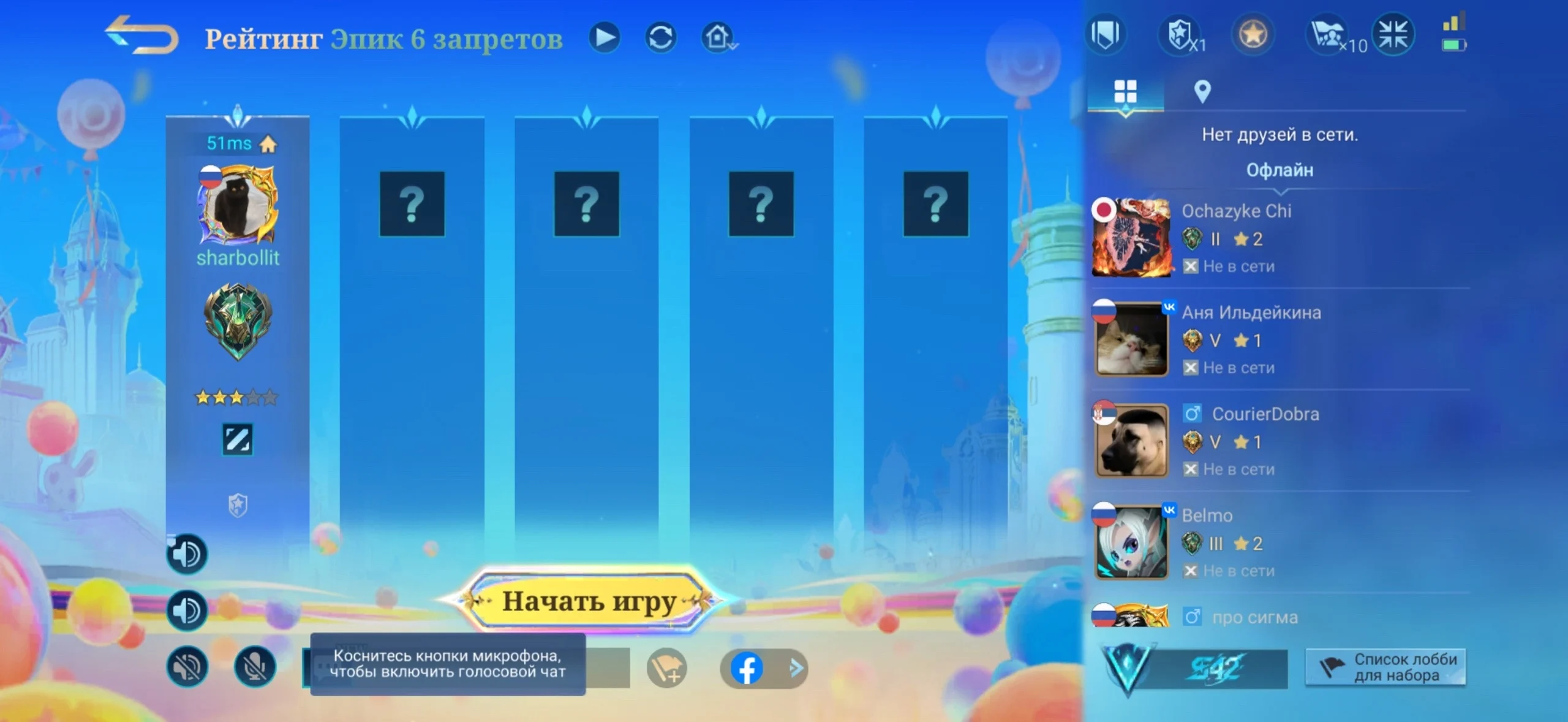
Also pay attention to the selected channel. If you want to talk to your entire team, make sure “Group-Only” mode isn’t enabled. When playing with friends, on the other hand, you can use group voice chat.
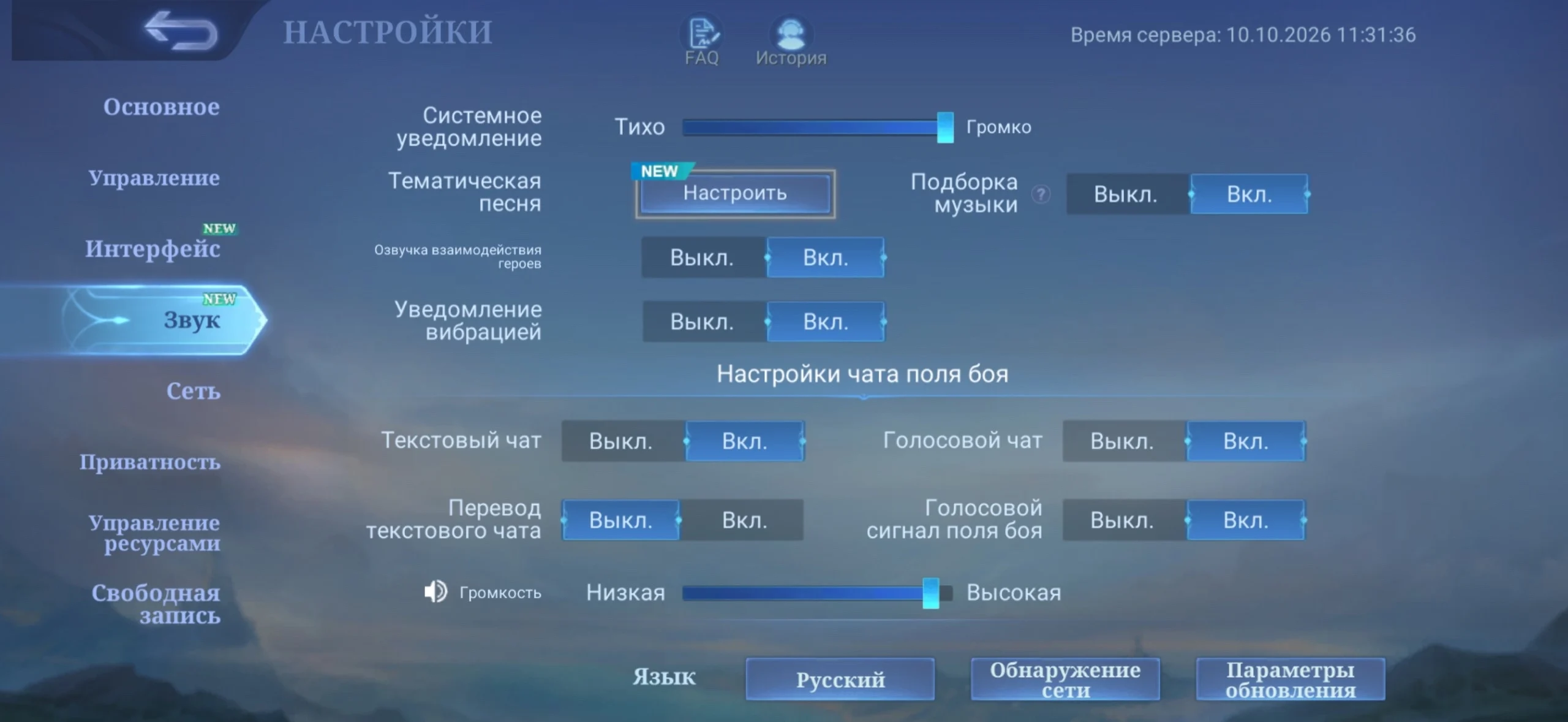
Next, open the MLBB settings and go to the “Audio” section. Scroll through the settings and check the voice chat volume. If the corresponding slider is set to the minimum, your teammates’ voices may be barely audible even when the voice channel is active.
Smartphone Permissions
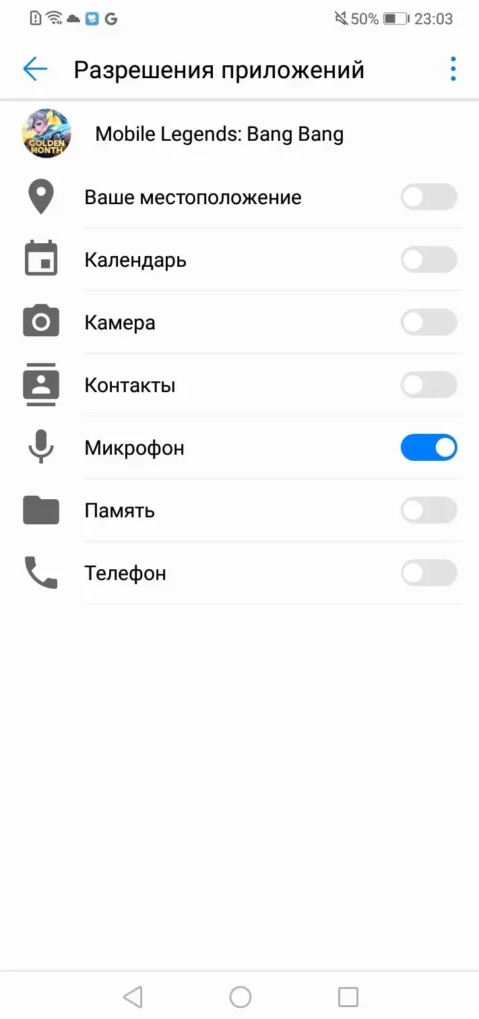
On Android, open the “Settings” app and go to the “Apps” section. Find Mobile Legends: Bang Bang, open the app’s info, and select “Permissions.” Tap “Microphone” and allow MLBB to use it while the app is running. The exact names of the options may vary slightly depending on your smartphone manufacturer and Android version.
On newer versions of Android, there’s an additional layer of protection. Even if MLBB has been granted permission, you can completely disable the microphone for all apps. Swipe down twice from the top of the screen to open Quick Settings, and check the system toggle for microphone access. If it’s off, turn it on.
On an iPhone, open “Settings,” then go to “Privacy & Security” and select “Microphone.” Find Mobile Legends in the list and allow the game to use the microphone.
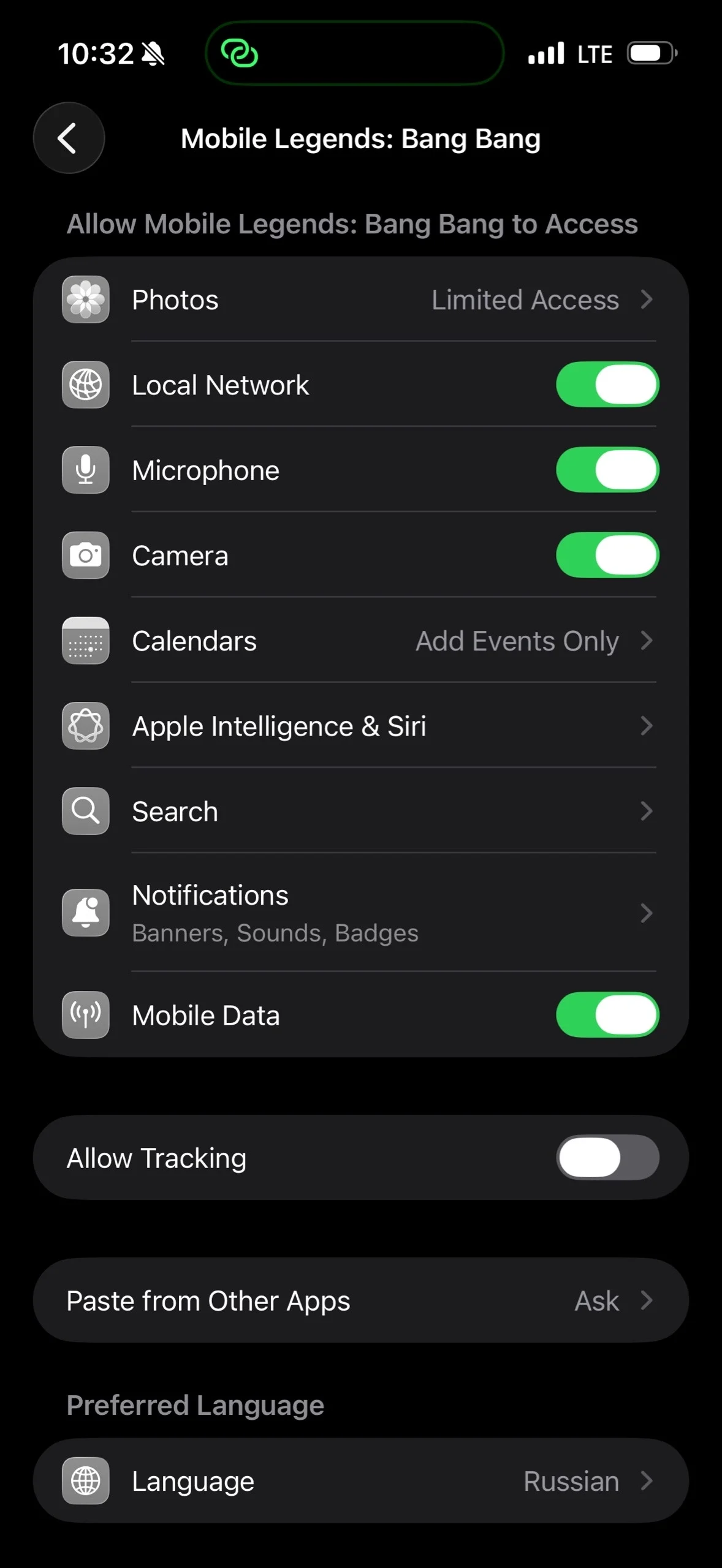
If the permissions are set correctly, make sure your smartphone’s microphone itself is working properly. Test the audio by recording a video or a voice memo. If you can’t be heard or the sound is very quiet, the problem is most likely not with Mobile Legends. Remove the case if it’s covering the microphone openings, check them for debris, and repeat the test.
Other apps, the internet, and restarting the game
- If everything works fine in the voice recorder, completely close any apps that might be using the microphone at the same time as Mobile Legends. These primarily include Discord, Telegram, and apps for calls, screen recording, and voice chat. After closing them, restart Mobile Legends and turn on voice chat again.
- If you’re using a wireless headset, you can also turn off Bluetooth and test the voice chat using your smartphone’s built-in microphone. This isn’t the most common cause, but it will help rule out an issue with the connected audio device.
- It’s also worth checking your internet connection. Voice is transmitted over the network, so if your connection is unstable, speech may cut out, be delayed, or the voice channel may fail to connect properly at all.
- Try switching from Wi-Fi to mobile data or vice versa. If you experience lag during voice chat in a match—where your character doesn’t respond to commands immediately and you experience disconnections—the problem is likely related to your connection.
- After that, completely close Mobile Legends from the list of running apps and reopen it. If the error persists, restart your smartphone.
- Also check for game updates on Google Play or the App Store. If the voice chat isn’t working due to a bug in a specific version of the client, a fix may be included in the next patch.
- Reinstalling MLBB should be a last resort. Before uninstalling, make sure your game account is linked and that you’ll be able to log back in.
Sometimes voice chat issues do occur after updates or due to a temporary MLBB glitch. If all settings are correct, your microphone works in other apps, your connection is stable, and other players are reporting the same issue at the same time, there’s no need to endlessly tweak your phone’s settings. You can wait for a fix or report the issue to in-game support.
What to Do If the Microphone Icon Is Missing in MLBB
Sometimes the problem manifests differently: the microphone doesn’t just stop working—the voice chat button itself disappears from the lobby or match.
In this situation, first completely restart Mobile Legends and check if you have the latest version of the game installed. If MLBB was recently updated, make sure the client has downloaded all the necessary resources.
Next, check the microphone permission in your Android or iPhone settings. Even if it’s already enabled, you can temporarily disable access, re-enable it, and restart the game.
If the buttons still don’t appear, don’t install third-party versions of MLBB or change your app store region just to restore voice chat. The issue may be caused by a bug in a specific version of the client.
In this case, it’s best to contact in-game support. Specify that the problem is specifically the absence of the microphone and speaker icons, not that your teammates can’t hear you. Attach a screenshot of the interface and your device information.
Frequently Asked Questions (FAQ)
Чаще всего стоит проверить разрешение Mobile Legends на использование микрофона и выбранный голосовой канал. Также убедитесь, что системный доступ к микрофону не отключен.
На Android откройте настройки приложений, выберите Mobile Legends, перейдите к разрешениям и разрешите использование микрофона. На iPhone откройте «Настройки», затем «Конфиденциальность и безопасность», выберите «Микрофон» и включите доступ для MLBB.
Если звук команды работает, а ваш голос не передаётся, проверьте сам микрофон, разрешение на его использование и выбранный голосовой канал. Также нужно убедиться, что микрофон смартфона исправен.
Кнопка может исчезнуть из-за временной ошибки клиента или после обновления. Перезапустите игру, установите актуальную версию MLBB и проверьте разрешение микрофона. Если элементы голосового чата так и не появились, сообщите о проблеме поддержке игры.
В таком случае проблема, скорее всего, связана с настройками Mobile Legends, разрешениями системы или временной ошибкой голосового чата. Проверьте их по очереди и перезапустите игру.