How to add Overwatch to your Steam library in Russia


Overwatch 2 is available for free, so all you need to do is add the game to your Steam library and install it on your computer. However, with a Russian account, the standard method might not work due to regional restrictions. In this guide, we’ll walk you through how to add Overwatch to Steam, get the game in Russia, and what to do if it doesn’t appear in your library.
How to Add Overwatch to Your Steam Library
To add Overwatch 2 to your Steam library, open the game’s page in the store and click “Play.” Since Overwatch is free to play, you don’t need to purchase the game or enter a key.
For Russian accounts, the usual method may not work: the free Overwatch license is still restricted from activation in Russia. In this case, Steam will display a “No license” error.
If your region is set to Russia, open the Overwatch page on Steam and add the game to your wishlist. Then, completely close the Steam app and launch an IP-changing program; select a country where the game is available, such as Kazakhstan.
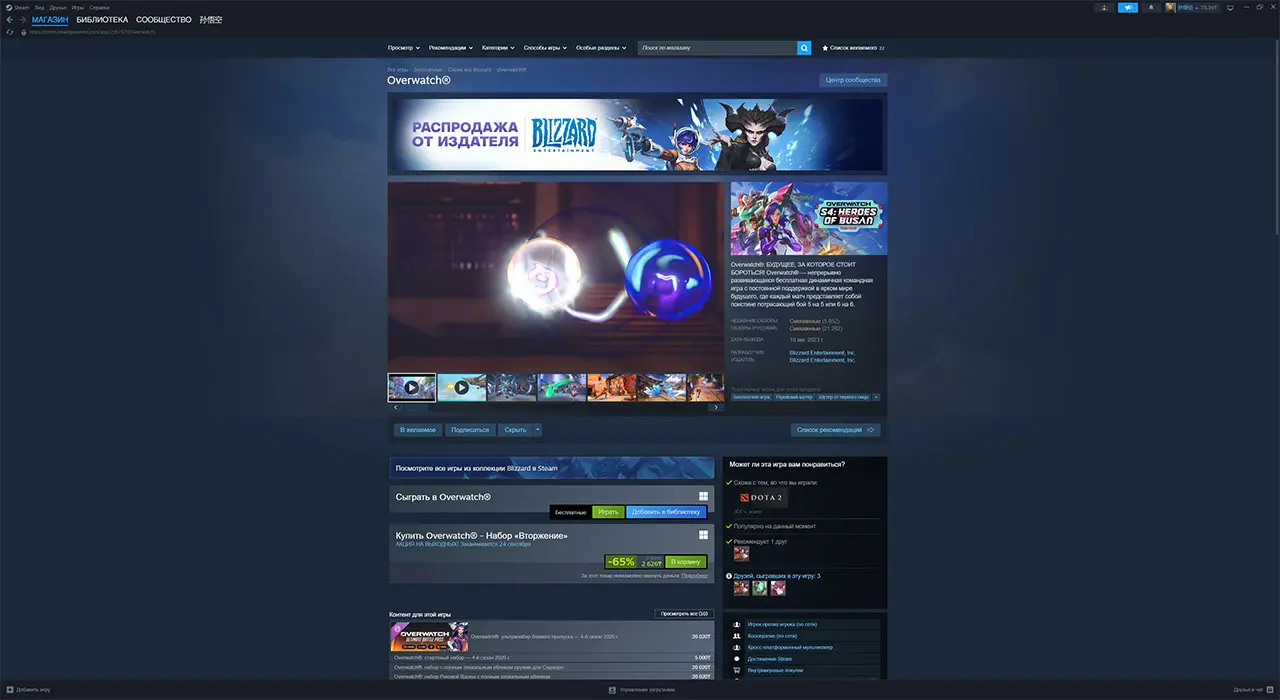
Open Steam or the store page in your browser and log in to your account. Go to your wishlist and find Overwatch. Click “Play.”
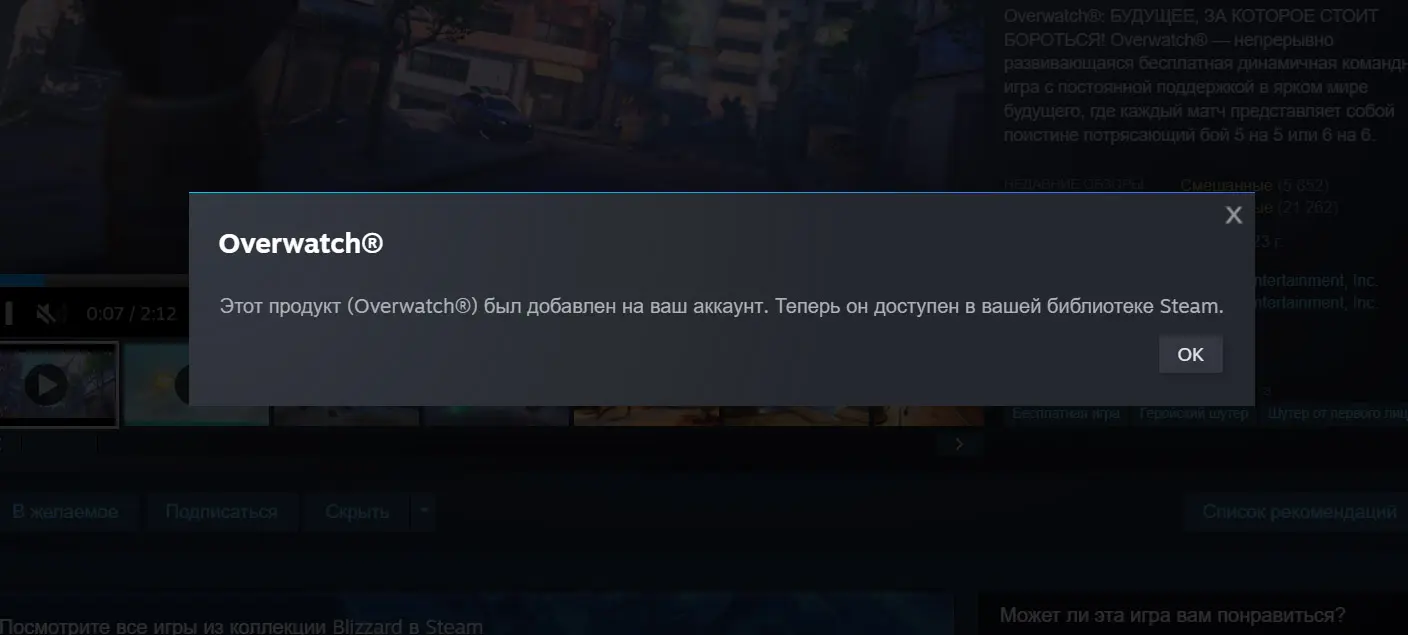
Confirm that Steam launches and the game installation begins. Check to see if Overwatch has appeared in your Steam library and if the download has started.
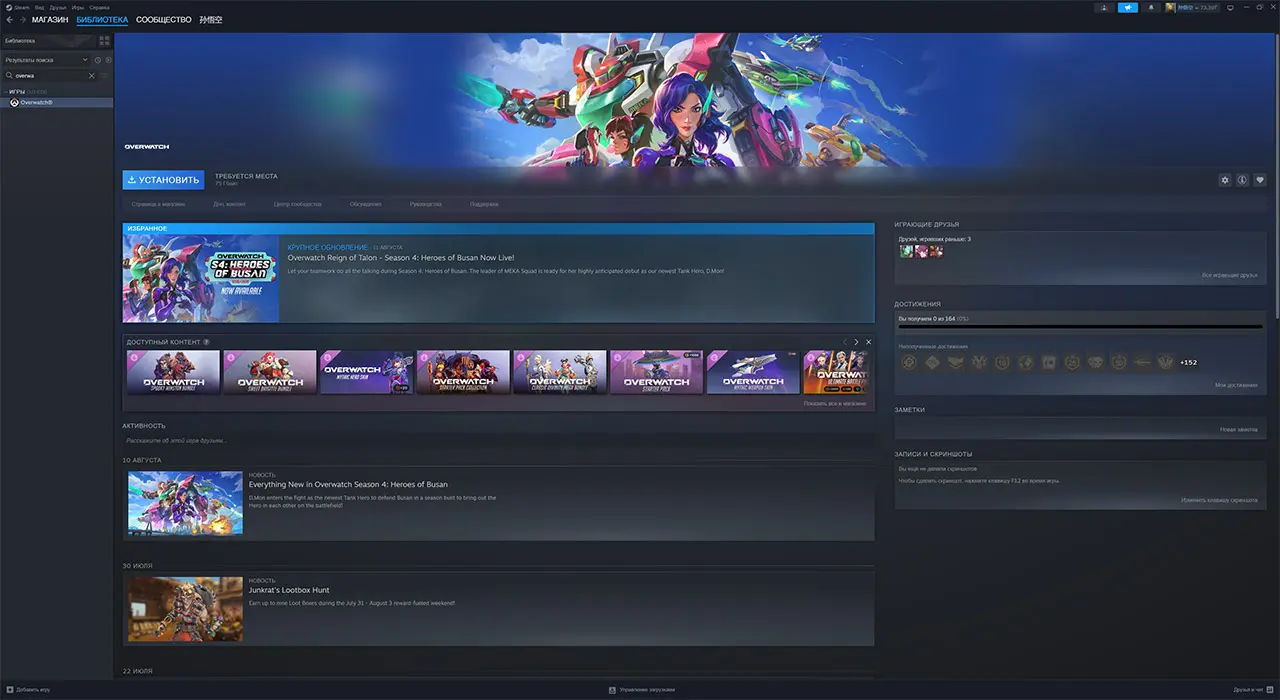
Once the game has been successfully added, you can disable the IP-changing program.
However, this method doesn’t work for everyone. If you’re unable to add Overwatch to your library this way, you’ll need a Steam account from a supported region or to officially change your store region. Simply changing your IP address does not change the region of the account itself. Contact resellers on digital marketplaces—for about 200 rubles, you can change your region to Turkey, Kazakhstan, or other countries.
Frequently Asked Questions (FAQ)
Попробуйте открыть Steam с программой для смены IP и добавить игру через кнопку «Играть».
Бесплатную лицензию Overwatch нельзя активировать в российском регионе Steam.
Нет, игра распространяется бесплатно.
Перезапустите Steam с включённой программой для смены IP и повторите добавление игры. Если способ не работает, потребуется аккаунт поддерживаемого региона.