How to completely uninstall Valorant and Vanguard from your computer: instructions

Uninstalling Valorant doesn’t always work on the first try. The problem is that Valorant consists of two components: the game itself and the Riot Vanguard anti-cheat software. If you only uninstall the game, some files and services will remain on your system. In this guide, we’ll show you how to completely uninstall Valorant from your computer.
Why It’s Hard to Completely Uninstall Valorant
When you install Valorant, the anti-cheat program Riot Vanguard is installed along with the game. It launches with Windows and runs at the system kernel level. Because of this, it’s sometimes impossible to uninstall the game using the standard method.
Additionally, after uninstallation, Riot Vanguard, the Riot Client, folders containing settings and logs, and temporary files may remain on your computer. If you plan to reinstall the game or free up disk space, it’s best to remove all components.
How to Uninstall Valorant from Your Computer
In this guide, we’ll show you how to completely uninstall Valorant from your PC.
Step 1. Close the Riot Client and Riot Vanguard
- Click the arrow in the lower-right corner of the taskbar.
- Find the Riot Vanguard icon.
- Right-click on it.
- Select “Exit Vanguard” or “Exit.”
- Confirm the action.
After that, close the Riot Client via Task Manager if the program is still running.
Step 2. Uninstall Valorant
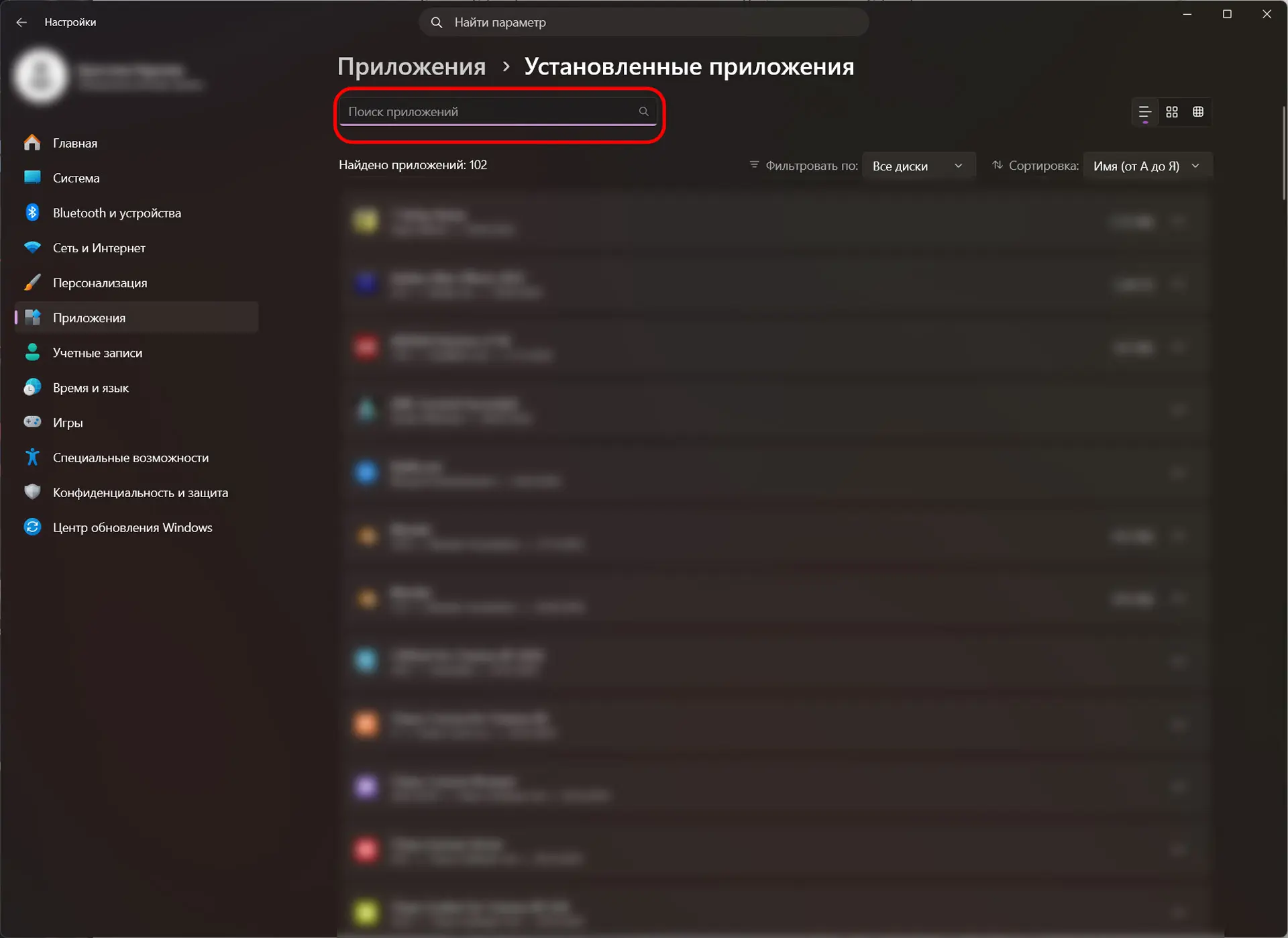
- Open “Windows Settings.”
- Go to the “Apps” section and select “Installed apps.”
- Find Valorant.
- Click the three dots next to the game.
- Select “Uninstall.”
Step 3. Uninstall Riot Vanguard
- In the “Installed Apps” section, find Riot Vanguard.
- Tap “Uninstall.”
- Confirm the uninstallation.
If the system asks you to restart your computer, agree.
After uninstalling the game and the anti-cheat software, it is recommended that you delete any remaining files. Check for and, if necessary, delete the following folders:
- C:Riot Games;
- C:Program FilesRiot Vanguard;
- C:ProgramDataRiot Games;
- %localappdata%VALORANT (to access this folder, press Win+R and type %localappdata%).
Some players prefer to use third-party programs like Revo Uninstaller, VitSoft, and others, but the standard Windows tools are sufficient to uninstall both programs. Vanguard is not a virus; it will uninstall if you choose to do so. And although it’s integrated into the system at the kernel level, it doesn’t harm your computer—it just consumes resources, which can be a problem on low-end and mid-range PCs.
How to Uninstall Valorant from a Console
Uninstalling Valorant on consoles is much simpler than on a PC because Riot Vanguard simply isn’t present there. Go to your console’s library, find Valorant, select the menu, and click “Uninstall.”
Will my Valorant account be deleted after uninstallation?
You can reinstall Valorant at any time and access your account as long as you remember your username and password. Uninstalling the game does not affect your progress—your entire collection, achievements, match history, and so on will still be available.
If you change your mind and want to reinstall Valorant, everything will be right where you left it as soon as you log in.
How do I completely delete my Valorant account?
However, if your goal is to permanently get rid of your progress and lose all your achievements, you can delete your account entirely. Or you can sell it, but that violates Riot’s rules.
Keep in mind that your data across all of the company’s games—including League of Legends, Teamfight Tactics, and Legends of Runeterra—will be lost along with it. You won’t be able to recover your progress, ranks, skins, or purchases after a full deletion.
- Go to the Riot Games support page and log in with the account you want to delete.
- Select “Delete Account” and click “Start Deletion.”
- Support will ask you to verify that the account belongs to you. You’ll need to answer questions such as “In what year was the account created?” and “In which region or country was the account created?” and so on.
- Confirm the deletion and wait for an email with further instructions.
After that, a 30-day waiting period will begin. You can restore your account if you change your mind. But once the period ends, your account will be permanently deleted.
Frequently Asked Questions (FAQ)
Закройте Riot Vanguard, откройте «Параметры» Windows, найдите Valorant в списке приложений и нажмите «Удалить».
Нужно удалить три компонента: Valorant, Riot Vanguard и оставшиеся папки Riot Games на диске. Иначе некоторые файлы игры останутся в системе.
Да. Античит устанавливается отдельно от игры и может остаться на компьютере даже после удаления Valorant.
Нет. Удаление игры не влияет на аккаунт Riot Games. Все скины, ранги, достижения и покупки сохранятся.
Для этого нужно отправить запрос на удаление учётной записи Riot Games через настройки аккаунта или службу поддержки. После подтверждения начинается 30-дневный период ожидания, по истечении которого аккаунт удаляется без возможности восстановления.