The Most Common Errors When Launching Fortnite and Their Solutions

When launching Fortnite, users may encounter various errors: the game won’t start, crashes after an update, freezes on the loading screen, or displays messages about connection issues. Most of these issues are caused by outdated drivers, corrupted game files, hardware incompatibility, or temporary server problems on Epic Games’ end. Below, we’ll break down the most common errors when launching Fortnite and how to fix them.
Fortnite Server Status
Before troubleshooting any issue, check the server status on the official website. Green indicates that the servers are up and running, but sometimes they turn red—meaning they’re down, and it’s not your fault.
Fortnite Server Error 5
Fortnite Server Error 5 is usually caused by temporary connection issues with Epic Games’ servers, maintenance, or high server traffic. In most cases, the problem isn’t on the user’s end and goes away once the servers are back up and running.
If Server Error 5 appears immediately after a new update is released or a in-game event begins, the problem is most likely with the servers. In this situation, you’ll just have to wait for Epic Games to resolve the issue. If the error persists for a long time, but the game is working normally for other players, you should contact Epic Games support.
Fortnite Server Connection Error
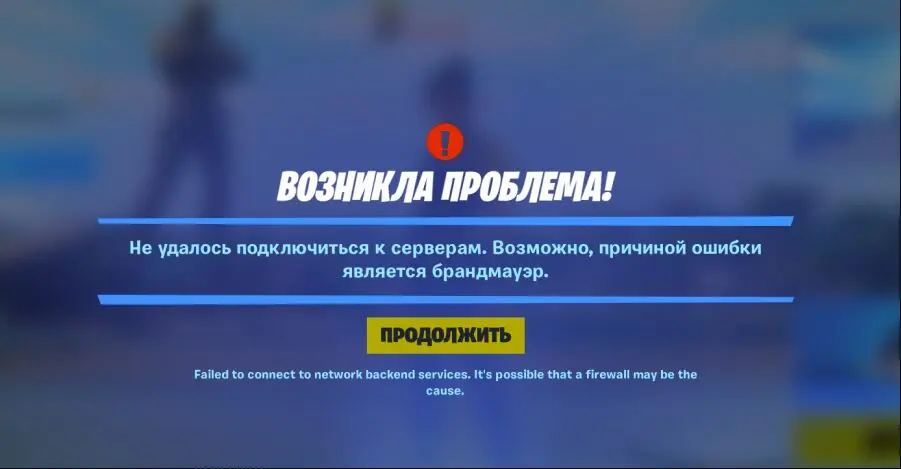
A server connection error in Fortnite can occur due to maintenance, internet connection issues, temporary outages on Epic Games’ end, or incorrect network settings on your computer. Sometimes the problem occurs after a major game update or when the servers are under heavy load.
If Fortnite cannot connect to the server, try the following:
- Check the Epic Games server status and make sure there is no scheduled maintenance;
- Restart the game and the Epic Games Launcher;
- restart your router and check the stability of your internet connection;
- Disable programs that affect network traffic, including internet accelerators;
- Temporarily disable your antivirus and firewall, or add Fortnite to the list of exceptions;
- Switch to public DNS servers, such as Yandex DNS (77.88.8.8 and 77.88.8.1);
- Make sure the game is updated to the latest version.
Fortnite: Unavailable on Epic Games—What Should I Do?
If the Epic Games launcher displays a message stating that Fortnite is unavailable, the issue may be related to temporary maintenance, regional restrictions, corrupted launcher files, or account errors.
Sometimes the game is also taken offline during major updates when Epic Games’ servers are undergoing maintenance. First, check the game’s social media channels—an update may have been released, and the developers are currently rolling it out to the game. If there’s nothing there and the error persists, run a file integrity check and reinstall any corrupted game files.
How to verify file integrity:
- Open the Epic Games Launcher and find Fortnite.
- Click the three-dot icon next to the game.
- Select “Manage.”
- Click the “Verify” button and wait for the verification to complete. The program will automatically repair any corrupted files.
What to do if Fortnite crashes?
If Fortnite crashes during launch, while loading a match, or right in the middle of a game, the problem is most often related to graphics card drivers, corrupted game files, insufficient RAM, or a conflict with third-party software.
To fix the problem, try the following solutions:
- Update your graphics card drivers to the latest version;
- Check the integrity of the game files via the Epic Games Launcher;
- close background programs and overlays, including Discord, MSI Afterburner, and screen recording software;
- Install the latest Windows updates;
- Lower your graphics settings if crashes occur during a match;
- Make sure your computer meets the minimum system requirements for Fortnite;
- Temporarily disable your antivirus software and add the game folder to the exceptions list;
- Reinstall Easy Anti-Cheat via the game folder.
If the crashes started after a Fortnite update, the cause may be a temporary bug in the patch itself. In that case, check Epic Games’ official social media channels and wait for a fix.
Why Is the Server Down in Fortnite?
The “Server is down” message in Fortnite usually appears during maintenance, major updates, or temporary outages on Epic Games’ end. In these cases, the problem isn’t related to the user’s computer or internet connection, so all you can do is wait.
Check:
- the official Epic Games server status to see if they’re up and running;
- check Fortnite and Epic Games’ social media channels, where information about maintenance is posted;
- make sure the game is updated to the latest version;
- completely close Fortnite and the Epic Games Launcher, then launch them again;
- restart your computer or console;
- Check your internet connection and restart your router.
If the servers are indeed undergoing maintenance, all you can do is wait for the work to be completed. Scheduled maintenance typically takes anywhere from a few minutes to a few hours. Once the servers are back online, the game will become available again automatically.
What to Do If Fortnite Won’t Launch
If Fortnite won’t launch, the problem is most often caused by corrupted game files, software conflicts, or outdated drivers. Check to see if your computer meets the system requirements, update your graphics card drivers, and try running the game as an administrator.
What to do if a game mode is unavailable in Fortnite
Sometimes, certain game modes are temporarily disabled by the developers due to maintenance, updates, or discovered bugs. In this case, you cannot fix the problem yourself—you’ll need to wait for the developers to resolve it.
What to do if an error occurs in Fortnite
If Fortnite displays an unknown error, take note of its code or the error message text. This will help you identify the cause of the problem more quickly. Most errors are resolved after updating the game, verifying the files, or restoring your internet connection.
What to do if Fortnite freezes on the loading screen
Getting stuck on the loading screen could be due to a corrupted cache, a slow internet connection, or issues following an update. If the problem occurs regularly, try clearing the launcher’s cache and making sure you have enough free space on your hard drive.
What to do if Fortnite crashes after an update
Major patches can sometimes cause compatibility issues that make the game crash. In most cases, the developers release fixes within a few days, so it’s worth checking for new updates and keeping an eye on official announcements from Epic Games.
What to do if Easy Anti-Cheat displays an error
Easy Anti-Cheat errors usually occur due to corrupted anti-cheat files or a conflict with programs running in the background. In this situation, restoring or reinstalling Easy Anti-Cheat from the game’s installation folder can help.
What to do if Fortnite says “Matchmaking is disabled”
The “Matchmaking is disabled” message usually appears during maintenance, the launch of a new season, or when a specific mode is temporarily disabled. If the servers are working normally, just wait a bit and try connecting again later.
Frequently Asked Questions (FAQ)
Чаще всего игра не запускается из-за повреждённых файлов, устаревших драйверов видеокарты или конфликтов со сторонними программами. Также причиной могут быть проблемы после обновления.
Проверьте статус серверов Epic Games, убедитесь в стабильности своего интернета и перезапустите игру. Если проблема массовая, остаётся дождаться устранения неполадок разработчиками.
Такое сообщение обычно появляется во время технических работ, установки обновлений или временных проблем на стороне Epic Games. В большинстве случаев ошибка исчезает после восстановления работы серверов.
Перезапустите игру и Epic Games Launcher, проверьте подключение к интернету и убедитесь, что серверы Fortnite работают нормально. Если проблема возникла после обновления, стоит дождаться исправления со стороны разработчиков.
Нет, переустановка требуется далеко не всегда. Сначала рекомендуется проверить файлы игры, обновить драйверы и перезапустить лаунчер. Полная переустановка обычно используется только в крайнем случае.
Убедитесь, что обновление установилось корректно и серверы Epic Games доступны. Если проблема появилась сразу после выхода нового патча, причиной может быть временная ошибка, которую разработчики исправят в следующих обновлениях.