Best Standoff 2 Settings for 2026: Graphics, Controls, and Sound

The right Standoff 2 settings help boost your FPS, make controls more comfortable, and allow for more precise aim. That said, there’s no one-size-fits-all configuration: graphics settings depend on your smartphone’s processing power, and you’ll need to adjust sensitivity and button layouts to suit your playstyle. In this guide, we’ll break down the optimal Standoff 2 settings for 2026: which graphics settings to choose for a stable FPS, how to configure controls and sensitivity, and which audio settings will help you hear enemies better.
Optimal Standoff 2 Settings for 2026
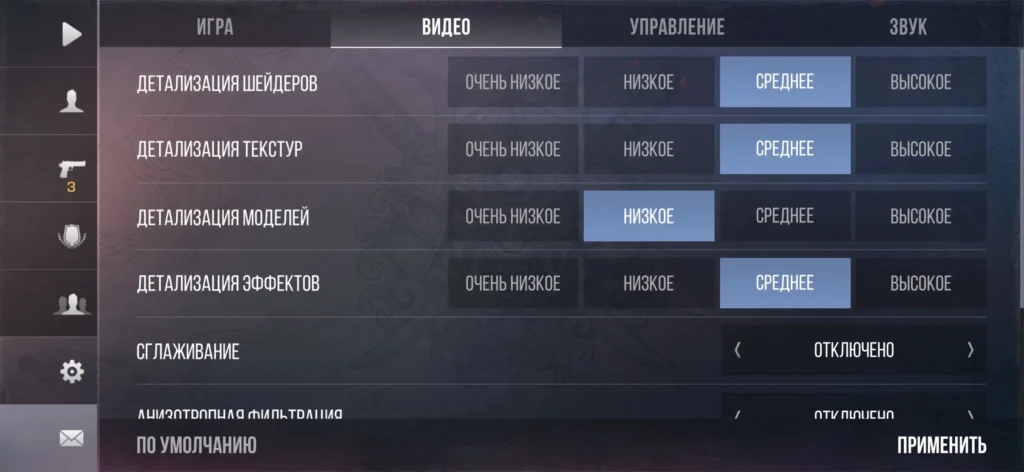
There are no one-size-fits-all settings for Standoff 2: graphics should be adjusted based on your device’s performance, and sensitivity should be tailored to your playstyle. For competitive matches, a stable FPS and comfortable controls are more important than maximum image quality.
On a powerful smartphone, you can increase the quality of textures and models if this doesn’t cause a drop in FPS. On a weaker device, it’s better to lower the graphics to the minimum and set the frame rate to a level your smartphone can maintain without stuttering or overheating.
You can use the following settings as a baseline:
| Parameter | Value |
| Graphics Quality | Low or Medium |
| Shader detail | Low |
| Texture detail | Medium |
| Model detail | Low or Medium |
| Anti-aliasing | Off |
| Anisotropic filtering | Off |
| Target frame rate | The maximum your device can handle |
| Sensitivity | 1.5–2.5 |
| Sensitivity with crosshairs | 0.8–1.5 |
| Acceleration | 0–0.3 |
| Crosshair smoothing | 0–0.2 |
| Music | Minimum or Off |
| Game sounds | 0.7–1.0 |
| 3D Sound | On |
Graphics Settings in Standoff 2
Graphics settings in Standoff 2 affect not only image quality but also frame rate, device temperature, and game stability. For competitive matches, it’s best to prioritize performance as much as possible—high detail levels don’t provide a gameplay advantage anyway, and frame rate drops can interfere with firefights. The game also takes device performance into account: if a certain graphics setting is unavailable, it means the system has automatically limited it for that device model.
| Parameter | Value |
| Shader Detail | Low |
| Texture detail | Medium |
| Model detail | Low |
| Effect detail | Low |
| Anti-aliasing | Disabled |
| Anisotropic filtering | Disabled |
| Target Frame Rate | The maximum your device can handle |
| Display of defeated characters | On |
Standoff 2 Settings for a Low-End Phone
On a low-end phone, it’s best to use low graphics quality and disable additional effects. This will reduce the load on the processor and graphics chip, minimize overheating, and help prevent FPS drops. Also, close background apps, disable power-saving mode, and free up device memory.
Starting with version 0.38.1, the game automatically determines the maximum graphics setting for your device. For example, on Android, the low setting may be applied to smartphones with 3 GB of RAM or less, or those with an older graphics chip.
How to Enable 120 FPS in Standoff 2
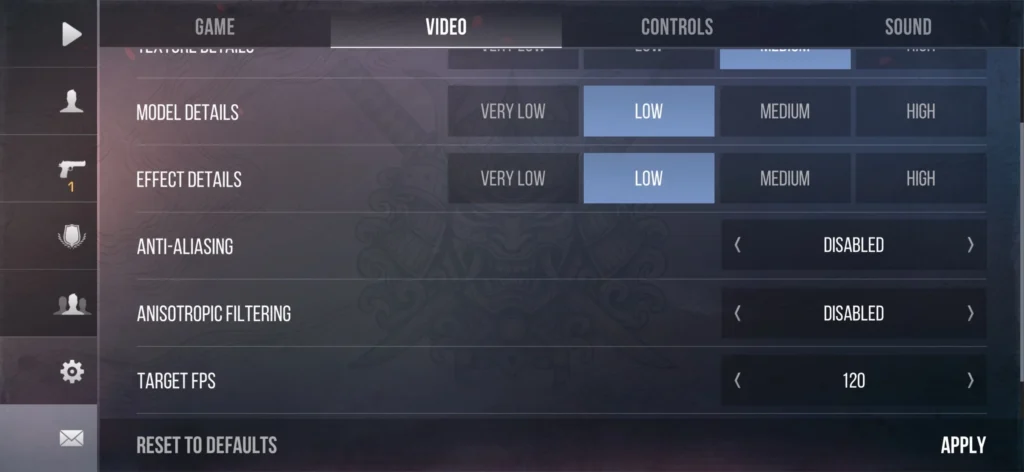
To play Standoff 2 at 120 FPS, your smartphone must support a 120 Hz display and have sufficient processing power. First, enable 120 Hz in the system display settings, then open “Settings” > “Graphics” in the game and set the target frame rate to 120, if that option is available.
If the 120 FPS option isn’t available or the frame rate drops noticeably during a match, lower the graphics quality. On lower-end devices, it’s better to opt for a stable 60 FPS than 120 FPS with constant frame rate drops and overheating.
Standoff 2 Control Settings
Convenient controls in Standoff 2 help you aim at enemies, shoot, and move simultaneously. There’s no one-size-fits-all layout: it’s best to adjust the button positions and sizes to fit your screen size and how you hold your smartphone.
It’s easier for beginners to start with two-finger controls. For faster gameplay, you can switch to a three- or four-finger layout: it lets you move, aim, shoot, jump, or crouch all at the same time.
| Parameter | Value |
| Movement Joystick | On the left, under the thumb |
| Fire button | On the right, enlarged for easy pressing |
| Aim button | Next to the fire button |
| Jump and crouch | On the right, not right next to each other |
| Weapon swap | In the quick-access zone |
| Important buttons are opaque | 70–100% |
| Opacity of secondary buttons | 30–60% |
Sensitivity settings in Standoff 2
Sensitivity determines the movement speed of the camera and crosshairs. A value that is too high makes it difficult to aim accurately at long ranges, while a value that is too low makes quick turns more difficult. As a starting point, set the sensitivity to 1.5–2.5 and the crosshair sensitivity to 0.8–1.5.
It’s best to keep acceleration at the minimum or turn it off completely so that the crosshair’s movement remains predictable. After that, adjust the sensitivity in small increments of 0.1–0.2 and test the results in training mode.
Sight Settings in Standoff 2
The crosshair should stand out clearly against the map’s background and not obscure the enemy’s model. To start, it’s best to use a small, static crosshair in a contrasting color with minimal spacing between the lines. Red, green, or blue are usually highly visible on most maps.
The size, line thickness, and center point should be adjusted to match your screen resolution. For long-range shooting, a compact crosshair is more convenient, while one that’s too large can make it difficult to aim precisely at the opponent’s head.
Sound Settings in Standoff 2
Sound in Standoff 2 helps you pinpoint the location of opponents based on their footsteps, gunshots, and reloading sounds. Therefore, it’s best to set the game volume to 80–100% and lower or completely turn off the music so it doesn’t drown out important sounds during a match.
If your device supports surround sound, turn it on—it makes it easier to pinpoint the direction of footsteps and gunfire. Configure voice chat separately: your teammates’ volume should be loud enough to communicate, but not so loud that it drowns out enemy sounds. For ranked matches, it’s best to play with headphones, since it’s harder to pinpoint the direction of sounds through a smartphone’s speakers.
How to Optimize Standoff 2 and Boost FPS
If Standoff 2 lags or your FPS drops during matches, first lower the graphics quality. Set shader, model, and effect detail to low, and disable anti-aliasing and other additional effects. Choose a target frame rate based on your smartphone’s capabilities: a stable 60 FPS is better than 120 FPS with constant drops.
Additionally, you can close background apps before launching the game, turn off power-saving mode, free up space in internal storage, clear the Standoff 2 cache, restart your smartphone, install the latest game and system updates, and prevent the device from overheating.
When the smartphone gets hot, it may automatically throttle performance, so during long gaming sessions, the FPS may sometimes drop even on low graphics settings. In this case, let the device cool down and avoid playing while it’s charging.
Frequently Asked Questions (FAQ)
Низкая или средняя графика со стабильным фпс.
Снизьте графику, закройте фоновые приложения и отключите энергосбережение.
Для начала попробуйте 1,5–2,5 и постепенно настройте значение под себя.
Включите 120 Гц на смартфоне и выберите 120 кадров в настройках игры.
Увеличьте игровые звуки до 80–100%, а музыку уменьшите или отключите.