How to Configure PABG on PC and PABG Mobile: Controls, Sensitivity, Sound, and Gyroscope


The right settings in PUBG help you react faster to enemies, shoot more accurately, and play more comfortably on both PC and mobile. In this guide, we’ll walk you through how to set up PUBG on PC and PUBG Mobile, adjust sensitivity, change controls, enable the gyroscope, and configure audio.
How to Set Up PUBG on PC
If your main goal is to get the highest possible FPS, you should first lower the most resource-intensive graphics settings. Not all settings affect performance equally: some provide a gain of only a few frames, while others can increase FPS by tens of percent.
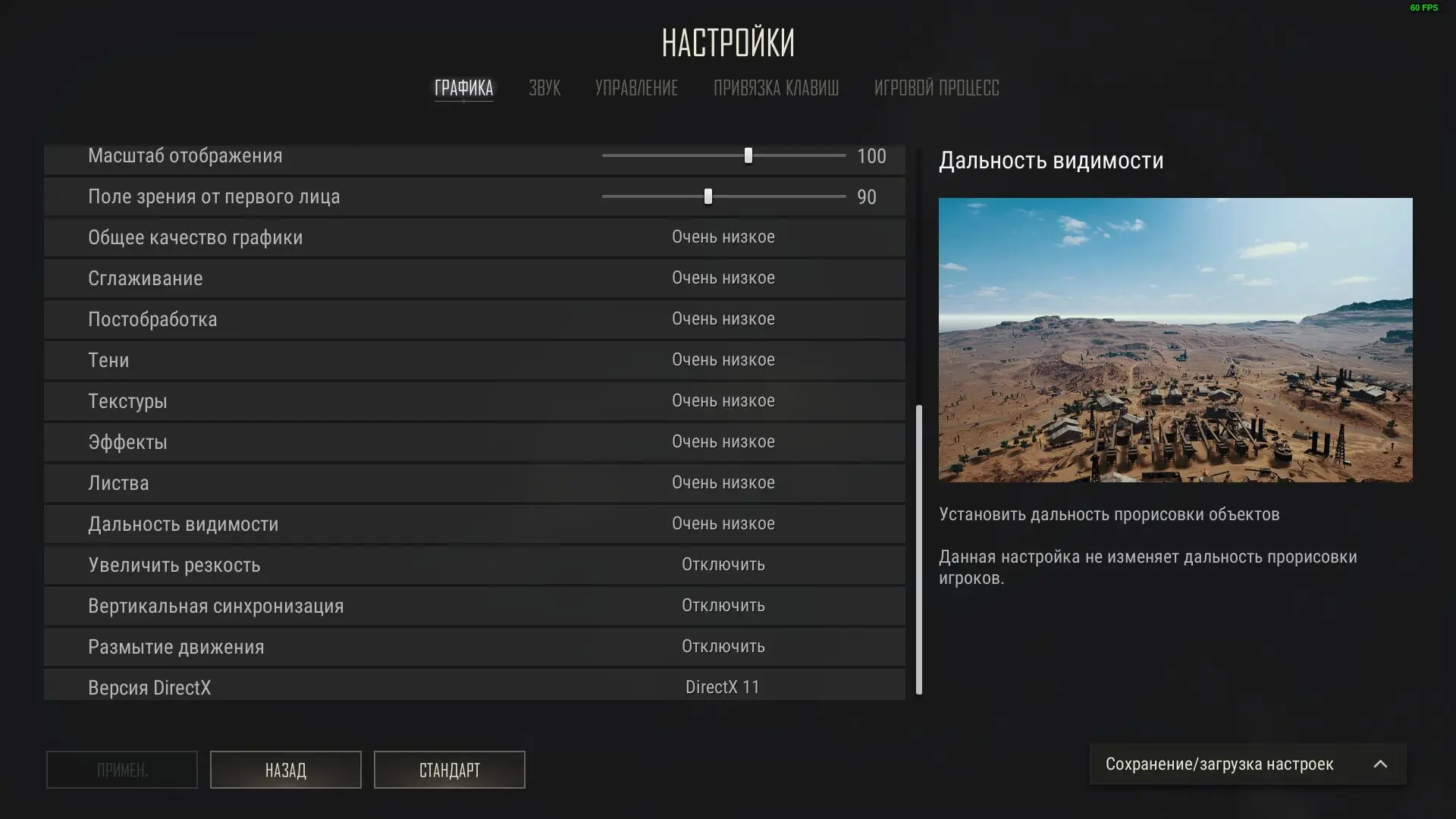
To boost your FPS, set the following options:
- Shadows — Very Low;
- Effects — Very Low;
- Post-processing — Very Low;
- Vegetation — Very Low;
- Draw Distance — Low or Medium;
- Textures — medium or high (if there’s enough video memory);
- Anti-aliasing — low or medium.
Shadows, post-processing, effects, and foliage place the greatest load on the system. These are the settings you should reduce first.
Textures, on the other hand, have almost no effect on frames per second if the graphics card has enough video memory. Therefore, owners of modern graphics cards can leave them at medium or even high settings without a noticeable loss of performance. It’s best not to lower the draw distance to the minimum—a medium setting allows you to spot vehicles and certain distant objects sooner.
If you have a monitor with a high refresh rate, it’s also recommended to:
- enable full-screen mode;
- update your graphics card driver;
- install the game on an SSD;
- close background programs and overlays (Discord, Xbox Game Bar, a browser with dozens of tabs).
For most players, the optimal setting is a combination of low graphics settings and medium-quality textures. This preset ensures a high FPS, good image clarity, and makes it easier to spot enemies on the map.
How to Configure PUBG Mobile on Your Phone
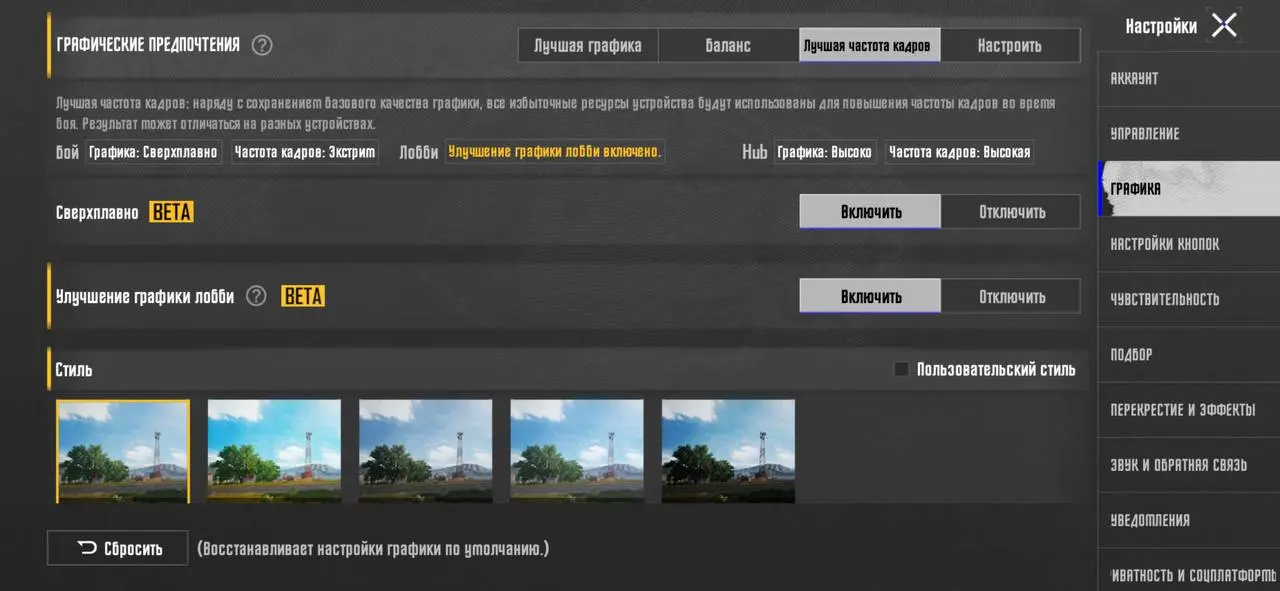
On most modern smartphones, PUBG Mobile automatically adjusts the graphics settings, but for a stable gaming experience, it’s better to configure them manually. If high FPS is important to you, select “Maximum Performance” and the highest available frame rate.
It’s also recommended to disable unnecessary visual effects, if available on your device, and keep automatic graphics adjustment turned off. After changing the settings, it’s a good idea to play a few matches or practice on the training ground to make sure your phone doesn’t overheat or start to slow down.
How to Adjust Sensitivity in PUBG Mobile
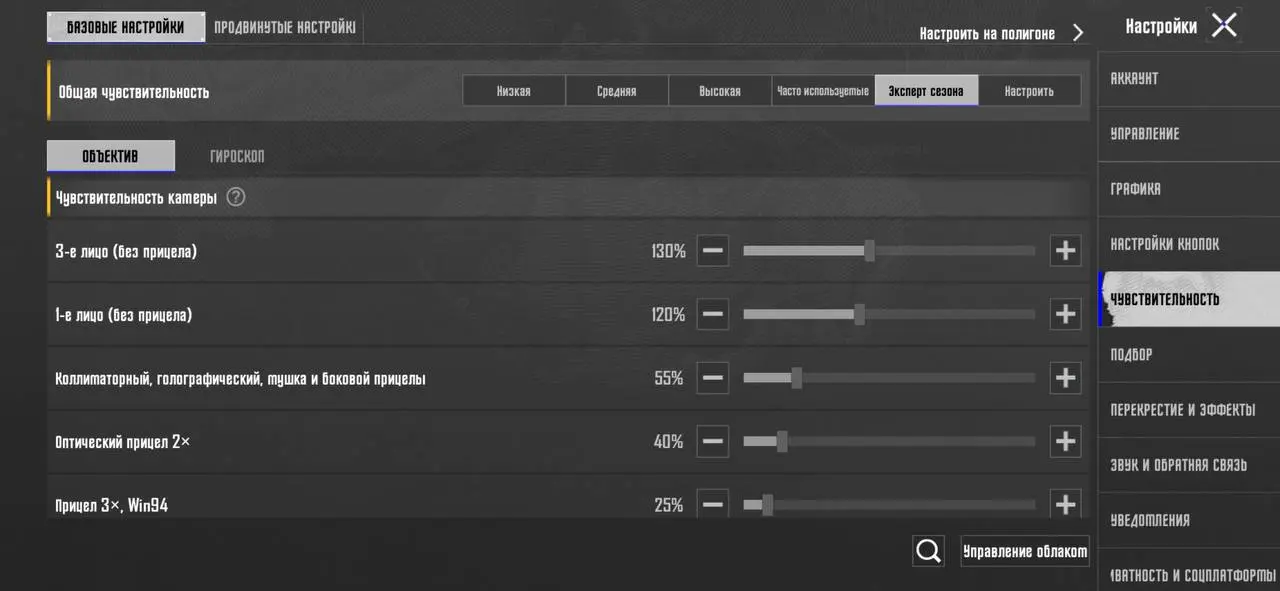
There’s no one-size-fits-all sensitivity setting—it depends on screen size, grip, and playstyle. You can adjust the sensitivity for the camera, ADS (when aiming), the gyroscope, and each scope separately. To do this, open Settings > Sensitivity, where all the necessary options are available. Additionally, you can set a separate sensitivity for a specific weapon and save it to the cloud.
Don’t just blindly copy pro players’ settings. It’s much more effective to fine-tune them yourself on the training ground: if your crosshairs keep missing the target, lower the sensitivity; if you can’t keep up with an opponent, increase it slightly.
How to Customize Controls in PUBG Mobile
PUBG Mobile lets you completely customize the button layout. To do this, go to “Settings” > “Controls” > “Customize Buttons.” Here you can move interface elements, change their size and transparency, and save multiple control layouts.
For beginners, the standard layout with two large fire buttons is usually sufficient. More experienced players often use three-, four-, or five-finger controls to move, aim, shoot, and peek from behind cover all at once. If you plan to play for a long time, it makes sense to gradually switch to at least a four-finger layout—it significantly expands your options in firefights.
We’ve already covered 3–6-finger layouts in a separate article. Check it out—you might find something that suits your playstyle.
How to Set Up the Gyroscope in PUBG Mobile
The gyroscope in PUBG Mobile lets you aim by tilting your smartphone. This helps you control weapon recoil more precisely and track moving enemies faster. The gyroscope is especially useful when shooting at medium and long ranges.
You can enable this feature in the “Settings” menu under “General” > “Gyroscope.” Three modes are available:
- Off — the gyroscope is not used.
- When Aiming — works only while using the crosshairs.
- Always On — the gyroscope is active at all times.
After enabling it, be sure to adjust the gyroscope’s sensitivity in the corresponding settings section. Don’t set the values to the maximum right away—it’s better to gradually fine-tune them at the training range.
If you’ve never played with a gyroscope before, the controls may feel unfamiliar at first, but after just a few days, most players start shooting much more steadily and controlling recoil better.
How to Adjust Sound Settings in PUBG
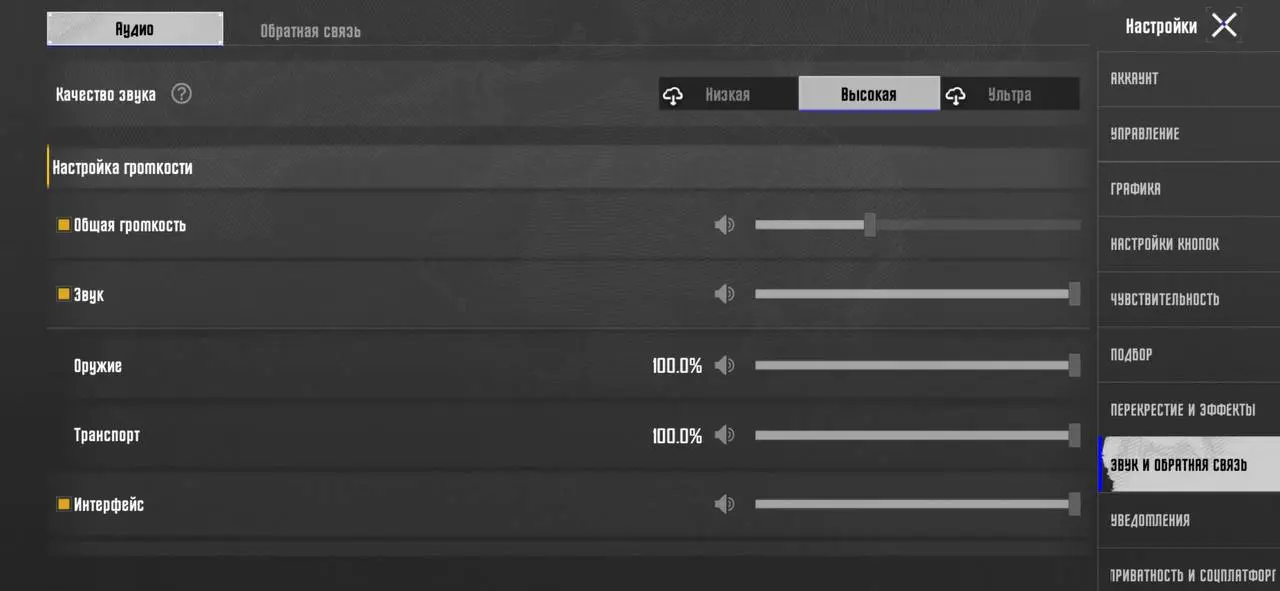
Proper sound settings help you spot enemies sooner by their footsteps, reloading sounds, and other in-game effects. In PUBG’s settings, it’s recommended to increase the volume of sound effects, while lowering or turning off music and unnecessary interface sounds. This way, important sounds will be much easier to hear.
On a PC, you should also enable the HRTF feature if it’s available. It improves spatial audio and helps you pinpoint the direction of footsteps and gunshots more accurately. For maximum effect, it’s recommended to use high-quality stereo headphones instead of speakers.
Frequently Asked Questions (FAQ)
Лучше всего установить низкие настройки графики, отключить тяжёлые эффекты и оставить средние или высокие текстуры, если хватает видеопамяти.
У всех по-разному. Большинство киберспортсменов подбирают чувствительность индивидуально и регулярно корректируют её под свой стиль игры.
Да, особенно если вы хотите лучше контролировать отдачу и повысить точность стрельбы.
Увеличьте громкость игровых эффектов, уменьшите музыку и используйте стереонаушники. На ПК также рекомендуется включить HRTF.
Да. В разделе настроек игры можно восстановить параметры по умолчанию и заново настроить управление, чувствительность и графику.