How to Record Your Screen on Android: Built-in Tools and Free Screen Recording Apps

The screen recording feature lets you save what’s happening on your phone’s screen as a video file. It’s useful for recording games, tutorials, video calls, or app crashes. In this guide, we’ll explain where to find the screen recording feature on Android, how to enable it, how to record video with audio, and what to do if the feature isn’t working.
Where to Find Screen Recording on Android
On most modern Android smartphones, the screen recording feature is built into the system and can be found in the quick settings panel. To open it, swipe down from the top edge of the screen. If the “Screen Recording” button isn’t displayed, expand the panel fully or tap the edit button (pencil icon) and add it to the list of quick toggles.
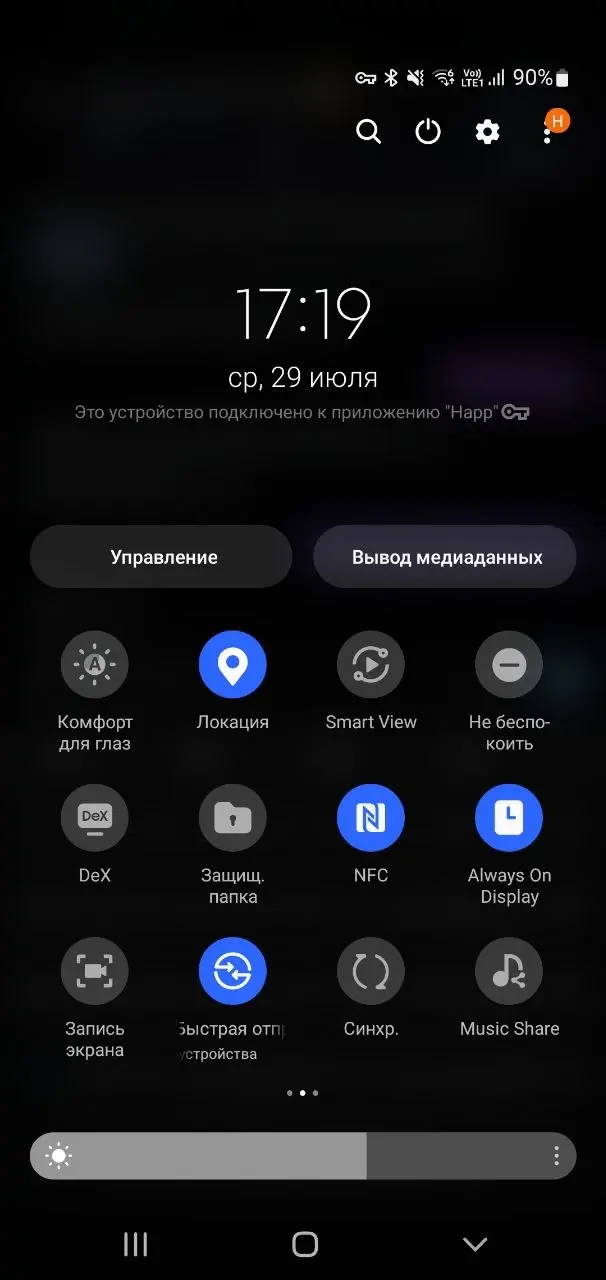
On some devices, the feature’s name may vary, such as “Screen Recording,” “Screen Recorder,” or “Screen Capture.” If you can’t find it, use the search function in your phone’s settings and enter “screen recording.” Older versions of Android may not have a built-in feature—in that case, you’ll need a third-party app from Google Play.
How to Record Your Screen with Audio
Depending on your phone model, three options are available: recording audio from the microphone, the device’s internal audio, or both sources at once.
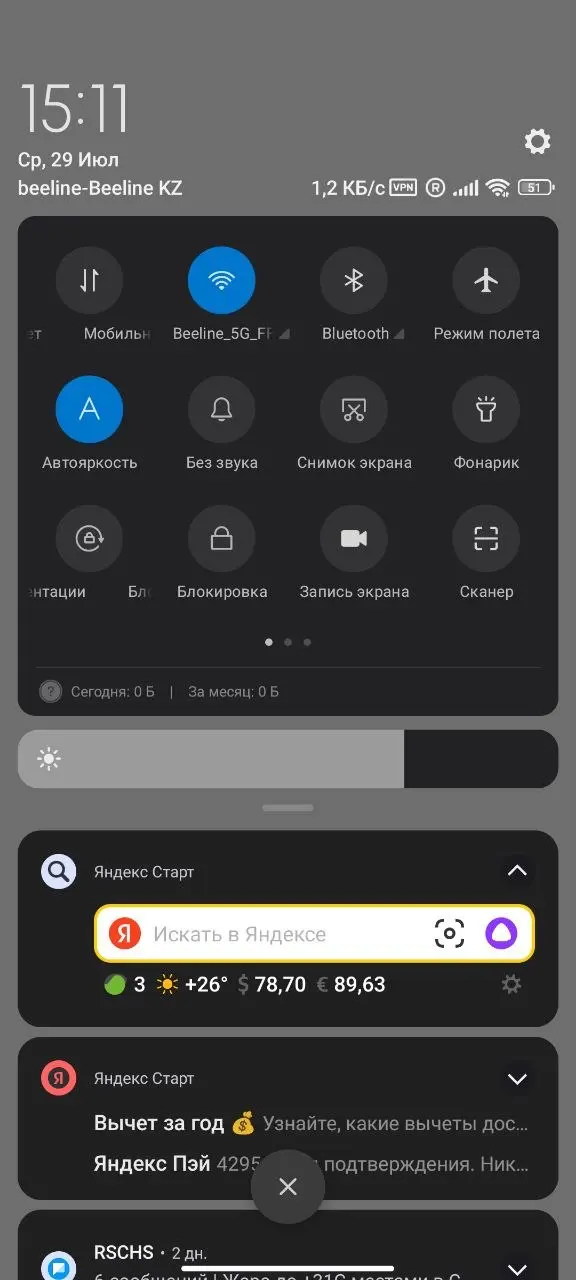
To start a screen recording with audio:
- Open the quick settings panel and tap “Screen Recording.”
- Additional settings will appear before recording begins.
-
Select the audio source:
- No Sound — only the video will be recorded.
- Microphone — records your voice.
- Device audio — records system audio, such as music or games.
- Microphone and device audio — if your smartphone supports this mode.
- Tap “Start Recording” and wait for the countdown to end.
Once finished, the video will automatically be saved to your phone’s gallery.
If there is no sound during recording, make sure the correct audio source is selected. Also, keep in mind that some apps, for security reasons, prohibit recording internal audio or the entire screen, so this feature may not be available in certain cases.
Why Screen Recording Doesn’t Work on Android
If screen recording doesn’t start or doesn’t work properly, the cause is usually related to your phone’s settings or system restrictions. Below are the most common issues and how to resolve them.
No screen recording button
On older versions of Android, built-in screen recording may not be available. If your phone supports this feature, try adding the button by editing the quick settings panel or updating the system to the latest version.
No sound during recording
Before you start recording, check which audio source is selected: microphone, device audio, or both. If you’re recording only from the microphone, system sounds won’t be included in the video.
Black screen in some apps
Some apps, especially banking services and streaming platforms, protect their content from being recorded. In such cases, a black screen may appear instead of the video—this is a restriction of the app, not a phone malfunction.
Recording doesn’t start or stops immediately
Check to see if there is enough free storage space on your device. If storage is nearly full, recording may not start or may stop after a few seconds.
The feature is not available on your phone
If your smartphone is running an older version of Android or the manufacturer hasn’t included a built-in Screen Recorder, use a third-party app from Google Play, such as AZ Screen Recorder or XRecorder.
The Best Screen Recording Apps for Android
If your smartphone doesn’t have a built-in screen recording feature or its capabilities are insufficient, you can use third-party apps. They let you record high-quality videos, stream live, and add audio from the microphone.
AZ Screen Recorder — screen recording with no time limits, support for Full HD and 4K, live streaming, and a built-in video editor.
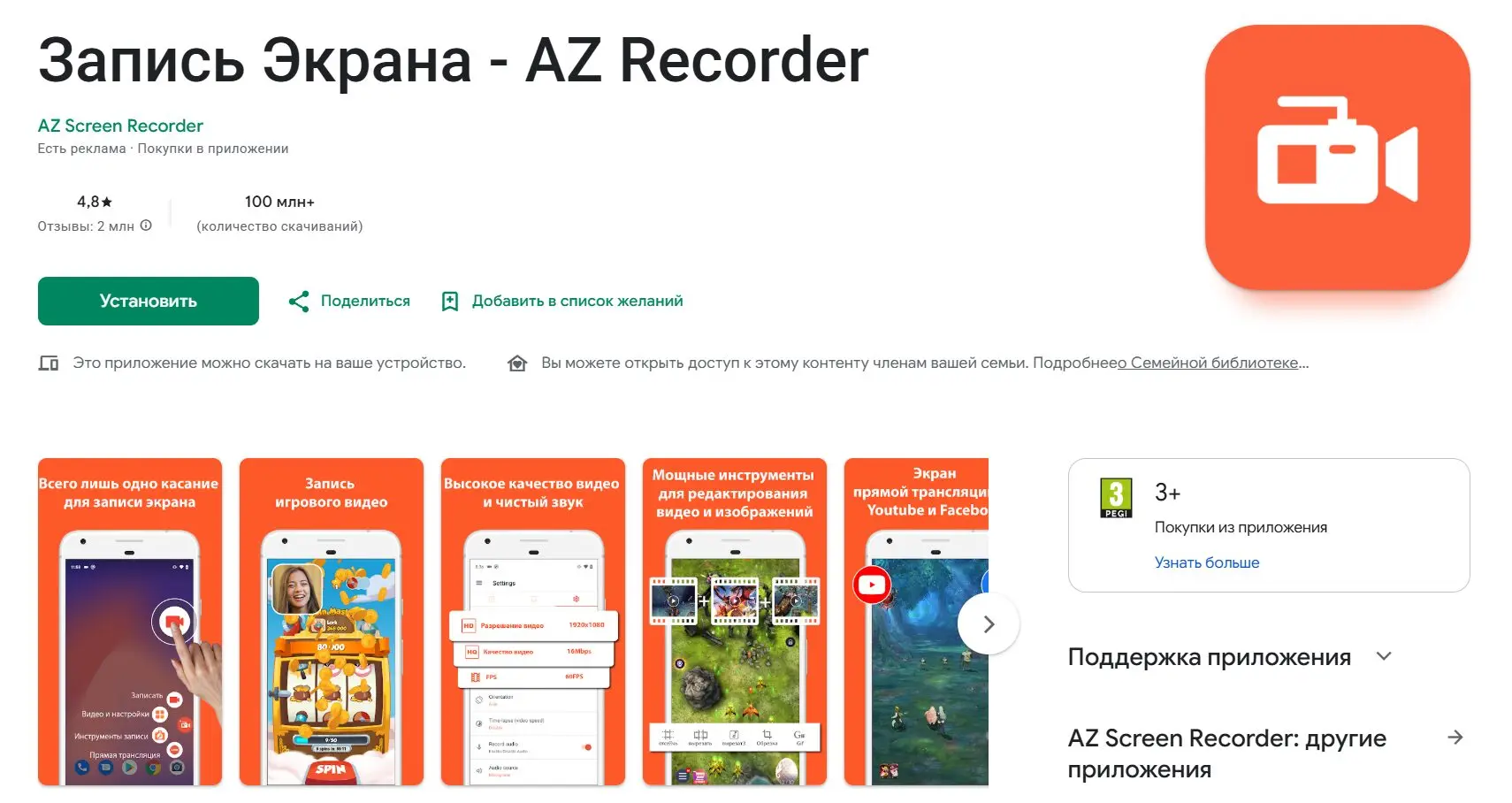
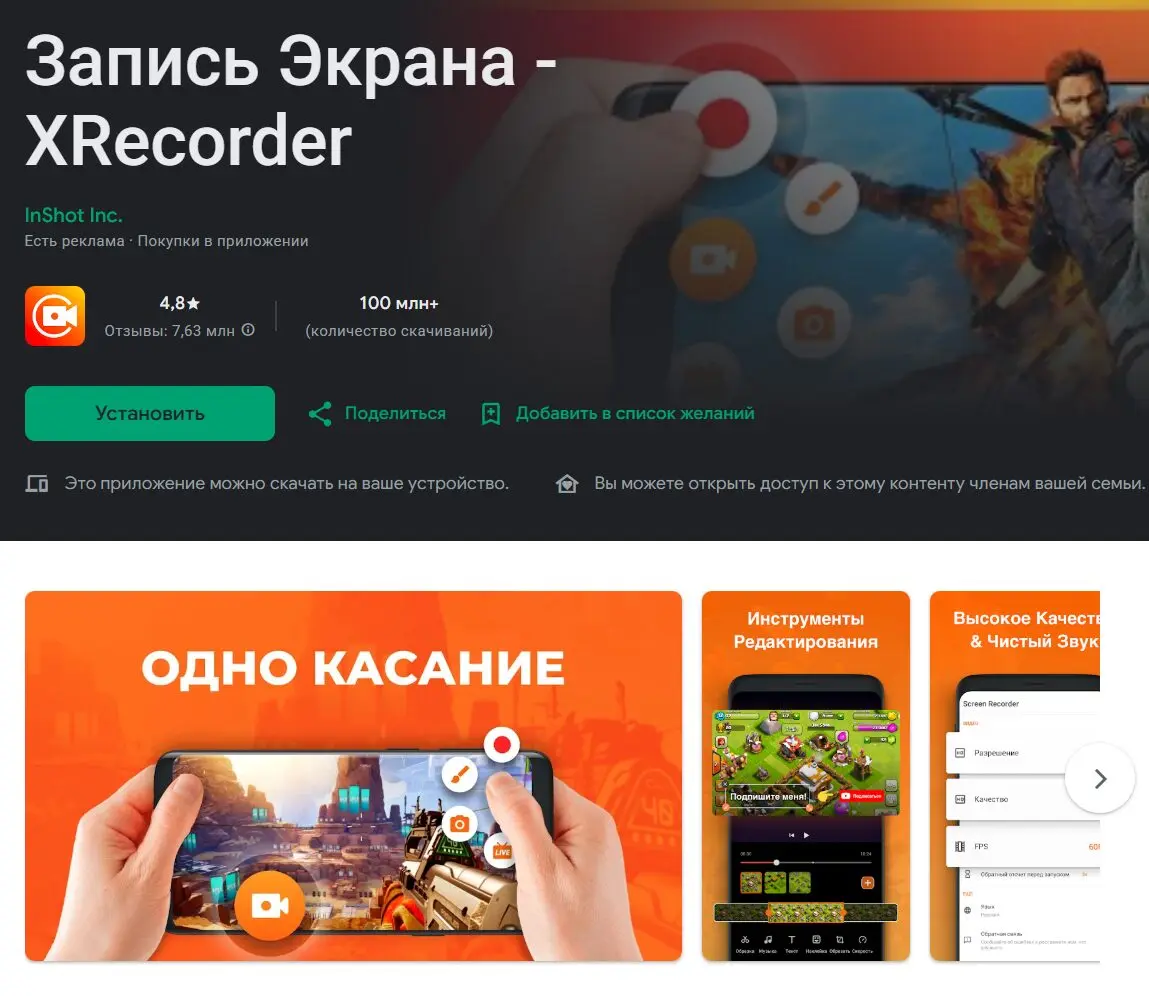
XRecorder — easy to use, watermark-free recording, support for recording games and videos with audio.
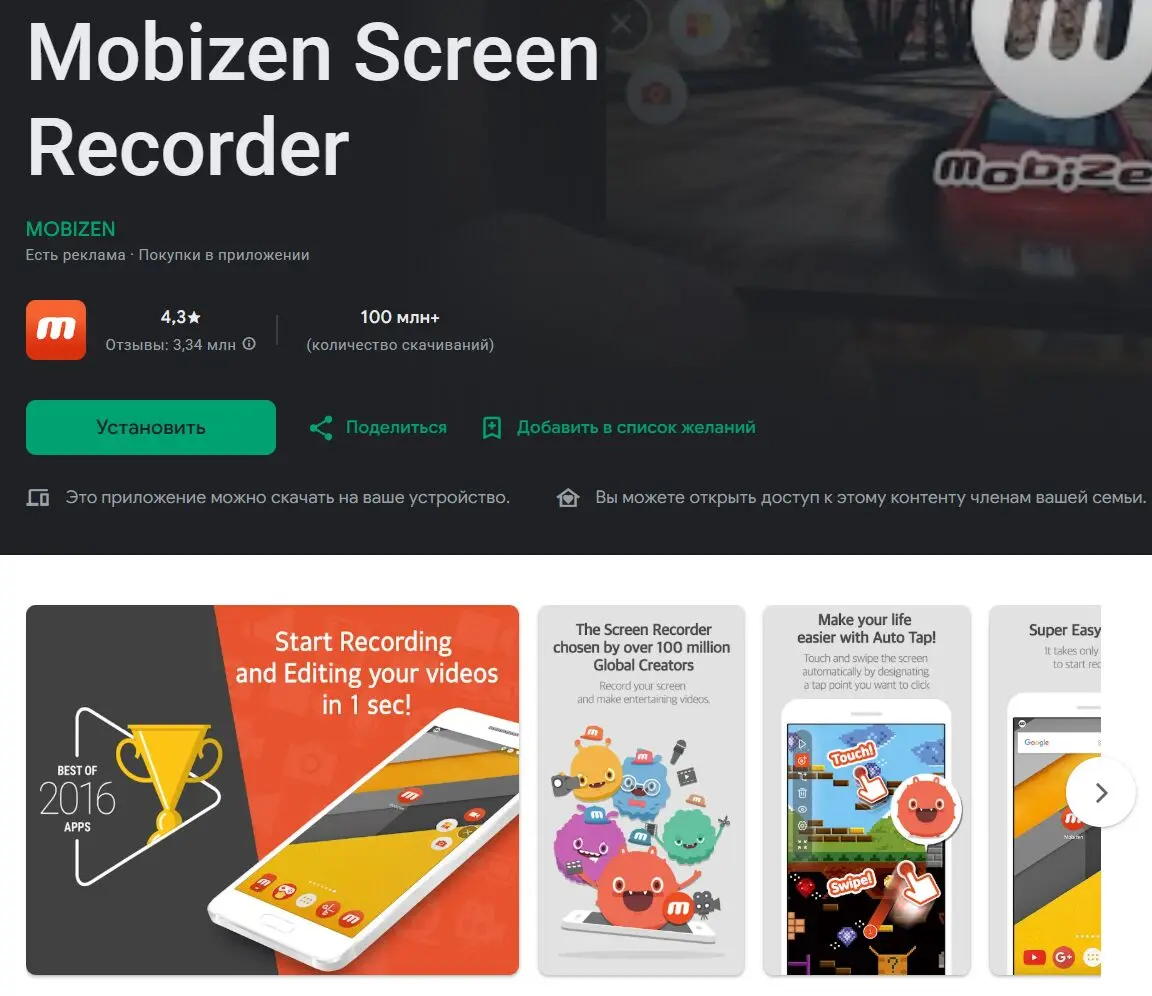
Mobizen Screen Recorder — screen recording with the front-facing camera, tools for editing videos and creating tutorial videos.
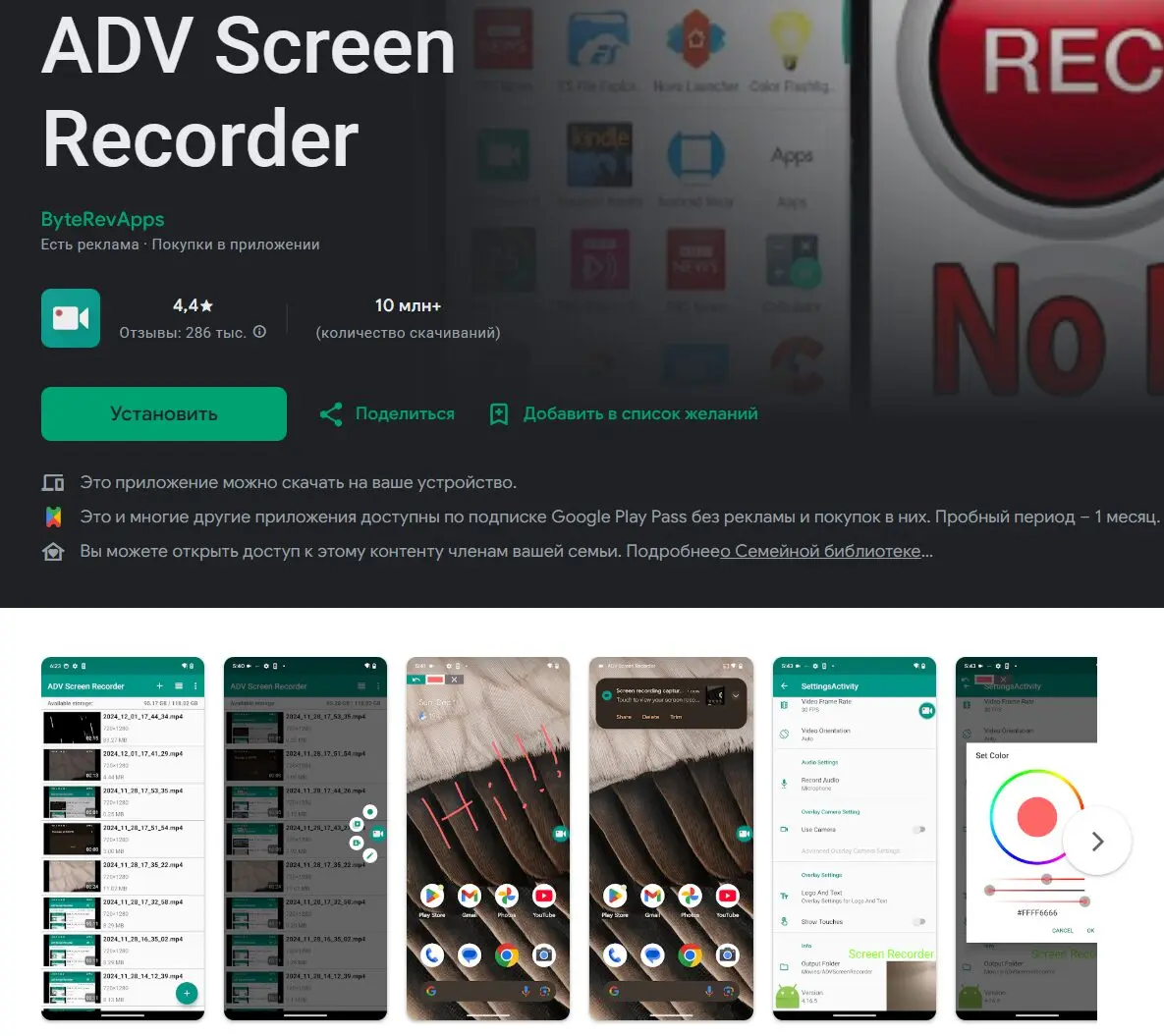
ADV Screen Recorder — lets you draw over the recording, use two cameras, and customize video settings.
Most apps are available for free on Google Play, but some features—such as recording at the highest quality or removing watermarks—may require a paid subscription. Before installing, it’s a good idea to check whether the app supports internal audio recording on your specific version of Android.
Frequently Asked Questions (FAQ)
На большинстве современных смартфонов Android запись экрана уже встроена в систему. Достаточно открыть панель быстрых настроек и нажать кнопку Запись экрана.
Да. Перед началом записи выберите источник звука: микрофон, звук устройства или оба одновременно, если такая возможность поддерживается вашим смартфоном.
После завершения записи видео автоматически сохраняется в приложении Галерея или Google Фото, обычно в папке Screen recordings или Записи экрана.
Некоторые приложения, например банковские сервисы и онлайн-кинотеатры, защищают контент от записи. В таких случаях система блокирует захват изображения.
Если встроенная запись экрана отсутствует, установите одно из приложений из Google Play, например AZ Screen Recorder, XRecorder или Mobizen Screen Recorder. Они позволяют записывать экран даже на устройствах со старыми версиями Android.