Overwatch Errors: Won’t Start, Doesn’t Work, and Loads Indefinitely
Overwatch may freeze while downloading an update, fail to connect to the server, or crash with an error upon launch. Another common issue involves a message about the hardware rendering device. In this guide, we’ll break down the main Overwatch errors and how to fix them.
Overwatch Update Loading Endlessly
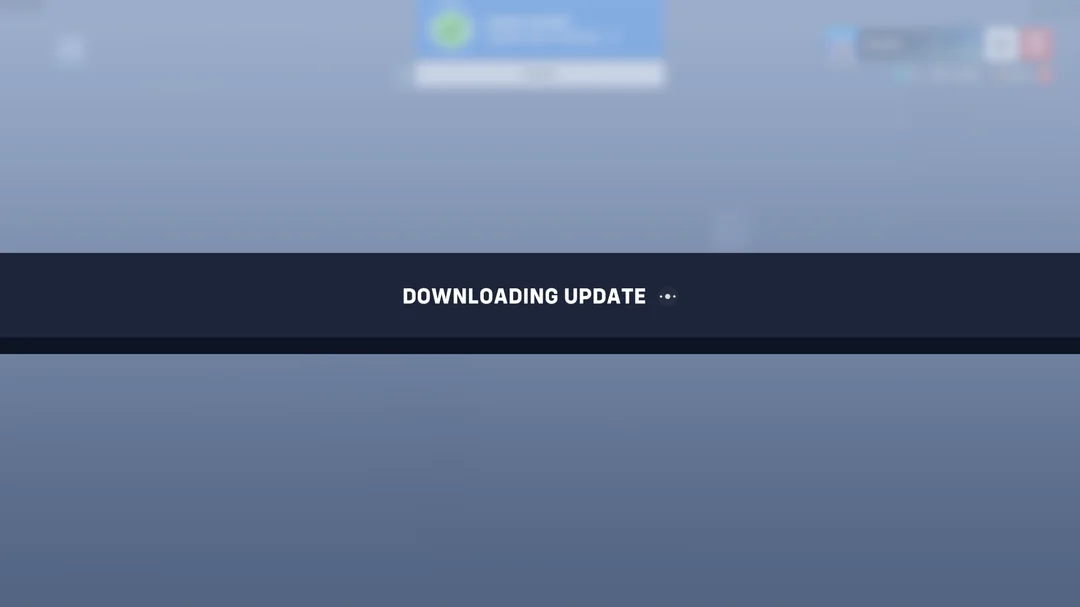
If you’re experiencing an endless Overwatch update download, first completely restart the game client. Open Task Manager, end the Battle.net and Battle.net Update Agent processes, and then relaunch the launcher.
If the Overwatch update is still stuck, try the following solutions:
- Restart your computer and router.
- Check your available disk space.
- In Battle.net, run a verification and repair of your Overwatch files.
- Clear the Battle.net cache. To do this, completely close the launcher and all its processes, then delete the Battle.net, Blizzard, and Blizzard Entertainment folders from %ProgramData% and %LocalAppData%. The client will recreate them when you launch it. This method is also recommended on the Russian-language Blizzard forum.
- In Steam, go to “Properties” > “Installed Files” > “Verify Integrity of Game Files.” If the Overwatch 2 update download still freezes, clear the Steam download cache.
- Try connecting via mobile data or a different network.
For players in Russia, the issue may also be related to the connection to Battle.net services. If the game updates via mobile data but not via your home network, try using an IP-changing program and restart Battle.net.
A full reinstallation of Overwatch should be a last resort: more often than not, an endless Overwatch download is related to the Battle.net Update Agent, the client cache, or your connection, rather than the game installation itself.
Overwatch: Downloading an Update While Playing
Sometimes the Overwatch update starts downloading right after you launch the game: when you enter the training ground or a match, an “Applying Update” screen appears and doesn’t go away for several minutes.
Try the following:
- Restart Overwatch and Battle.net / Steam.
- After launching the game, go to the “Training Grounds” first and wait for the update to apply.
- Check and repair the game files.
- Restart your router or temporarily connect via mobile data.
- If the problem occurs only on your home network, run an IP-changing program, log into Overwatch, and wait for the update to install. You can then disable the IP-changing program.
Don’t jump straight into Competitive mode to test it. If the Overwatch update gets stuck while you’re connecting to a match and you have to close the game, the system may count this as a disconnect and temporarily block you from participating in ranked matches.
Hardware rendering device not found in Overwatch
The “Hardware rendering device not found” error in Overwatch occurs when the game loses access to the graphics card or the graphics driver stops responding. Blizzard has previously addressed this issue with the Windows TDR mechanism, which restarts a frozen graphics driver. Possible causes include a driver failure, overclocking, overheating, software conflicts, or problems with the graphics card itself. Try the following:
- Update your NVIDIA, AMD, or Intel graphics driver.
- If the error occurred after updating the driver, reinstall the previous version.
- Reset the overclocking settings for the graphics card, CPU, and RAM to their default values.
- Check the temperatures of the graphics card and CPU while gaming.
- Close overlays, monitoring programs, and other applications that use the graphics card.
- Reset the game’s graphics settings and temporarily lower the graphics quality.
- If a standard driver reinstallation did not help, perform a clean install by completely removing the previous driver.
An Overwatch hardware rendering error doesn’t necessarily mean your graphics card is broken. It can also occur on functioning devices due to a specific driver version. However, if you simultaneously experience artifacts, a black screen, or similar crashes in other games, you should check your graphics card, its power supply, and temperatures.
Overwatch Errors
Overwatch errors can occur when launching the game, updating it, or connecting to servers. Some issues are related to game files and drivers, while others stem from Blizzard or connection problems.
| Problem | What to Do |
| Update Loading Endlessly | Restart Battle.net or Steam, verify the game files, and clear the client cache. |
| Update downloading in-game | Restart the game, go to the Training Ground, and wait for the update to apply. |
| No graphics hardware detected | Update or roll back your graphics card driver, disable overclocking, and check temperatures. |
| Overwatch won't launch | Verify the game files, update your drivers, and close any conflicting programs. |
| Overwatch was unable to connect to the server | Check Blizzard's servers, restart your router, and try a different network. |
| Overwatch isn't working on your home internet | Try playing the game over a mobile network and, if necessary, use an IP-changing program. |
| The game crashes without an error message | Check your graphics card driver, game files, overlays, and background apps. |
| Error when launching Overwatch | Restart the client, verify the game files, and make sure your antivirus isn't blocking the game. |
Frequently Asked Questions (FAQ)
Проверьте файлы игры, обновите драйверы и закройте конфликтующие фоновые программы.
Перезапустите Battle.net или Steam, очистите кэш клиента и проверьте файлы игры.
Ошибка обычно связана со сбоем видеодрайвера, разгоном, перегревом или конфликтом программ.
Проверьте серверы Blizzard, перезапустите роутер и попробуйте другую сеть или программу для смены IP.
Игра в России работает, но у некоторых пользователей возникают проблемы с подключением к сервисам Battle.net. В таком случае попробуйте мобильный интернет или программу для смены IP.