Fortnite Settings: Best Settings, Settings for Low-End PCs, Settings for Esports, and More

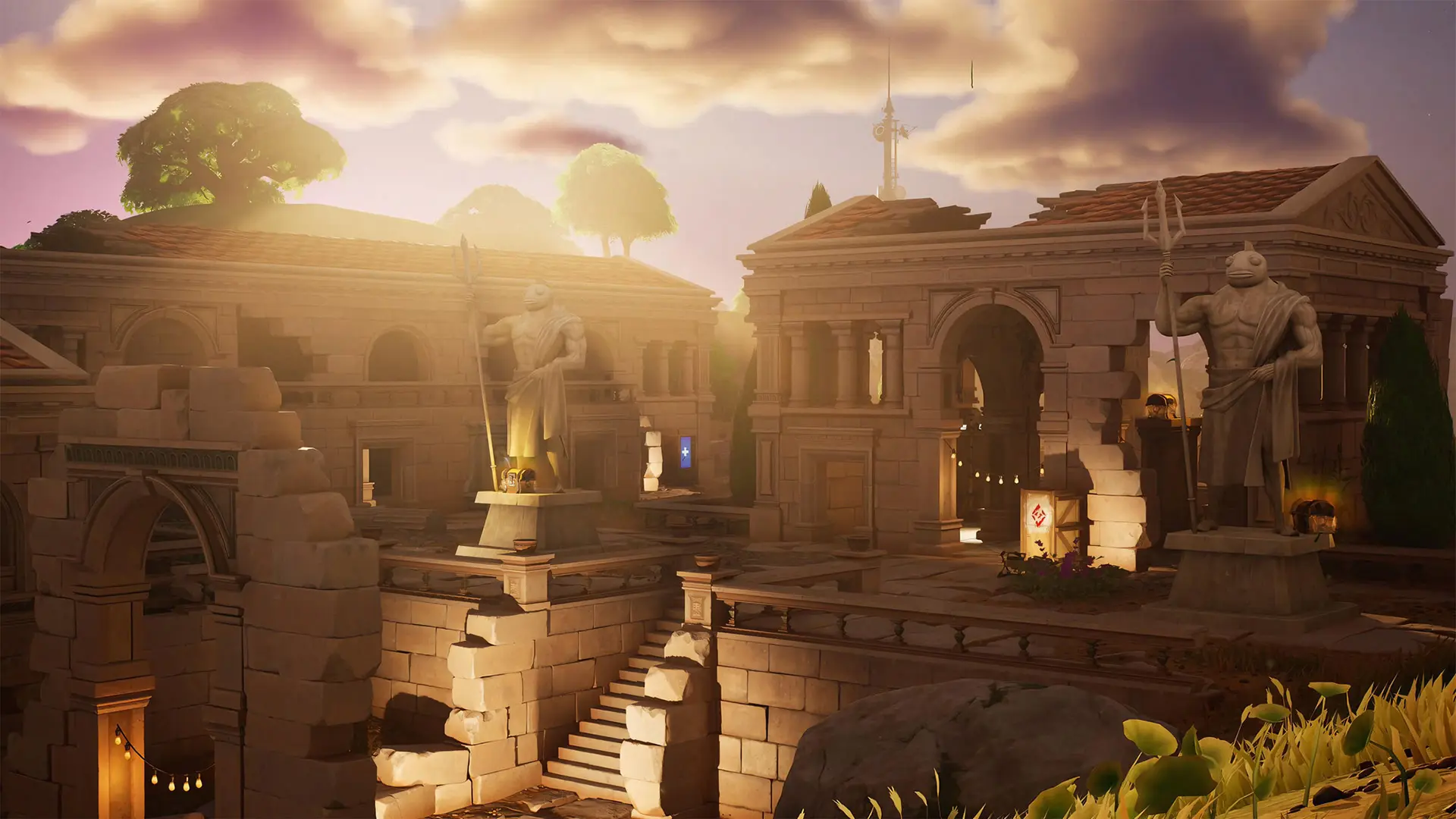
The right Fortnite settings can significantly boost your FPS, reduce lag, and make the game more enjoyable. Some players want beautiful graphics, while others prioritize maximum performance for ranked matches. In this article, we’ll break down the best Fortnite settings, options for low-end PCs, and the configurations used by many professional players.
Best Fortnite Settings for 2026
Most players prefer a balance between good visuals and high FPS. If your computer meets the recommended system requirements, you can use the following settings:
- Window Mode: Full Screen;
- Frame rate limit: set to your monitor’s refresh rate;
- Rendering mode: DirectX 12;
- 3D Resolution: 100%;
- Draw Distance: Medium or High;
- Shadows: Off;
- Anti-aliasing and super-resolution: TSR Medium or DLSS Quality;
- Textures: Medium;
- Effects: Low;
- Post-processing: Low;
- Motion Blur: Off;
- NVIDIA Reflex: On + Boost.
These Fortnite settings allow you to maintain a consistently high FPS without significantly compromising image quality.
Fortnite Settings for Esports and FPS
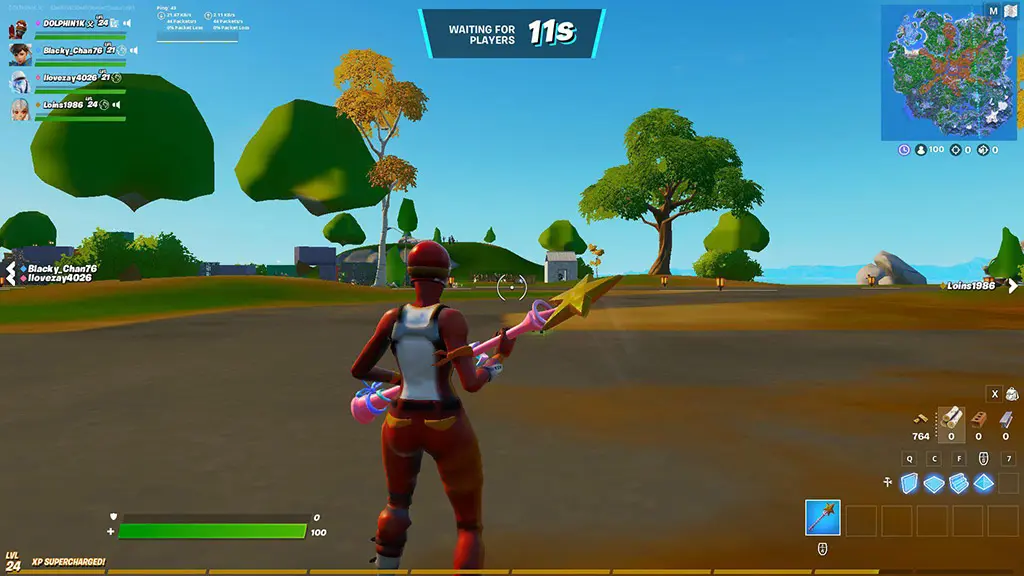
If the goal is to maximize performance at 120 frames per second or higher, most professional players sacrifice all graphical effects in favor of minimal input lag and maximum smoothness. That’s why Fortnite settings for esports are pretty straightforward:
- Window Mode: Full Screen;
- Frame Rate Limit: No limit or limited to the monitor’s refresh rate;
- Render Mode: Performance Mode;
- 3D Resolution: 100%;
- Draw Distance: Medium or Far;
- Shadows: Off;
- Textures: Low;
- Effects: Low;
- Post-processing: Low;
- Motion Blur: Off;
- V-Sync: Off;
- NVIDIA Reflex: On + Boost.
These settings help you achieve the most stable FPS, spot enemies faster, and reduce input lag. Even on powerful computers, esports players rarely play with maximum settings, since they prioritize performance over graphics.
Fortnite Settings for a Weak PC
If your computer struggles to run Fortnite, you can safely use almost the same settings as those for esports. The main goal is to achieve a stable FPS and eliminate frame drops. To do this, it’s best to enable Performance Mode and disable all additional graphical effects.
The only difference from esports settings is that on very low-end PCs, you sometimes need to further reduce the 3D resolution to 70–90% and set the draw distance to medium or even near. The image will be less sharp, but the game will run noticeably smoother, which is usually more important for competitive matches than beautiful graphics.
PC Settings for Fortnite
Even perfect graphics settings won’t help if your PC isn’t running optimally. Before launching Fortnite, you should update your graphics card drivers, install the latest Windows updates, and, if possible, run the game from an SSD, as this significantly reduces load times and minimizes the likelihood of lag.
It’s also a good idea to close any unnecessary background programs, especially browsers, video recording software, and other applications that consume RAM and CPU resources. If your FPS becomes unstable after updating the game, clearing the DirectX cache or reinstalling your graphics card driver can sometimes help. A few minutes spent optimizing your PC for Fortnite often yields a greater performance boost than lowering graphics settings to the minimum.
Frequently Asked Questions (FAQ)
Наибольший прирост ФПС обычно даёт режим производительности, отключение теней и снижение качества эффектов и постобработки.
Большинство киберспортсменов играет с минимальными настройками графики и режимом производительности. Это позволяет получить максимальный FPS и уменьшить задержку ввода.
Для слабых компьютеров рекомендуется использовать те же настройки, что и для киберспорта: режим производительности, низкую графику и при необходимости уменьшенное разрешение 3D.
Если у вас современный мощный компьютер, можно использовать DirectX 12 для более красивой картинки. Для старых и слабых ПК обычно лучше подходит режим производительности, который обеспечивает более высокий и стабильный FPS.
Эти технологии значительно улучшают качество изображения, но заметно снижают производительность. Для соревновательной игры и слабых ПК их обычно рекомендуют отключать.
Падение производительности может быть связано с включением тяжелых графических эффектов, устаревшими драйверами или проблемами после обновления игры. В таком случае стоит вернуться к предыдущим настройкам или попробовать режим производительности.
Универсальных настроек для Фортнайт не существует. Если вам важна плавная игра, нужно снизить графические настройки на пару уровней. Если вы предпочитаете качество картинки, то придётся пожертвовать fps.